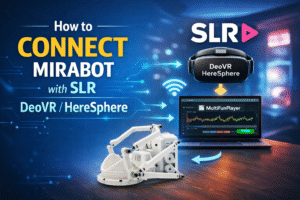
If you’re trying to use SexLikeReal (SLR) with your MiraBot device, you may have noticed that the setup isn’t exactly plug-and-play.
That’s because SLR doesn’t directly control devices like MiraBot or OSR. Instead, it relies on an intermediate software layer.
In this guide, we’ll walk you through the correct and proven setup using:
- DeoVR or HereSphere (video player)
- MultiFunPlayer (MFP)
- MiraBot device (WiFi or USB)
We’ll also cover the most common issues and how to fix them.
🔧 How the System Actually Works
Before setting things up, it’s important to understand the architecture:
SLR Video
   ↓
DeoVR / HereSphere (Player)
   ↓ (Time Sync)
MultiFunPlayer (MFP)
   ↓ (Motion Output)
MiraBot Device
👉 Key point:
SLR does NOT directly control your device.
It only provides video + script. MFP handles the synchronization.
✅ Requirements (Must-Have)
Before you start, make sure:
- ✔ You have an SLR account with script streaming access
(Video-only subscription is NOT enough) - ✔ Your MiraBot is:
- Powered on
- Connected via WiFi or USB
- Recognized by your system
- ✔ MultiFunPlayer is installed (latest version recommended)
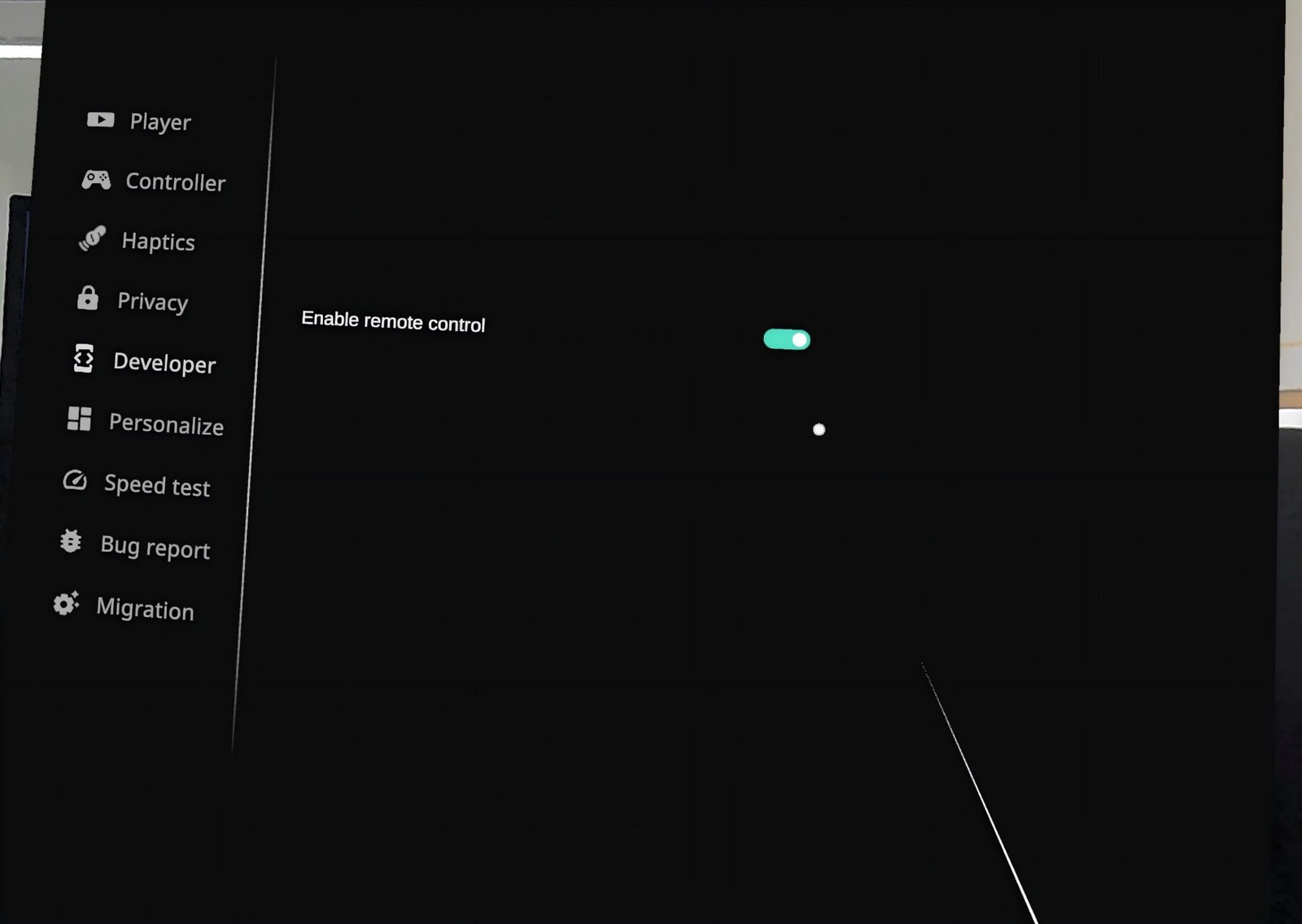
🧩 Step 1: Enable Remote Control in DeoVR / HereSphere
To allow MFP to sync with the player:
In DeoVR / HereSphere:
- Enable:
- Remote Control
- or Remote Server / Web API
👉 Without this, MFP cannot receive playback timing.
🧩 Step 2: Connect Player to MultiFunPlayer
In MFP:
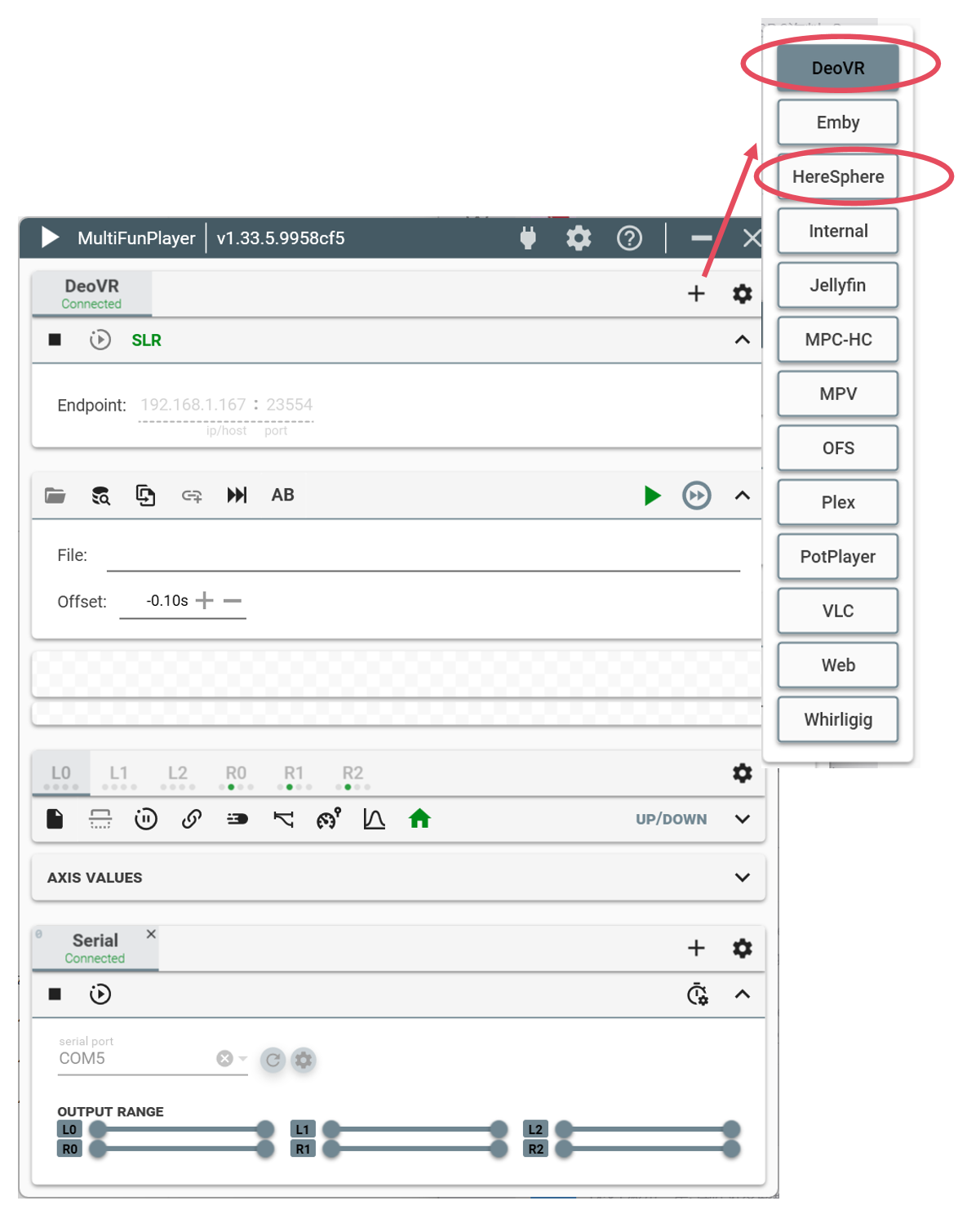
- Click “+” (Add Source)
- Select:
- DeoVR
or - HereSphere
- DeoVR
- Click Connect
✅ Success indicator:
- Status shows Connected
🧩 Step 3: Connect SLR Account in MFP (Critical Step)
This is where many users make mistakes.
👉 SLR is NOT automatically connected.
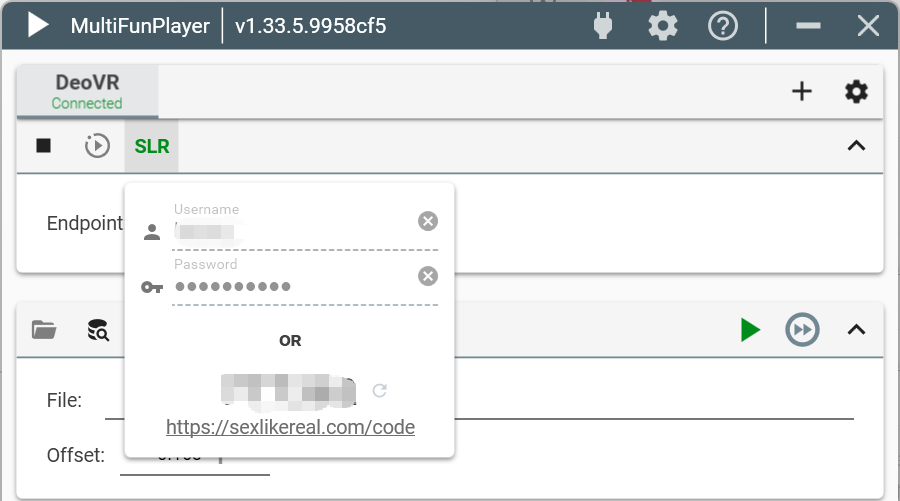
In MFP:
- Open the DeoVR / HereSphere source settings
- Enter:
- SLR username
- SLR password
- Click connect
✅ Success indicator:
- SLR button turns GREEN
🧩 Step 4: Connect MiraBot to MFP
Depending on your connection type:
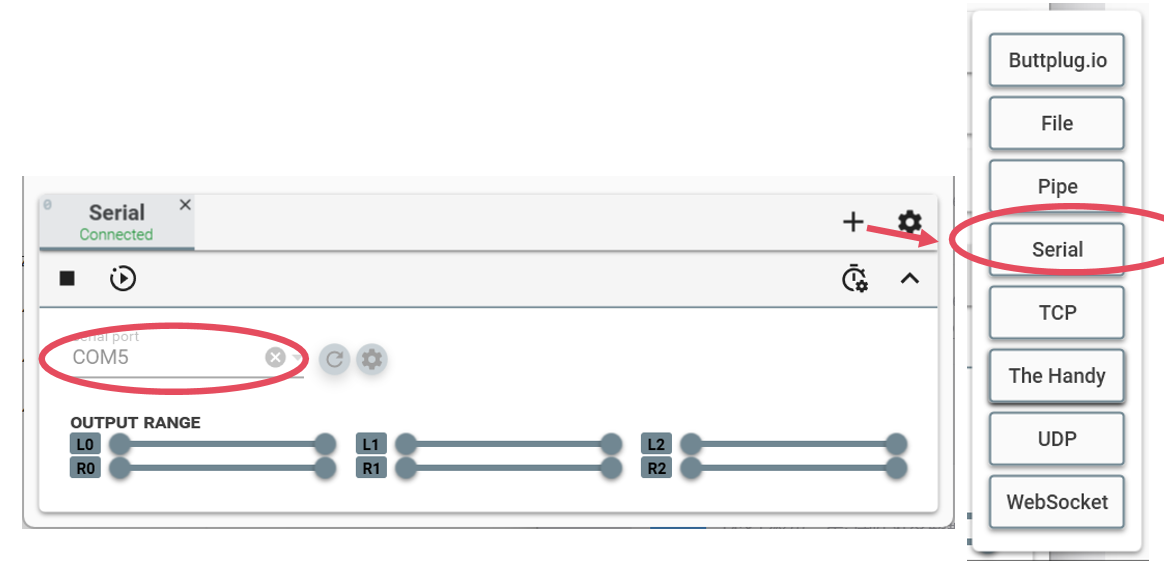
🔌 Option A: USB (Serial)
- Select Serial Output
- Choose correct COM port
- Baud rate: typically 115200
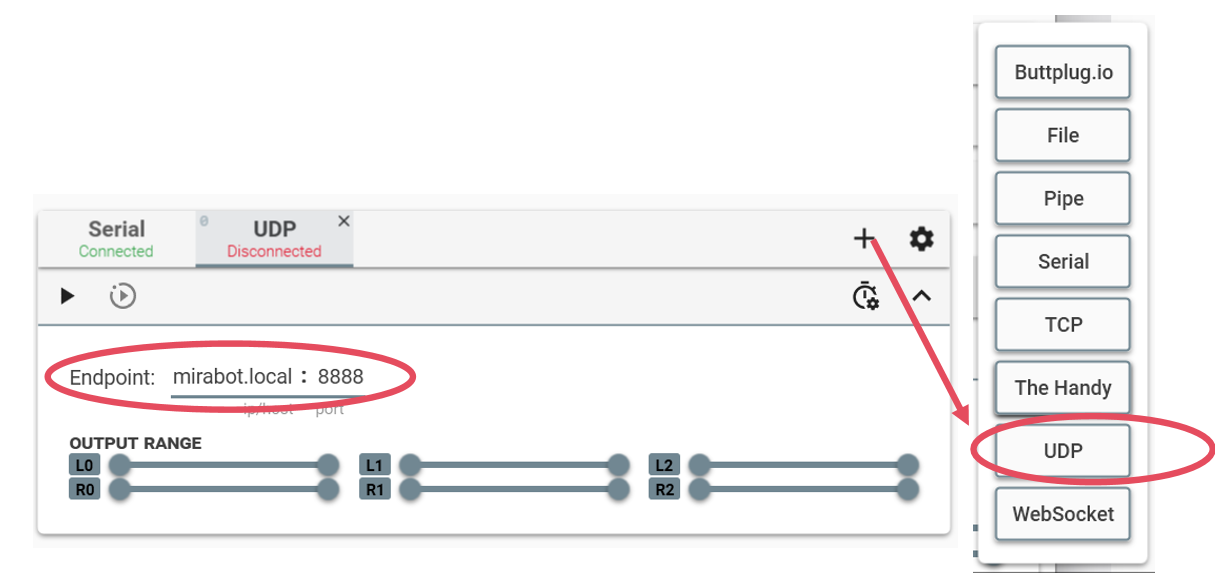
📡 Option B: WiFi (Recommended)
- Select:
- UDP or compatible protocol
- Enter:
- MiraBot host name: mirabot.local
- Correct port (must match firmware settings)
✅ Success indicator:
- Output shows Connected
🧩 Step 5: Start Playback
Now:
- Open an SLR video in DeoVR / HereSphere
- Start playback
MFP will:
- Receive timeline from player
- Fetch script from SLR
- Send motion commands to MiraBot
🔍 Quick Test (Highly Recommended)
Before troubleshooting anything:
👉 In MFP:
- Stop video
- Manually drag Stroke (L0 axis)
Result:
| Result | Meaning |
|---|---|
| Device moves | Setup is correct |
| No movement | Output or connection issue |
⚠️ Common Problems & Fixes
❌ Problem 1: Video plays normally, but no motion is triggered
Possible causes:
- Your SLR account does not include script streaming access
- SLR is not properly connected or logged in within MFP
(SLR button is not green) - Network or firewall settings are blocking MFP from accessing SLR
Symptoms:
- Video plays, but device does not move
- MFP does not show active script data
- Or MFP behaves like it’s searching local scripts
Fix:
- Ensure your subscription includes script streaming (not video-only)
- Re-enter your SLR login credentials in MFP
- Confirm the SLR status turns green
- Check firewall, VPN, or network restrictions
❌ Problem 2: MFP only loads local scripts instead of SLR scripts
Symptoms:
- MFP displays behavior like: “it looks like it is searching local script directories”
Cause:
- SLR is not successfully connected or authenticated
- MFP falls back to local script search when SLR fails
Fix:
- Verify SLR login inside MFP (not automatic via DeoVR)
- Ensure network access to SLR is not blocked
❌ Problem 3: DeoVR / HereSphere is connected, but SLR is not
Symptoms:
- DeoVR / HereSphere shows Connected
- But SLR remains disconnected
Cause:
- SLR authentication is a separate step and not linked to the player connection
Fix:
- Open the player source settings in MFP
- Manually enter your SLR account credentials
- Confirm SLR status turns green
🧠 Simplified Diagnosis
Most issues above come down to one of these three root causes:
- No script access (subscription issue)
- SLR not properly connected in MFP
- Network blocking SLR communication
🚀 Final Thoughts
The MFP + SLR setup is powerful—but also complex.
It involves:
- Multiple software layers
- Manual configuration
- Frequent troubleshooting
For many users, this becomes the biggest barrier to getting started.
If you prefer a simpler experience, newer solutions like MiraPlay AiO are designed to reduce this complexity by integrating playback and control into a single system.