
What is MiraPlay AiO?
MiraPlay AiO is our all-in-one control platform designed specifically for multi-axis interactive robots such as MiraBot and other OSR-based devices.
But it’s far more than a controller — it turns your smartphone into the brain of the entire system, allowing your device and robot to operate as one intelligent, integrated unit.
Traditionally, advanced interactive features like multi-axis motion, VR video sync, or real-time control required a powerful PC or even a dedicated VR headset to work properly.
MiraPlay AiO completely removes those requirements.
With MiraPlay AiO, your phone becomes a standalone interactive hub capable of delivering features such as:
- 2D / 3D / VR video synchronization
- Gyro-based gesture control
- Internet remote play
- Multi-axis motion enhancement
- And many more features built entirely for mobile
Everything runs directly on your smartphone — no computer, no VR device, no extra setup needed.
This brings high-precision multi-axis control and immersive interaction into a portable, effortless, and truly next-generation experience.
MiraPlay AiO redefines what mobile interactive robotics can be, delivering desktop-class capability in the simplest form possible.

Compatible Devices
MiraPlay AiO works with the following devices:
・MiraBot Series (MiraBot Lite / S6 / S2+)
Connect via Bluetooth LE or Wi-Fi (UDP), depending on the firmware version installed on your device.
・Standard OSR Devices (Third-party / DIY)
Devices equipped with a standard ESP32 controller can connect via their native Wi-Fi (UDP) implementation.
Alternatively, by flashing MiraBot Firmware, these devices can achieve seamless compatibility with MiraPlay AiO.
How to Download & Install
- iOS: Search for “MiraPlay AiO” on the App Store.
- Android: Search for “MiraPlay AiO” on Google Play.
Note: If the app is not available in your region, you can switch your Apple ID region (e.g., USA) to download it on iOS, or simply install it directly via the APK file on Android. (Download the APK here)
Main Features
1. Account Registration & Login
Sign up or log in using an email address, Google account, or Apple ID (iOS).
All communication is encrypted, and the app has passed both App Store and Google Play review standards. Your data and device safety are fully protected,
2. Device Connection
After logging in, you will see the Device List screen. If this is your first time connecting a device, tap “Add New Device.”
The app supports connecting the following two types of devices. Please follow the corresponding setup wizard for configuration.
① MiraBot
This category includes MiraBot S6, Lite, S2+, as well as OSR devices flashed with MiraBot firmware.
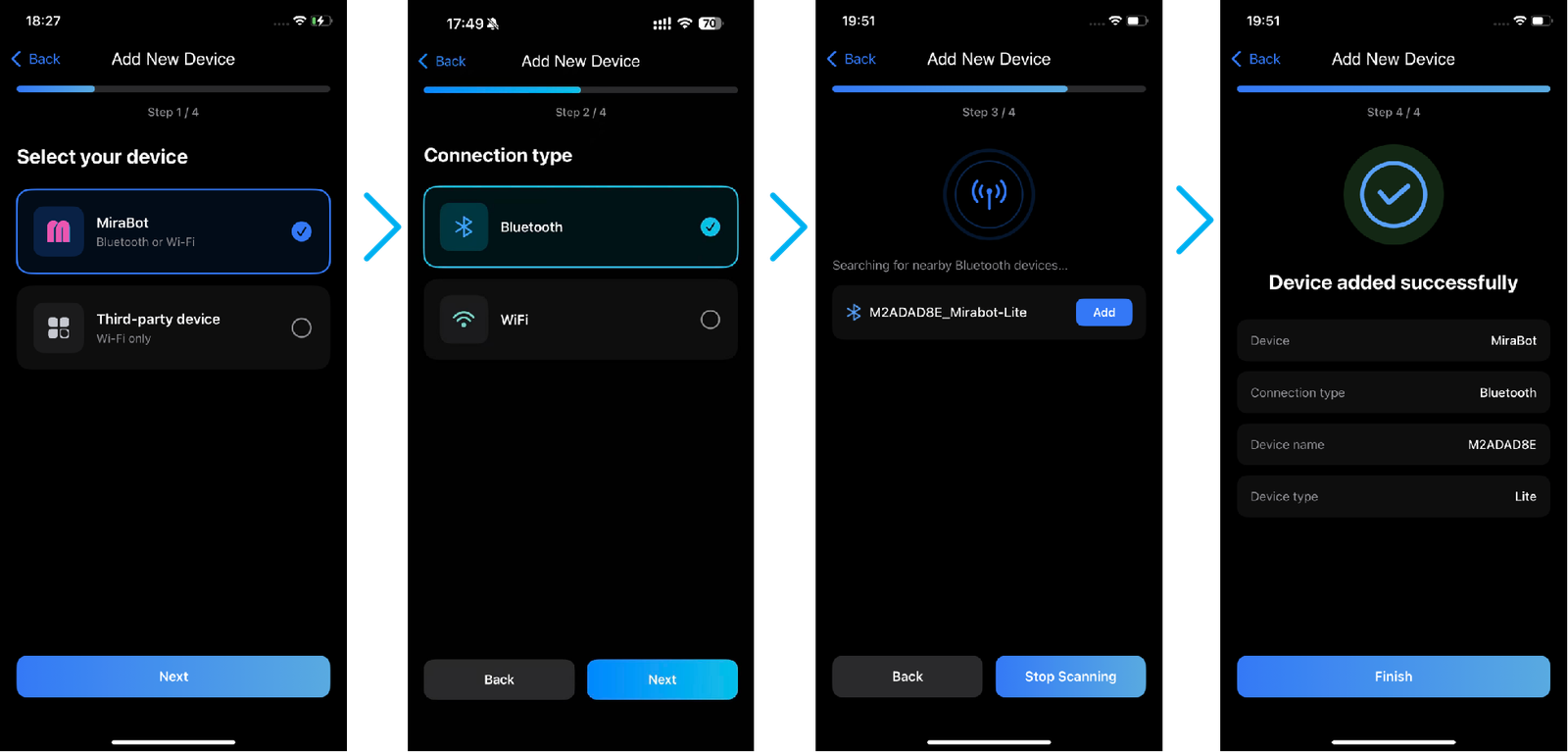
Depending on your firmware version (Bluetooth or Wi-Fi), you can choose either Bluetooth connection or Wi-Fi connection, then follow the on-screen setup wizard to complete the configuration. The process can be referenced in the images below.
[Bluetooth Version]
[Wi-Fi Version]
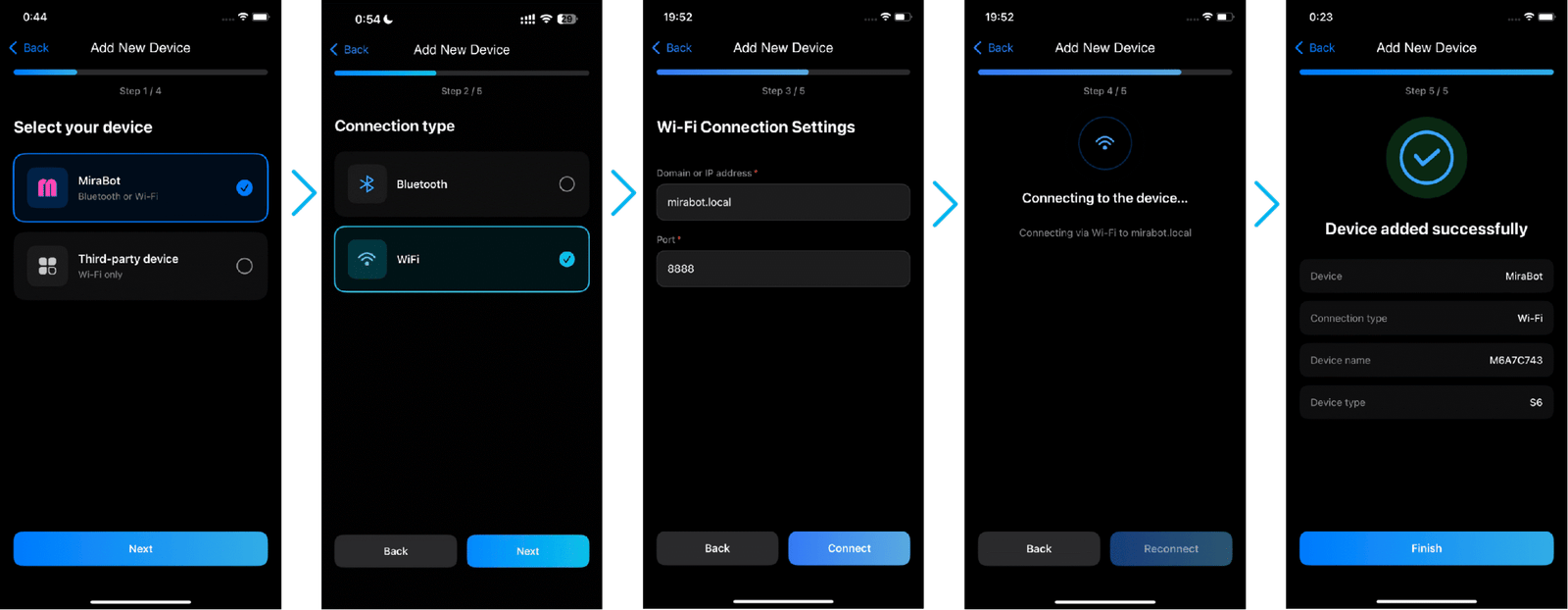
Note:
- Unless you have specific requirements, keep the domain and port settings at their default values.
- Make sure your phone and the device are connected to the same WiFi network.
② Third-Party Device
This option is for OSR devices that support Wi-Fi connectivity. MiraBot firmware is not required.
Please follow the connection process shown in the image below.
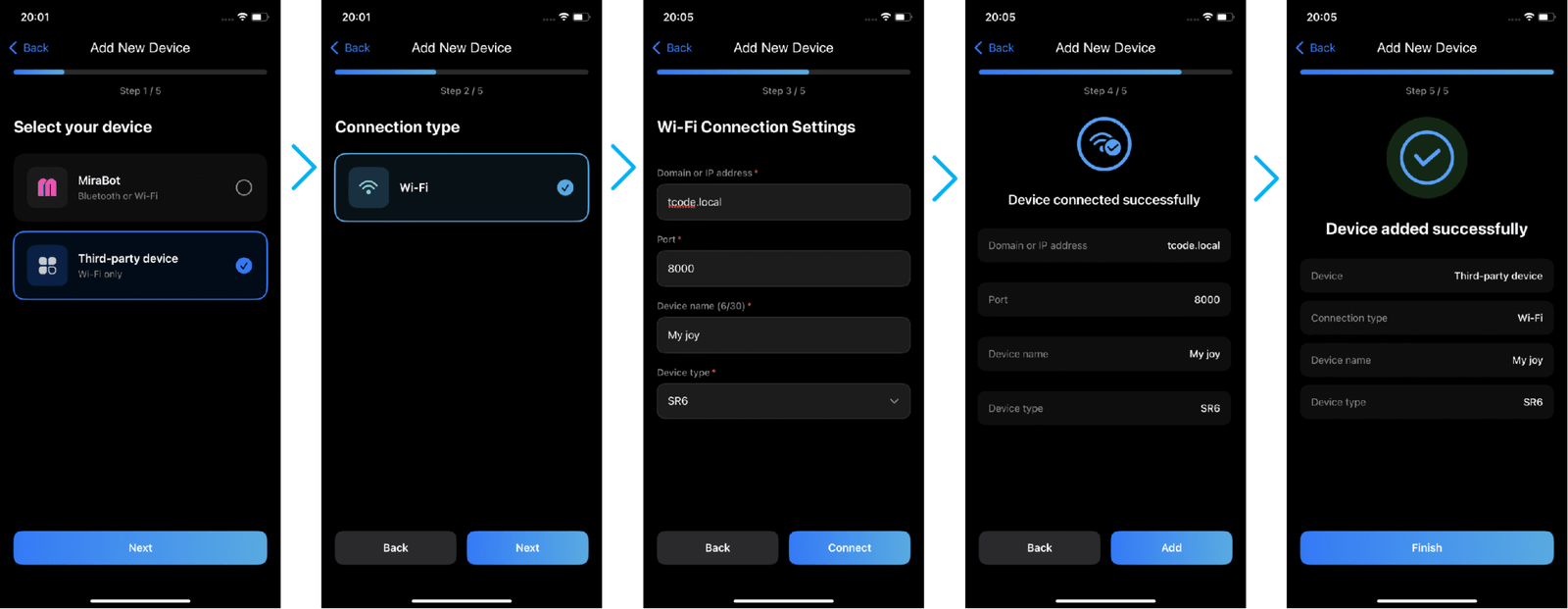
Note: The domain (or IP address) and port must be confirmed by yourself. The device name can be entered freely.
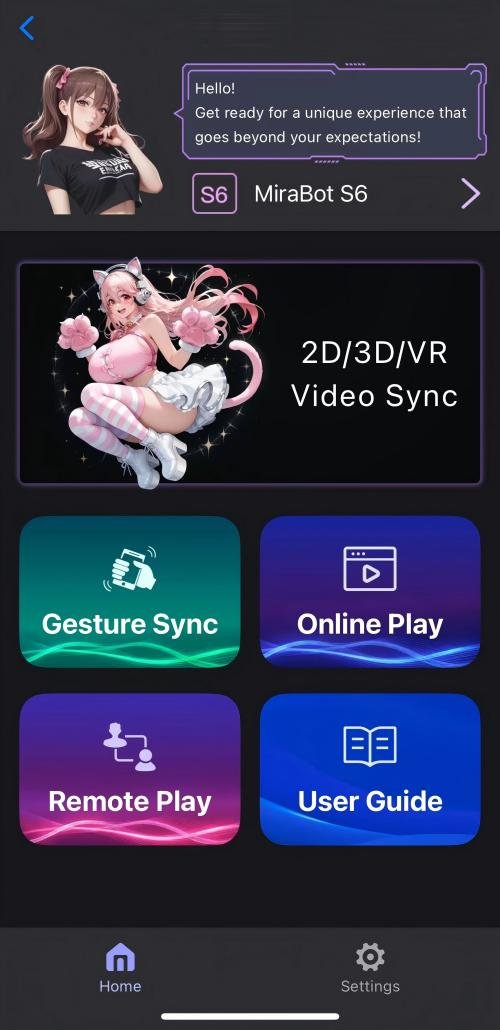
Once a device is registered, tapping it will take you to the Home screen.
3. Home Screen (Feature Selection)
From the Home menu, you can access:
- Video Sync
- Gesture Sync
- Online Play
- Remote Play
4. Video Sync
A built-in player that synchronizes videos with Funscript files for seamless interactive playback.
Supports 2D, 3D (SBS), VR videos, and 2D→3D auto conversion, with full multi-axis reproduction — up to 6 axes of motion: Stroke / Roll / Pitch / Surge / Sway / Twist.
Operation Demo ↓↓↓
▶ Adding Files
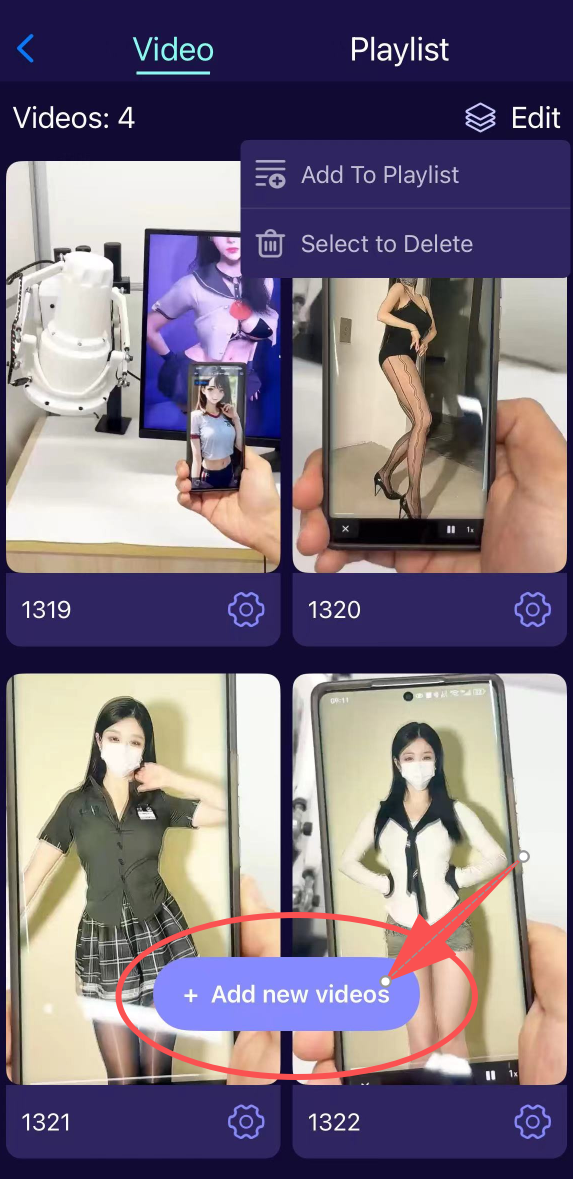
You can add videos to MiraPlay AiO using two methods:
- FTP Transfer:
Connect from a PC on the same LAN by entering the IP address shown in the app.
Upload your videos and Funscript files directly through the FTP interface.
Once uploaded, the files will automatically appear inside the app. - Local Import:
Import videos directly from your phone’s gallery or file folders.
Funscript files can be assigned using the ⚙ Settings icon.
Playback timing offset can be fine-tuned in 0.01-second increments for perfect synchronization.
▶ Playlist Management
Organize your videos into fully customizable playlist folders.
Playlists can be edited or deleted from the Edit tab.
Deleting a playlist does not delete the videos themselves.
5. Gesture Sync
Gesture Sync turns your smartphone into a real-time motion controller, letting you control MiraBot/OSR just by tilting, rotating, or swiping your phone.
Depending on how deeply you want to control the robot, MiraPlay offersthree different modes.
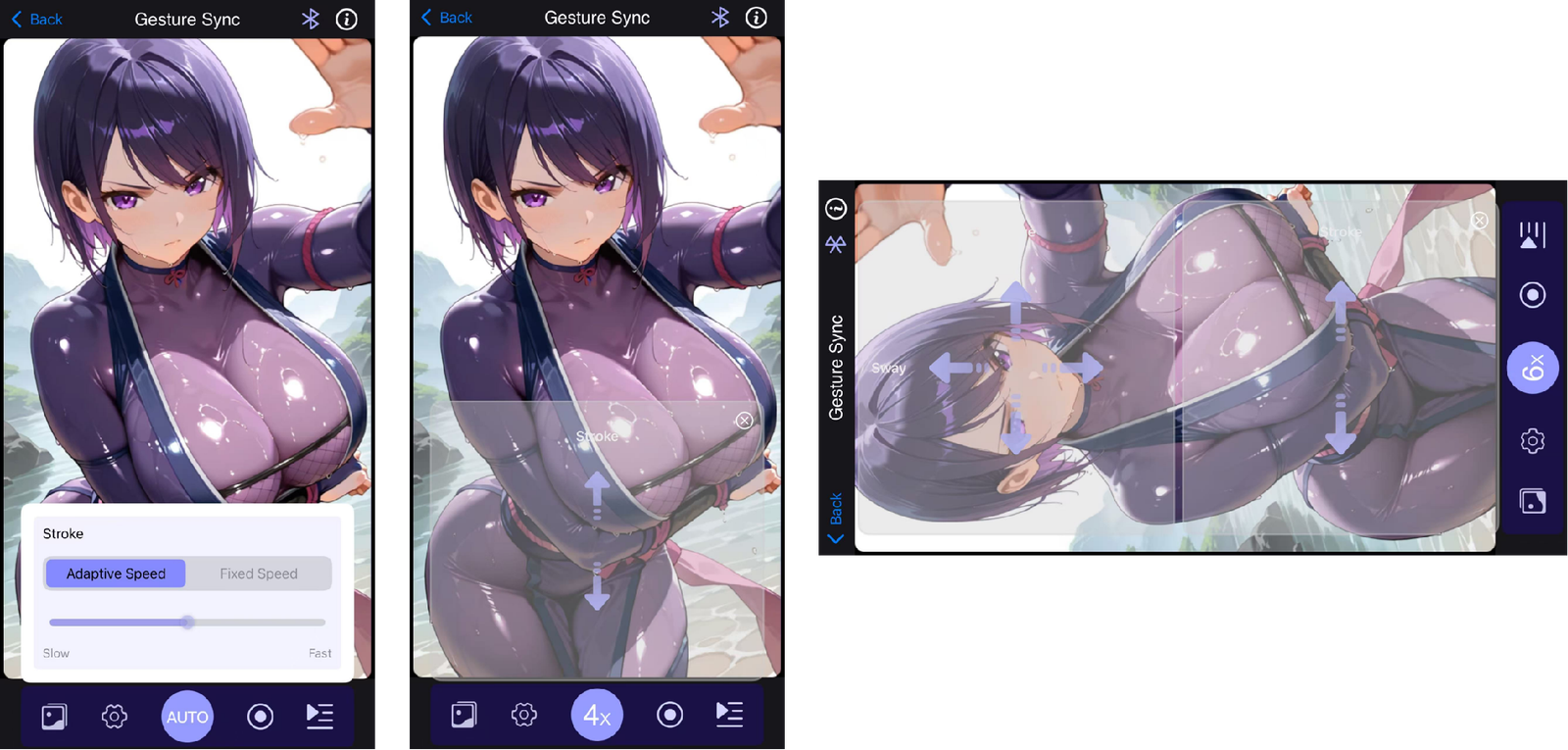
✅Auto Mode — One-Hand Control, Effortless & Intuitive
Auto Mode is designed for casual, single-hand, highly intuitive control.
• Pitch / Roll → Tilt the phone forward/back or left/right
• Twist → Rotate your phone
• Strokehas two options:
- Auto— Speed automatically adjusts based on the phone’s shaking intensity (gyro speed)
- Fixed Speed— Set a constant stroke speed using a slider
Perfect for casual, effortless control — a simple one-handed mode that doesn’t require intense focus.
📌Pros:
- Super easy, works with one hand
- Natural and playful
📌Cons:
- Stroke cannot be “shaped” in real time (only speed can change)
✅4x Mode — Full Real-Time Control Including Stroke
In 4x Mode, the phone becomes aprecision controllerwhile keeping the same intuitive gyro controls for Pitch / Roll / Twist.
• Pitch / Roll / Twist → Controlled exactly like Auto Mode (via Gyro)
• Stroke → Controlled by finger swipes on a touchscreen zone
Swipe Up/Down = real-time stroke movement
This gives you full manual stroke paths in real time.
📌Pros:
- Truereal-time controlof all 4 axes
- More accurate than Auto Mode
📌Cons:
- Slightly harder to use with one hand
✅6x Mode — Full 6-Axis Mastery (MiraBot S6 / SR6 Only)
6x Mode adds a second touch zone for controllingSurgeandSway, giving you complete 6-axis freedom.
• Stroke + Pitch + Roll + Twist → Same controls as 4x Mode
• Surge / Sway → Controlled by swiping in a second touch area
This mode requires landscape orientation and two-hand operation—similar to using a game controller.
📌Pros:
- Most powerful mode; full 6-axis precision
- Easier to control with two hands (gamepad-like)
📌Cons:
- Harder to operate while “playing”
Additional Gesture Sync Features

🖼️Gallery
A built-in gallery of background images (updated periodically).
You can download and set custom character backgrounds, and when multiple images are selected, simply swipe left/right to switch between them.
⚙️ Settings
🔸Multi-Axis Assist
Disables Stroke control and allows gesture control of Pitch, Roll, Surge, Sway, and Twist only.
How to use:
When your device is connected to a PC, you can play SLR, FapTap, or any single-axis Funscript while simultaneously using your phone to add extra axes on top — dramatically increasing motion variety and immersion.
🔸UDP Connection
Sends real-time motion data to any specified IP address and port.
Play Idea:
On the same LAN, open Virt-a-Mate on your PC and launch the BusDriver plugin.
Enter your PC’s IP address (e.g., 192.168.1.60) and port number (default is usually fine) in the UDP settings.
Then assign body parts in BusDriver (head, pelvis, etc.).
Your phone instantly becomes a motion-capture controller, letting you gesture-control both the VaM character and your MiraBot/OSR device — all perfectly synchronized.
🔸 Range Setting (Stroke)
Customize the active motion range of the Stroke axis.
Adjust the upper/lower limits to match your personal preference.
🔄Motion Recording
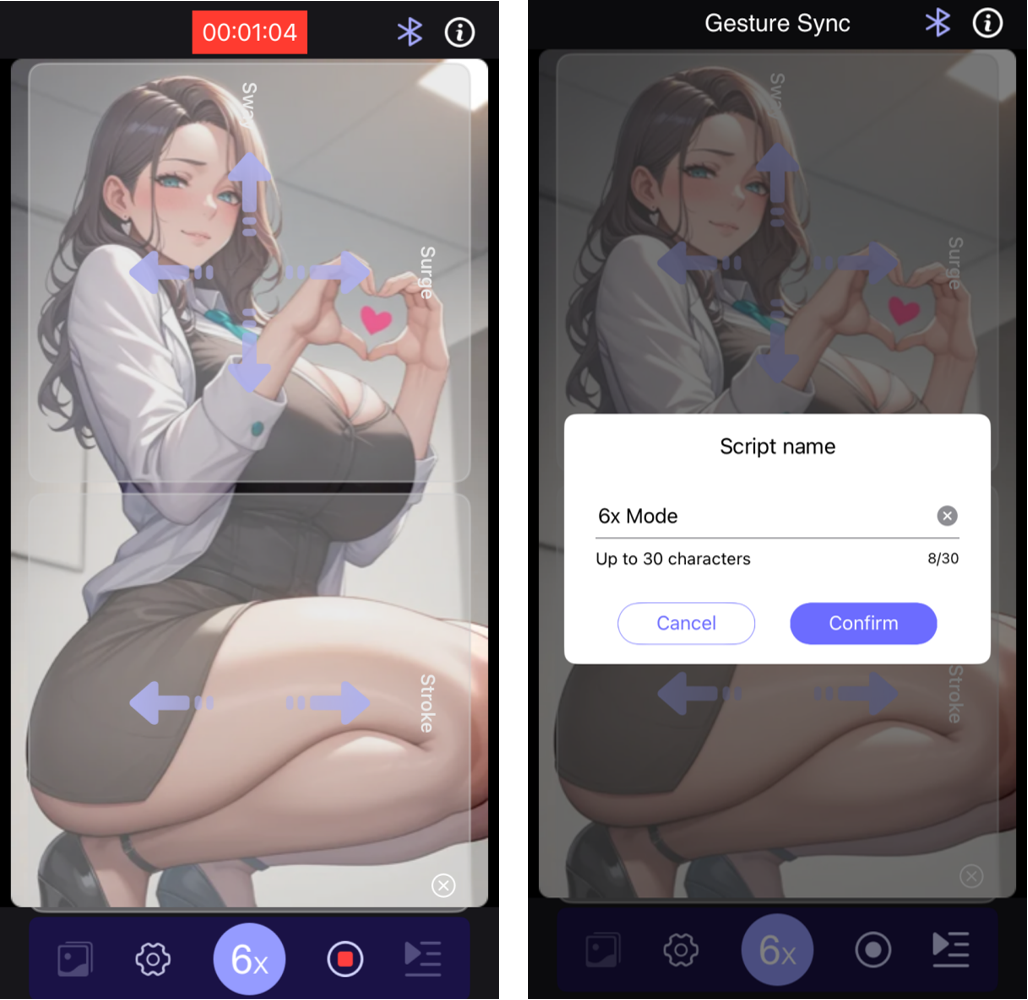
Tap the 🔴 button on the right side of the bottom toolbar to start recording (the icon will change to ■).
A timer will appear at the top of the screen, and all motion data under Gesture Sync will be recorded in real time.
To stop recording, tap ■, enter a motion name, and save.
The recorded motion will be automatically saved as a complete set of Funscript files.
▶️Playback
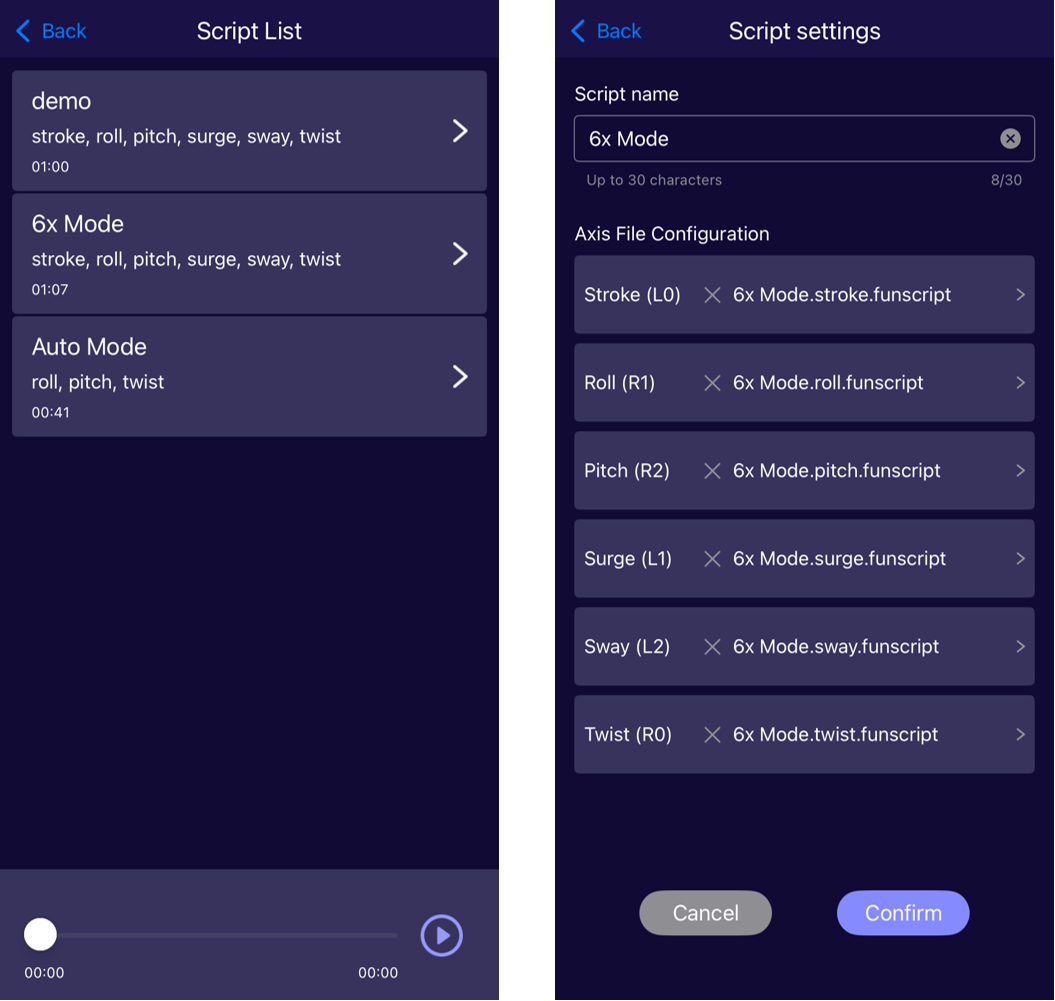
Tap the ▶ playback icon in the bottom-right corner to view the list of recorded motions.
Each entry displays the motion name, included axes, and duration.
- Motions recorded in Auto mode and 4× mode include:
Stroke, Roll, Pitch, and Twist - Motions recorded in 6× mode additionally include:
Surge and Sway
Tap a motion name to drive MiraBot and replay the recorded movement.
Playback progress will be shown at the bottom of the screen.
Tap the “>” icon next to a motion to open its Funscript file list.
Selecting any file will display its exact file path on your phone.
If needed, you can copy these files to a PC using any file transfer tool.
Demo Video ⇓
6. Online Play
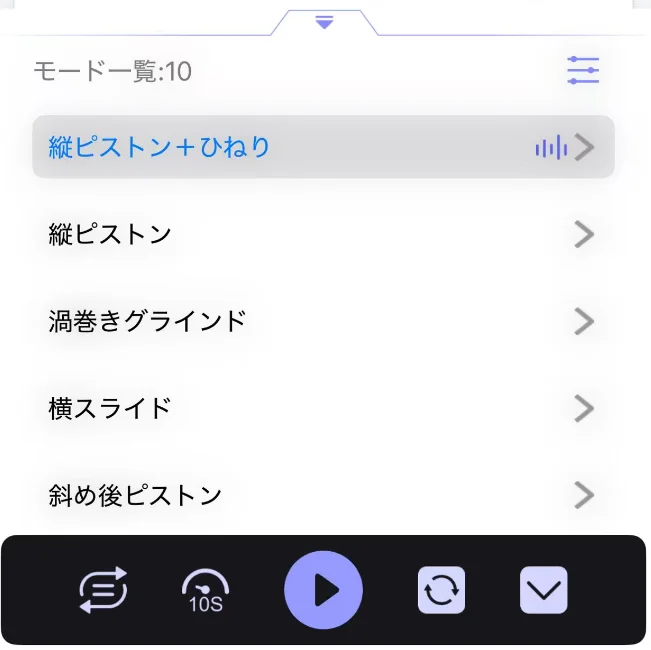
Works through the built-in browser.
The OSR reacts to the content you’re viewing in real time.
Includes 10 motion presets with customizable parameters.
📶 Remote Play
P2P internet-based remote operation.
– Device A can operate the OSR linked to Device B
– Both sides can simultaneously control each other’s OSR
※ The UI for this feature is currently undergoing major improvements; updates will be announced in release notes.
A New Kind of OSR Experience
MiraPlay AiO moves beyond traditional PC-dependent OSR setups, enabling a fully mobile, next-generation OSR experience.
With just your smartphone, your multi-axis device becomes smarter, freer, and more accessible—anytime, anywhere.
This is the future we envision with MiraBot and MiraPlay AiO.