
Virt-a-Mate (VaM) is one of the most popular platforms used with MiraBot and other OSR devices. The community has created thousands of high-quality characters, scenes, and animations, making VaM an incredibly rich ecosystem for interactive experiences.
Previously, we published a setup guide:
“How to Sync MiraBot with Virt-a-Mate.”
While VaM scenes often look amazing, many users eventually feel the same thing:
“This scene is great… but I wish the motion could be just a little different.”
Maybe you want a slightly different rhythm, or a more natural movement that better matches your personal preference.
To solve this, we developed a powerful feature inside MiraPlay AiO Gesture Sync:
UDP Streaming Motion Capture
With UDP Streaming, your smartphone becomes a motion-capture controller that can directly control a character’s body part in Virt-a-Mate.
Instead of relying entirely on pre-made animations, you can move your phone and instantly drive the character’s motion in real time.
Although it controls a single body part rather than full-body tracking, the simplicity and responsiveness make it one of the most intuitive and enjoyable features in MiraPlay AiO.
Below is the complete setup guide.
Requirements
Software
Hardware
Your phone and the PC running VaM must be connected to the same local network (LAN).
Step-by-Step Setup Guide
Step 1 — Find the PC IP Address
First, identify the IP address of the computer running Virt-a-Mate.
Then:
- Launch Virt-a-Mate
- Install and enable the BusDriver plugin
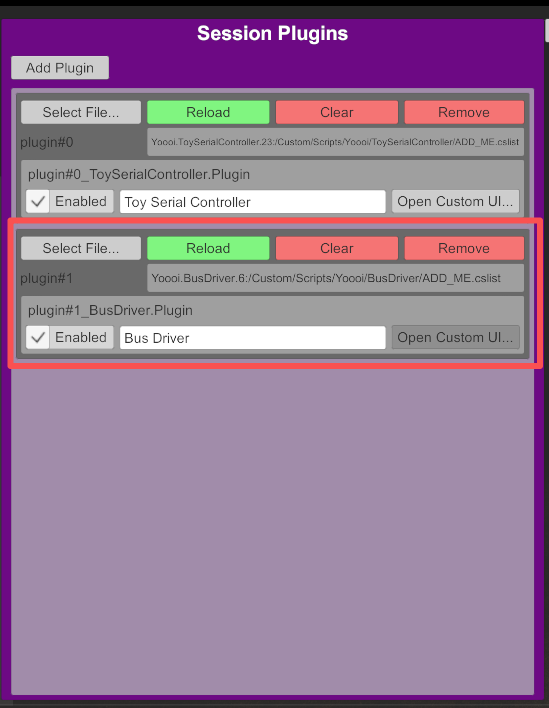
Step 2 — Open Gesture Sync in MiraPlay AiO
On your phone:
- Launch MiraPlay AiO
- Connect your MiraBot device
- Enter the Gesture Sync
Make sure your phone and PC are on the same network.
Step 3 — Enable UDP Streaming
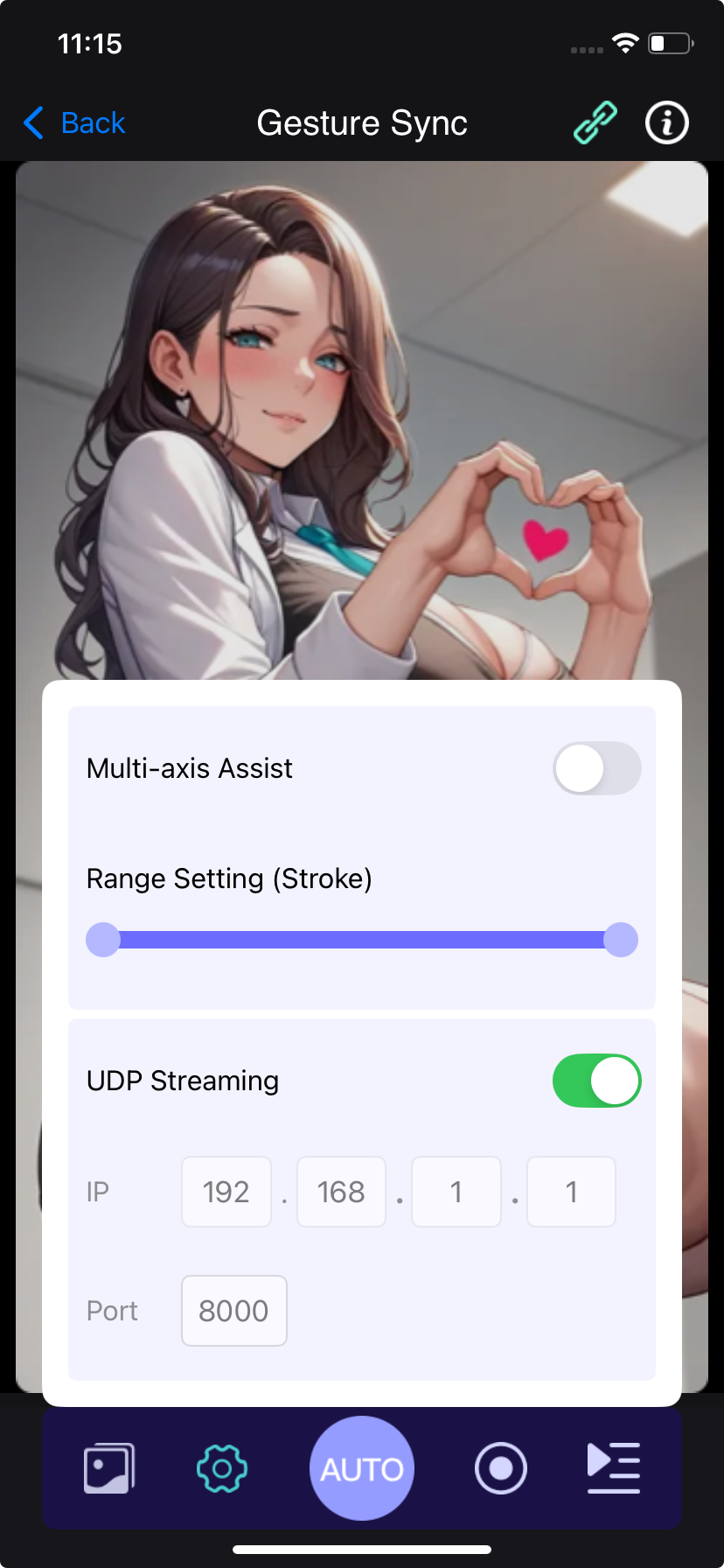
Tap the Settings (gear icon) in Gesture Sync.
Then:
- Enable UDP Streaming
- Enter the IP address of the VaM PC
- Set the Port to 8889 (BusDriver default)
Step 4 — Configure BusDriver
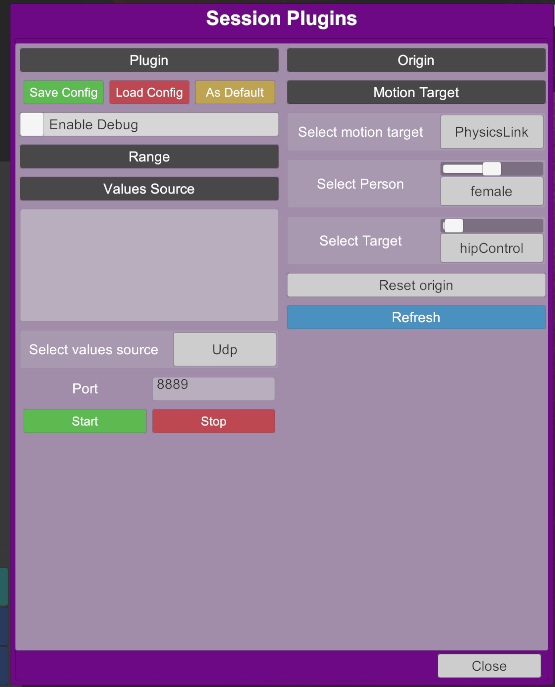
Open the BusDriver settings panel in VaM.
Set the following options:
- Select values source:
UDP - Port:
8889
Click Start.
If no error appears, the data connection has been successfully established.
Step 5 — Select the Motion Target
Inside BusDriver:
- Select motion target:
Physics Link - Select person: choose the character you want to control
- Select target: choose the body part to control
For example:
- hips
- chest
- head
- other physics-driven parts
Real-Time Motion Capture
Once everything is connected:
- Your phone orientation becomes the motion input
- The selected character body part follows your phone movement
- MiraBot moves in sync with both your phone and the character
This allows you to drive motion naturally in real time, creating a level of interaction that traditional pre-scripted scenes cannot provide.
Demo⇓
Tips for Better Results
Gesture Sync still works alongside other MiraPlay motion features.
You can combine UDP Streaming with:
- Auto mode for smoother motion interpretation
- 4x mode for balanced motion control
- 6x mode for maximum multi-axis precision
You can also record motions directly inside MiraPlay AiO, turning your custom movements into reusable scripts.
Why Users Love UDP Streaming
This feature quickly became one of the most popular tools among MiraPlay users, because it allows:
✔ Real-time interaction with VaM characters
✔ Easy motion capture using just a smartphone
✔ Custom movement styles beyond scripted animations
✔ Perfect synchronization between phone → character → MiraBot
Instead of adapting yourself to pre-made animations, you can shape the motion exactly the way you want.
Final Thoughts
Virt-a-Mate already offers one of the richest interactive ecosystems available today.
With MiraPlay AiO UDP Streaming, you can push that experience even further by adding real-time motion control directly from your phone.
If you enjoy experimenting with new interaction styles, this feature opens the door to a much more dynamic and personalized VaM experience.
If you haven’t tried MiraPlay AiO Gesture Sync yet, now is a great time to explore it.