
New
MiraBot S6 II
S6, Evolved.
Built to Move Beyond.
Free Shipping
90-Day Warranty
Discreet Packaging
Technical Support
Every Detail, Reconsidered.
S6 II brings meaningful upgrades to make your experience simpler, more reliable, and more refined.
01. ON-DEVICE CONTROL
02. SERVO SYSTEM
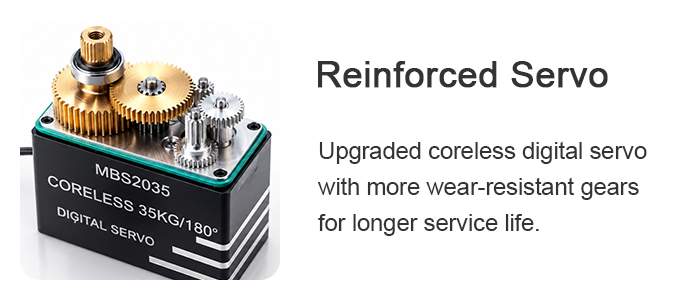
Stronger Gears.
Smarter Protection.
Upgraded durability and built-in safeguards for more reliablelong-term use.
Reinforced AlloyGears
Startup Cusioning
Stall Protection
OverheatProtection
03. BUILT-IN MOTIOIN
Built-in Motion.
Start motion directly on the device with built-in presets for quick setup, testing, and standalone use.
No App Required
On Device Control
Ready for Standalone Use
5 Built-in Presets
On-Device Launch
Quick Setup & Testing
Auto Multi-Axis Expansion
04. COOLING
Smart Cooling.
Stable Performance.
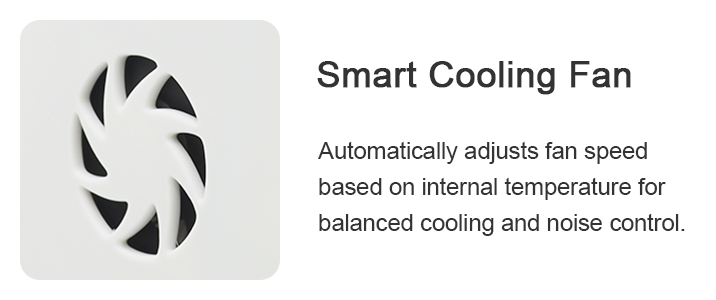
A temperature-controlled cooling system helps keep the servos within an optimal operating range for more stable and reliable long-term performance.
Smart Temperature Control
Automatic Fan Control
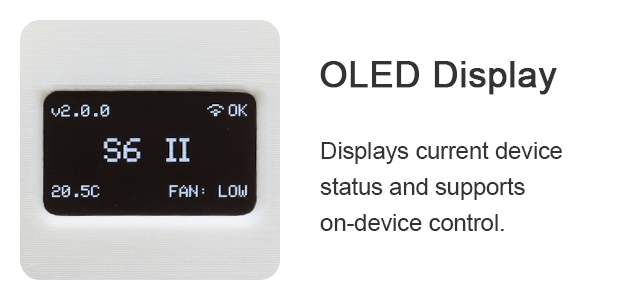
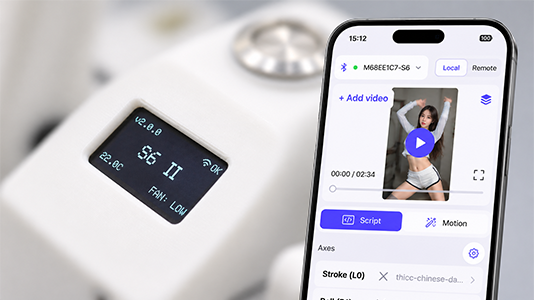
Real-Time Status Display
Stable Performance Over Time
05. TWIST
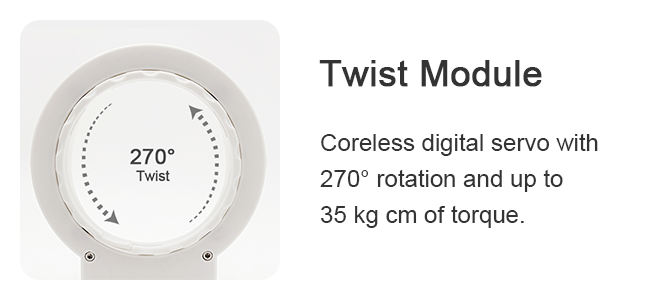
Quieter Twist.
Smoother Motion.
Four-Point Bearing Support
Wear-Resistant, Low-Friction Track
06. Refinement
Refined
Inside and Out.
Reinforced Electronics
Updated electronics improve durability and long-term reliability.
Improved Fit & Finish
Subtle improvements across the enclosure, assembly, and finishing details give S6 II a more polished, production-ready feel.
Refined Construction
Structural details have been optimized for a cleaner, more solid overall build.
Find the Right S6 II set For You
- Free Standard Shipping*
- 90-Day Limited Warranty
- Discreet Packaging
$469.00
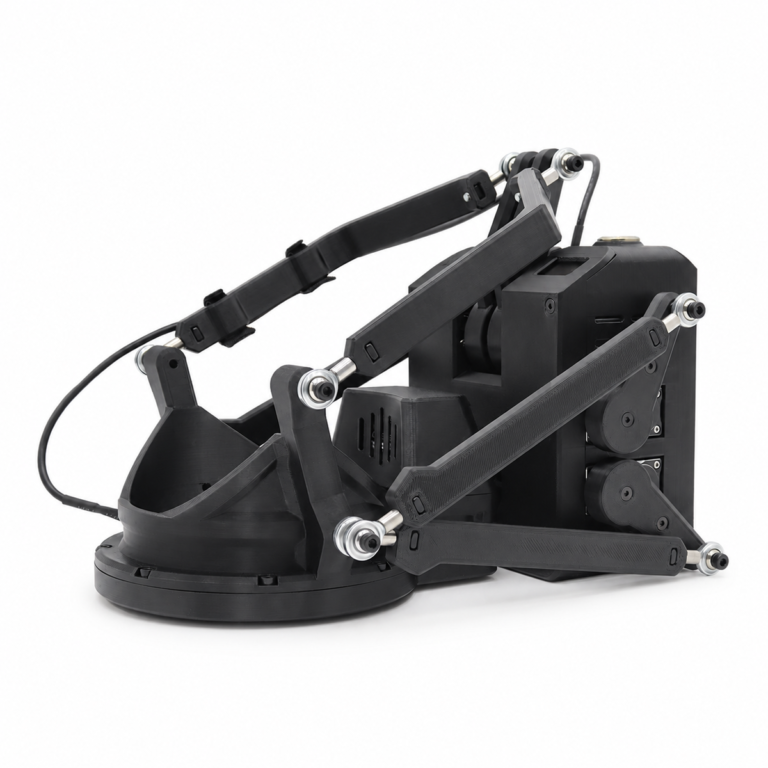
- S6 II Main Unit
- Power Adapter
- USB Cable & Toolkit
$509.00
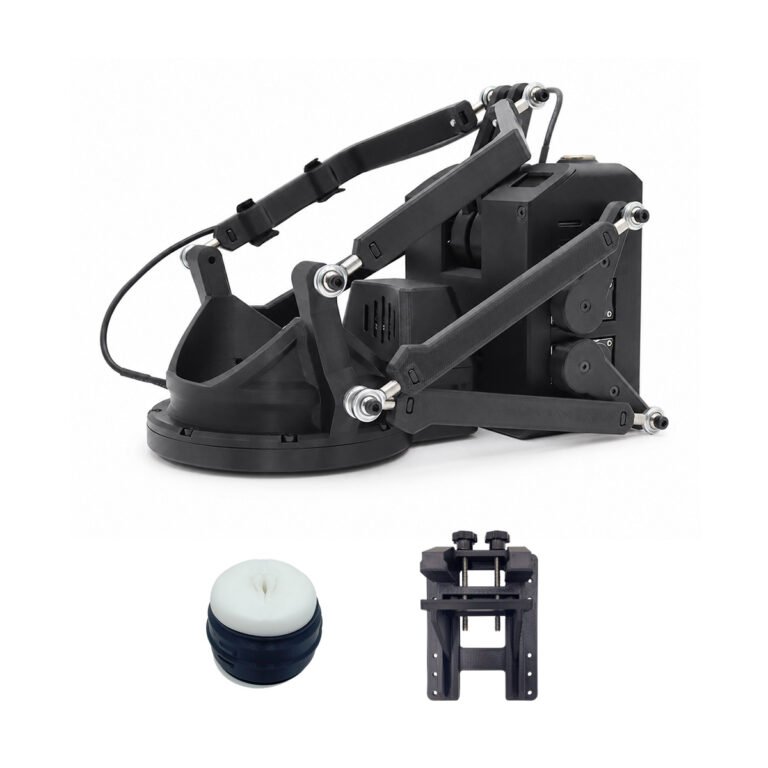
- S6 II Main Unit
- Power Adapter
- USB Cable & Toolkit
- Desk Mount
- Sleeve (Optional)

Launch Gift
Temperature-Controlled Sleeve Warmer
Full Experience
$699.00
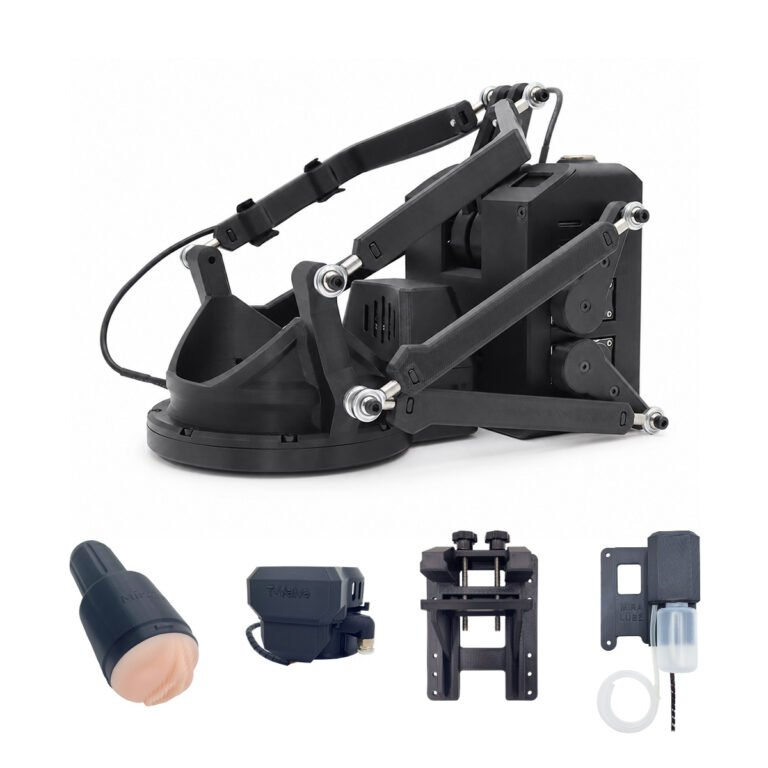
- S6 II Main Unit
- Power Adapter
- USB Cable & Toolkit
- Desk Mount
- Twist Receiver & Sleeve Set
- T-Valve
- MiraLube

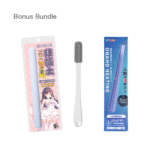
Launch Gift
Sleeve Care Kit
+Free Launch Upgrade
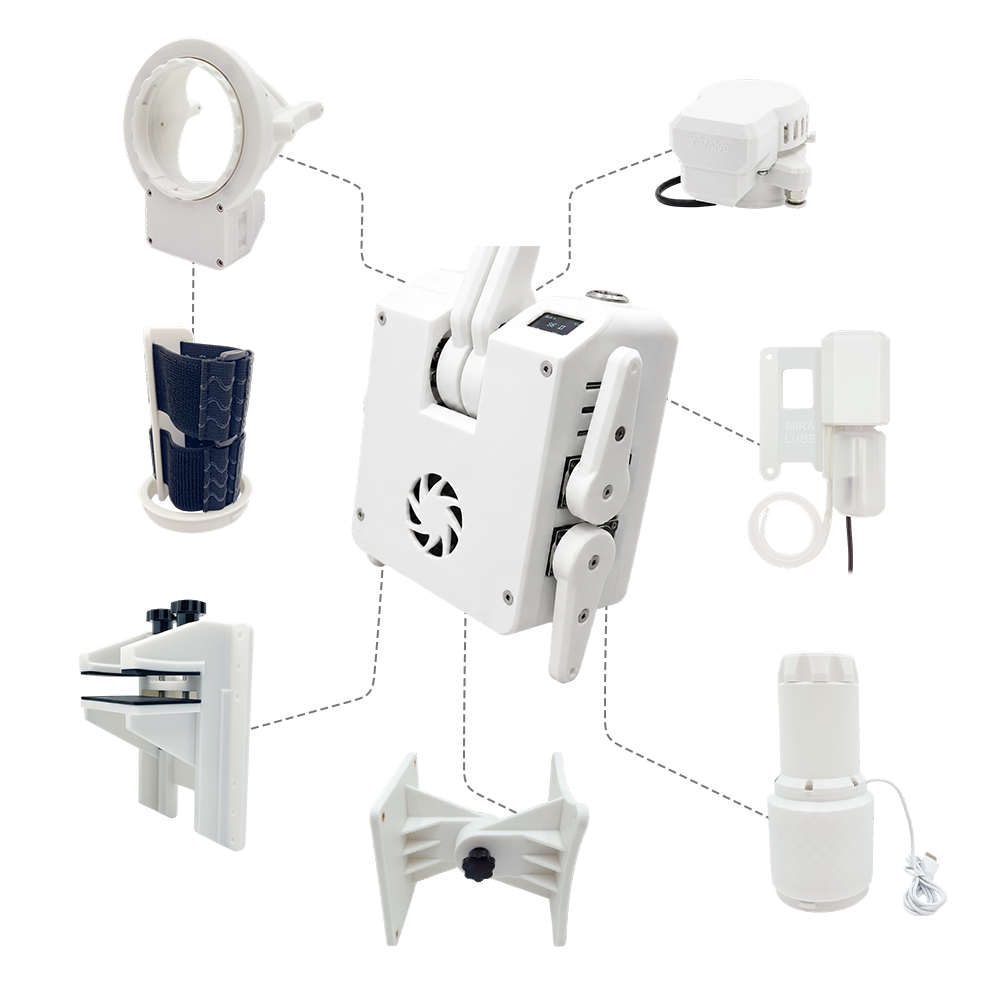
S6 II
at a Glance
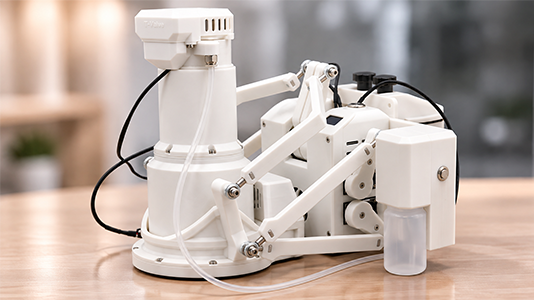
Explore the key components that make up the S6 Il system.
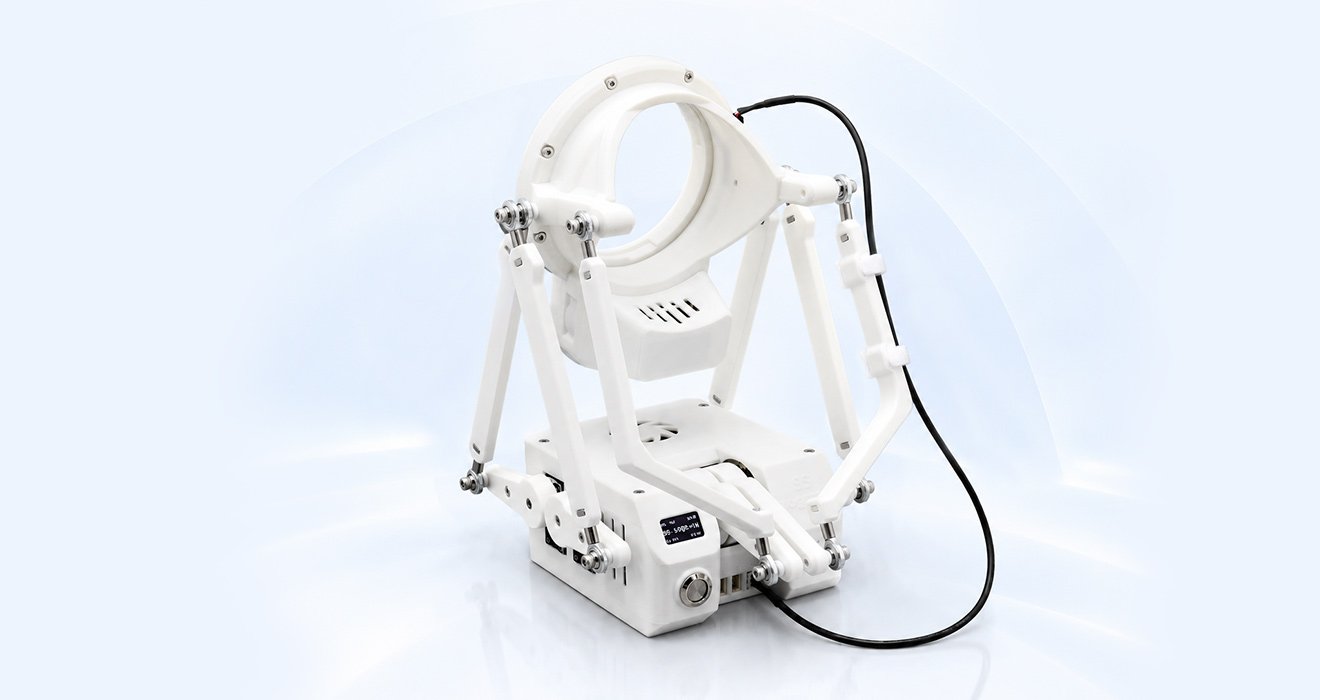
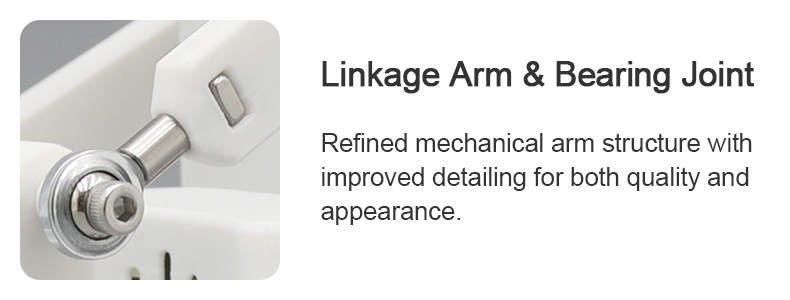
Bearing Joint
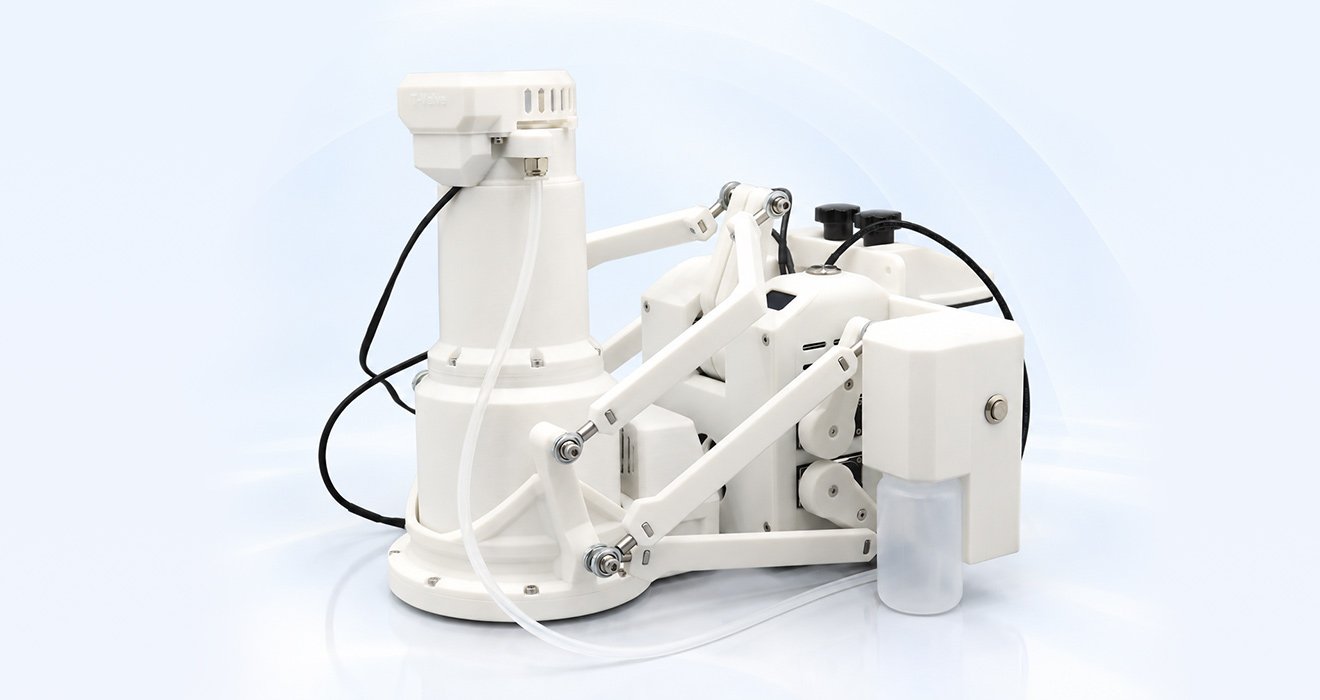

Automatically or manually adjusts the air pressure inside the Twist Receiver for more varied and interactive feedback.
Connects the lubricant line directly to the receiver for clean and convenient lubricant delivery.

Dual-layer insulation and an integrated inner heating pad help retain a consistent, comfortable temperature. Compatible with Fleshlight inserts.

A reinforced structure, non-slip rubber pads, and a 52 mm maximum clamp opening provide a secure mounting foundation for the S6 II.
 Works with MiraLube to manage lubricant delivery through the connected tubing for a smoother, more convenient experience.

Designed to fit the Twist Receiver securely, with a fuller, softer feel. Available in Vagina, Oral, and Anal options.
Specifications
Key technical specifications of the MiraBot S6 II, from multi-axis motion and connectivity to control and protection.
Motion & Drive
Surge 70 mm · Sway 70 mm · Twist 270°
Control & Connectivity
Cooling & Protection
Software & Power
OSR-Compatible Third-Party Software
* Maximum stroke speed is an approximate technical value and may vary depending on motion range, load, multi-axis movement, and operating conditions.
SOFTWARE EXPERIENCE
MiraPlay
AiO 2.0
One App.More Ways to Move.
Video Sync
Play local and remote videos with precise motion synchronization
Gesture Sync
Turn your smartphone into a motion controller.
VR Playback
Works with DeoVR, HereSphere and more.
Multi-Axis Assist
Turn single-axis motion data into a richer multi-axis experience.
MIRAPLAY ECOSYSTEM
More Ways to Play with S6 II
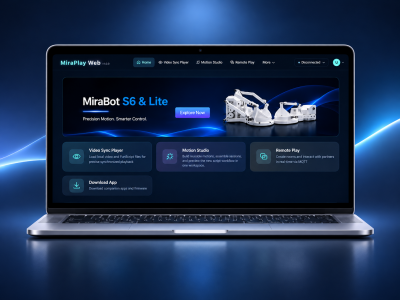
MiraPlay Web
Browser-based playback and control. No installation required.
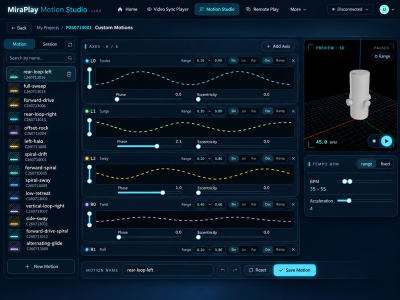
Motion Studio
Create, edit, play and share multi-axis motion with powerful tools.
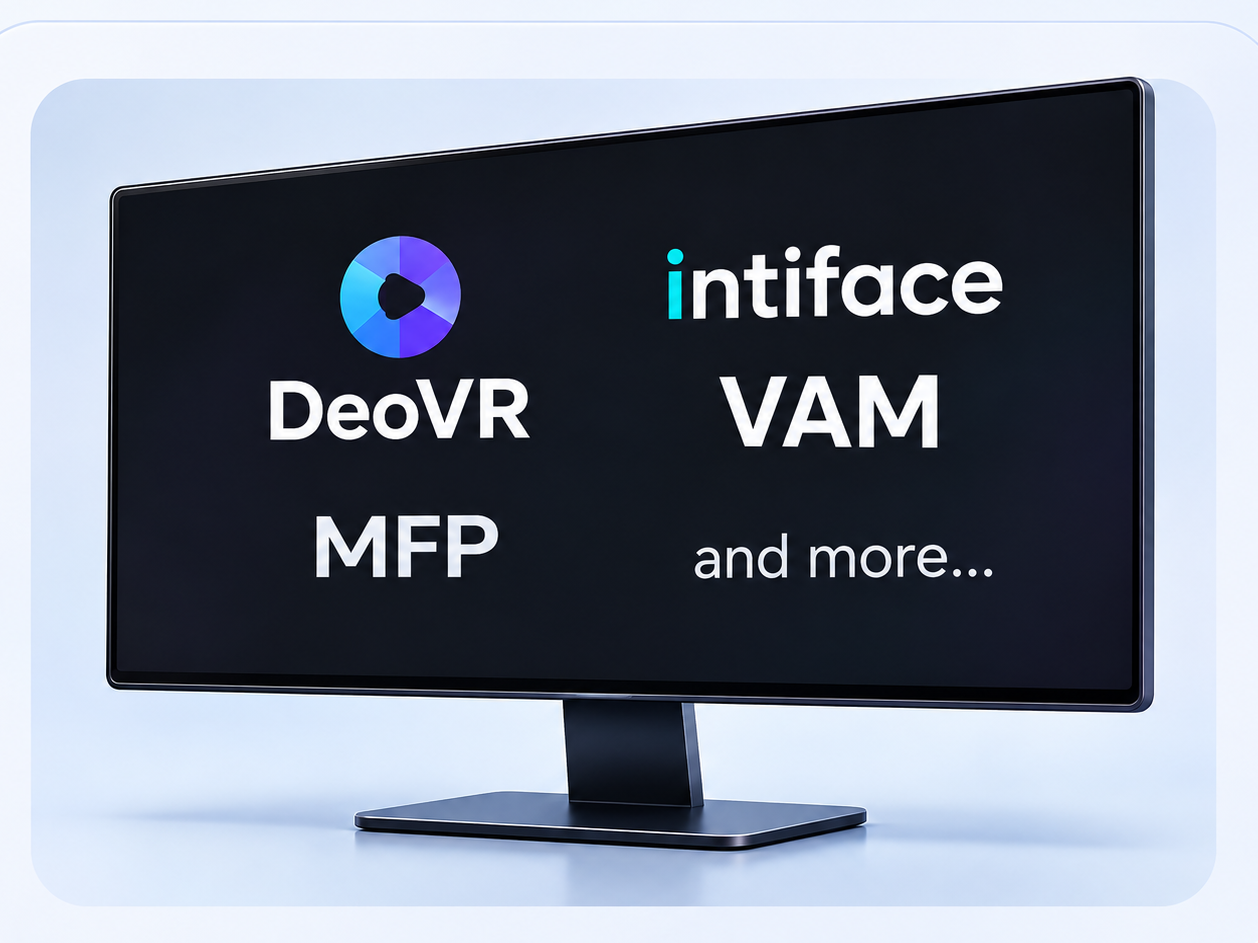
Third-Party OSR Software
TCode/OSR applications,including popular playersand VR platforms.
Getting Started
with S6 II
Everything you need to set up, connect, and start using your S6 II.
First Setup
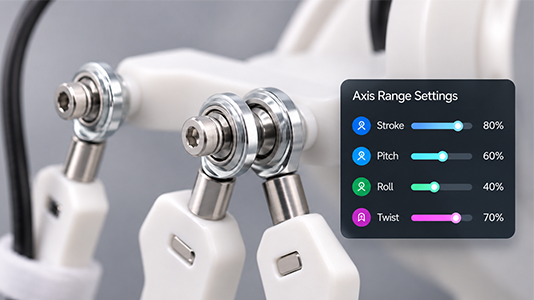
Calibration & Range Settings
Connect & Control
FREQUENTLY ASKED QUESTIONS
S6 II FAQ
Find answers to the most common questions about S6 II. For more details, please visit our full support pages.
1Do I need to calibrate S6 II before using it?
S6 II is checked before shipping, so calibration is not normally required.
After powering on, check that the arms are in their correct starting positions. If you notice any misalignment, follow our Calibration Guide to make adjustments.
2Do I need a PC to use S6 II?
No. S6 II includes five built-in motion presets that can run directly from the device, without a phone or PC.
You can also use MiraPlay AiO on your smartphone for wireless control and synchronized playback. A computer is only needed for certain advanced features, firmware updates, or PC-based software.
3What software can I use with S6 II?
S6 II supports MiraPlay AiO for mobile control and synchronized playback, MiraPlay Web for browser-based playback and device management, and Motion Studio for creating custom motions.
It also works with many OSR/T-Code-compatible applications, including MultiFunPlayer (MFP) and compatible Virt-a-Mate (VaM) integrations.
4How do I switch between wireless modes?
If Wi-Fi has already been configured, you can quickly switch between Wi-Fi, Bluetooth LE, and SLR-compatible modes using the buttons on S6 II.
For first-time Wi-Fi setup, use MiraPlay AiO or MiraPlay Web to configure the network and switch modes. After switching to Wi-Fi, check the connection status on the OLED display to confirm a successful connection.
5Can S6 II use single-axis Funscripts?
Yes. S6 II supports both single-axis and multi-axis Funscripts.
Its built-in multi-axis expansion feature can automatically turn single-axis motion into coordinated multi-axis movement, without requiring an app to generate the additional motion.
Alternatively, MiraPlay AiO's Multi-Axis Assist lets you add Roll, Pitch, and Twist motion using your phone while the script controls Stroke.
6Can I limit the motion range of S6 II?
Yes. You can adjust the motion range of individual axes through MiraPlay AiO and save the settings directly to S6 II.
Once saved, these limits remain active on the device, even when using other compatible software.
7Does S6 II support VR playback?
Yes. S6 II supports several VR playback methods:
- Direct Connection: Connect DeoVR (SLR) on Meta Quest directly to S6 II using SLR-compatible Bluetooth mode.
- MiraPlay AiO Bridge: Play VR videos through DeoVR or HereSphere on Quest, while MiraPlay AiO synchronizes the corresponding Funscripts with S6 II.
- Phone-Based VR: Use MiraPlay AiO's built-in VR player with a smartphone VR viewer, such as Google Cardboard, without a Quest headset.
Available features depend on the VR application and playback setup.
8What should I do if S6 II doesn't connect or move?
First, check the power supply, selected connection mode, and software connection. For Wi-Fi connections, make sure your network supports 2.4 GHz.
Visit our User Guide for troubleshooting instructions. If the issue persists, contact our support team with your order number, firmware version, and a description or short video of the issue.
Still Have Questions?
Our support team can help with product selection, compatibility, setup, and technical questions.