This section covers how to adjust arm alignment and axis movement ranges using MiraPlay AiO.
1. Position Calibration
Your device is calibrated before shipment, so recalibration is normally unnecessary. If an arm is not properly aligned during the initial power-on check or after replacing a servo, you can use Position Calibration to adjust it.
If you haven’t installed MiraPlay AiO yet, visit the MiraPlay AiO page to learn more and download the app.
Step 1 — Connect Your Device
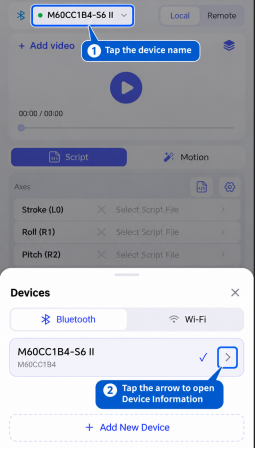
Open MiraPlay AiO and make sure your device is connected. Tap the device name in the upper-left corner to open the Devices list, then tap the arrow next to your device to open Device Information.
Step 2 — Open Calibration
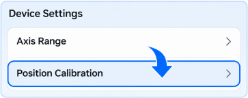
In Device Information, find Device Settings and tap Position Calibration to open the Arm Position Calibration screen.
Step 3 — Adjust Servo Position
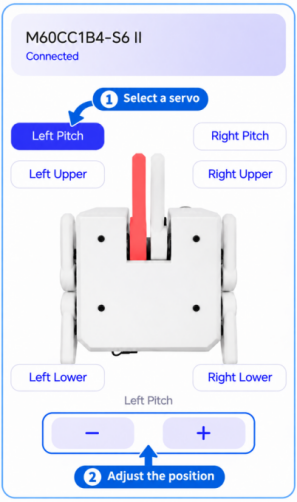
Select the servo you want to adjust. The corresponding arm is highlighted in red on the screen. Tap − or + to fine-tune its position. The physical arm moves immediately, and each adjustment to its starting position is automatically saved on the device. Continue until the arm is level. Repeat for any other arms that need adjustment.
2. Axis Range Settings
You can adjust the movement limits of each axis to suit your setup and preferences. The default range is 0%–100%, and the minimum and maximum limits can be adjusted independently.
Axis range limits are stored on the device and apply across MiraPlay and compatible third-party apps; you do not need to configure them separately in each app.
Compatibility Note: MiraPlay AiO supports Axis Range settings on MiraBot S6 II. Earlier S6 and Lite models require firmware v1.3.1 or later.
Motion Axes Overview
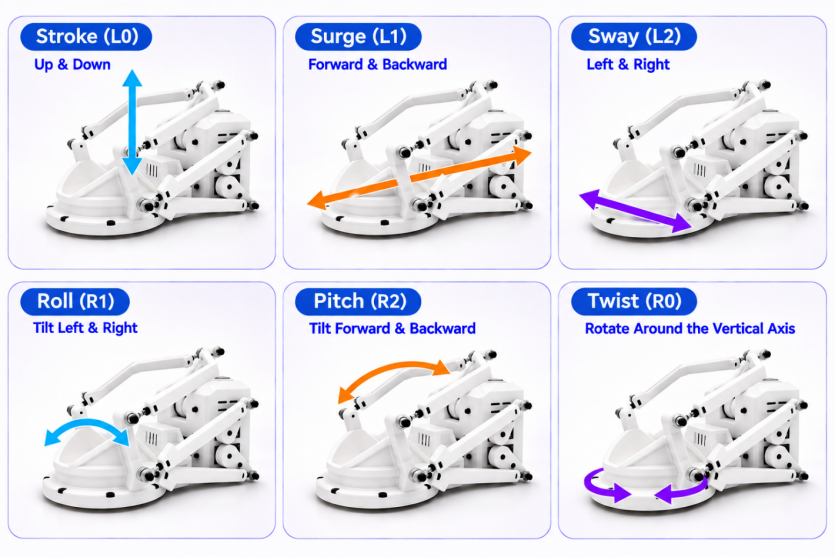
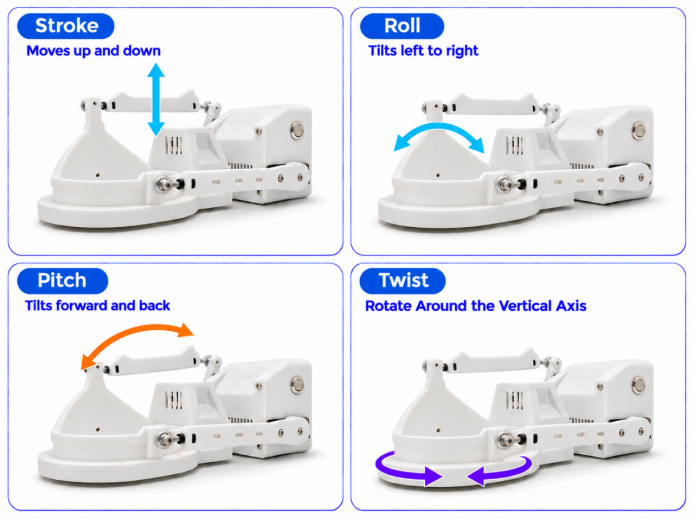
The illustrations below show the movement directions of the axes available on each device model.
MiraBot S6 II — 6-Axis Motion
MiraBot Lite — 4-Axis Motion
Step 1 — Connect Your Device
Connect your device to MiraPlay AiO. Tap the device name in the upper-left corner, then tap the arrow next to your device to open Device Information.
Step 2 — Open Axis Range
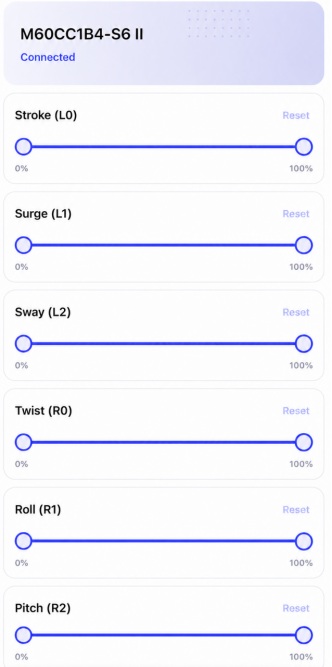
In Device Information, under Device Settings, tap Axis Range.
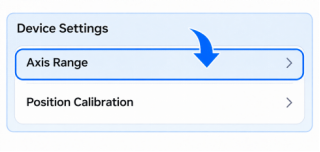
Step 3 — View & Adjust Motion Ranges
The Axis Range page shows the limits currently saved on your device. Adjust the minimum and maximum values for each axis independently. Changes take effect immediately and are automatically saved on the device. Tap Reset to restore an axis to its full 0%–100% range. The available axes depend on your device model.