
A Beginner’s Guide to Videos, VR, Games, Apps & OSR-Compatible Play
If you are new to MiraBot, one of the first questions you may have is simple:
What can I actually do with it?
The short answer is: quite a lot.
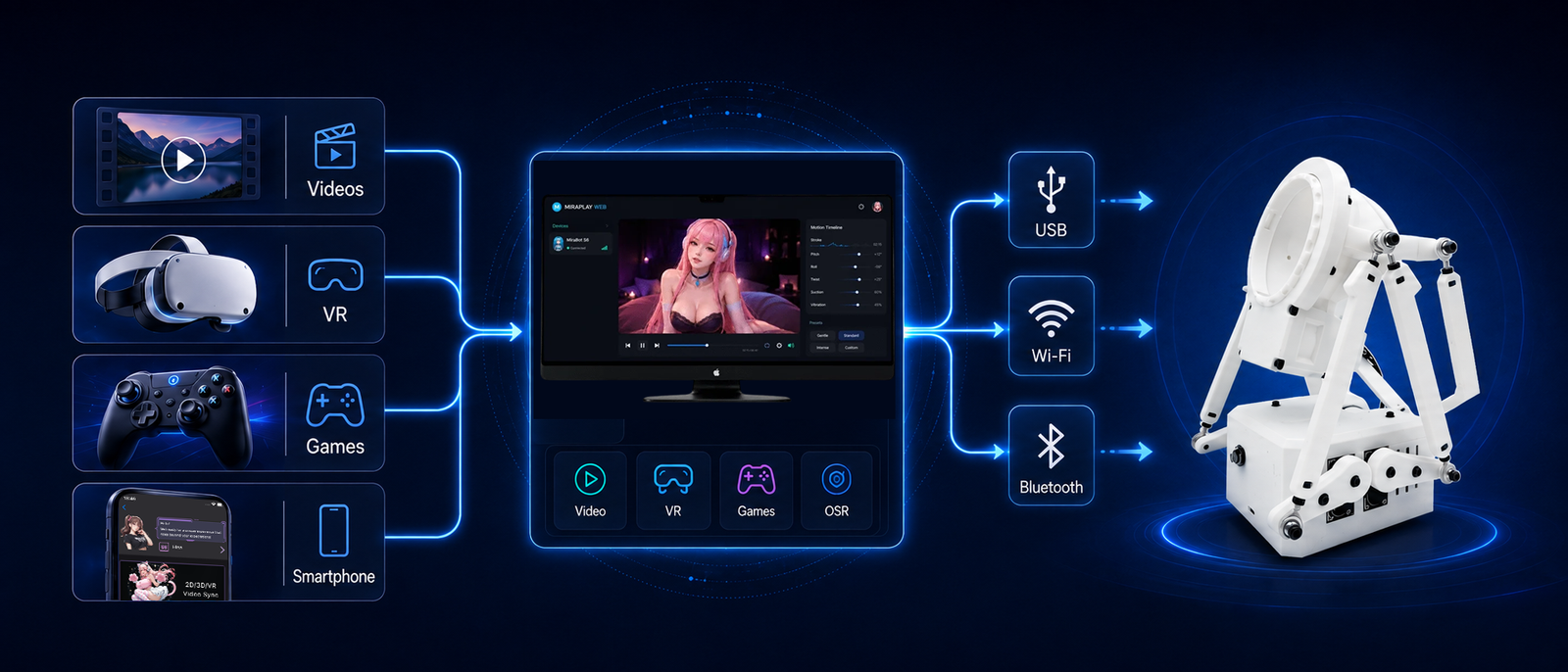
MiraBot can synchronize physical motion with regular videos, VR content, Funscripts, supported games, smartphone gestures, and a growing range of OSR-compatible software. You can start with something as simple as playing a video on your phone, then gradually explore multi-axis scripts, VR streaming, game integration, motion recording, remote control, and more advanced OSR workflows.
And importantly, you do not need to learn everything at once.
For most new users, the easiest place to start is MiraPlay AiO on a smartphone or MiraPlay Web on a PC. The wider OSR ecosystem is there when you are ready to go further.
1. First, What Is a Funscript?
A Funscript is a motion file designed to synchronize movement with a video or other media.
Think of it as an additional motion track running alongside the video. The video provides the picture and sound, while the Funscript tells the device where to move and when.
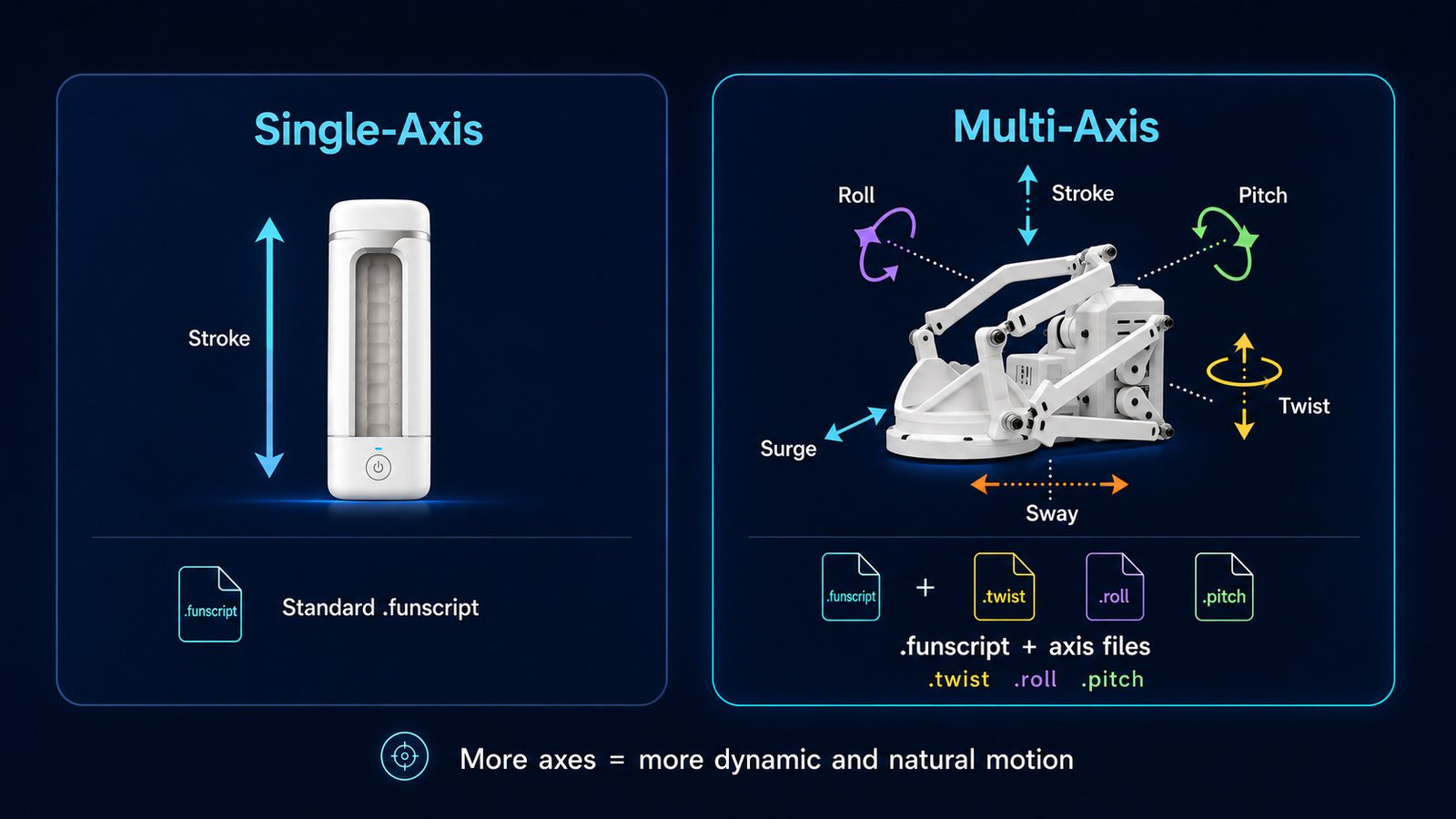
With a traditional single-axis device, a Funscript usually controls only Stroke — the main back-and-forth movement.
MiraBot goes further by supporting multi-axis motion.
Depending on the device, software, script, and configuration, motion can include:
Stroke, Roll, Pitch, Surge, Sway, and Twist.
This allows motion to reproduce much more than simple linear movement.
Single-Axis vs. Multi-Axis
A standard Funscript may contain only:
Stroke ↑ ↓
A multi-axis script can add motion such as:
Roll · Pitch · Twist · Surge · Sway
These additional axes can make the same scene feel much more dynamic and natural.
Multi-axis scripts are usually stored as separate files for each axis. For example, a script set may include a normal .funscript file together with files such as .twist.funscript, .roll.funscript, or .pitch.funscript.
The good news is that you do not always need a full multi-axis script to enjoy multi-axis motion. We will come back to that shortly.
2. Start with Your Phone — MiraPlay AiO
For most new MiraBot users, MiraPlay AiO is the easiest place to begin.
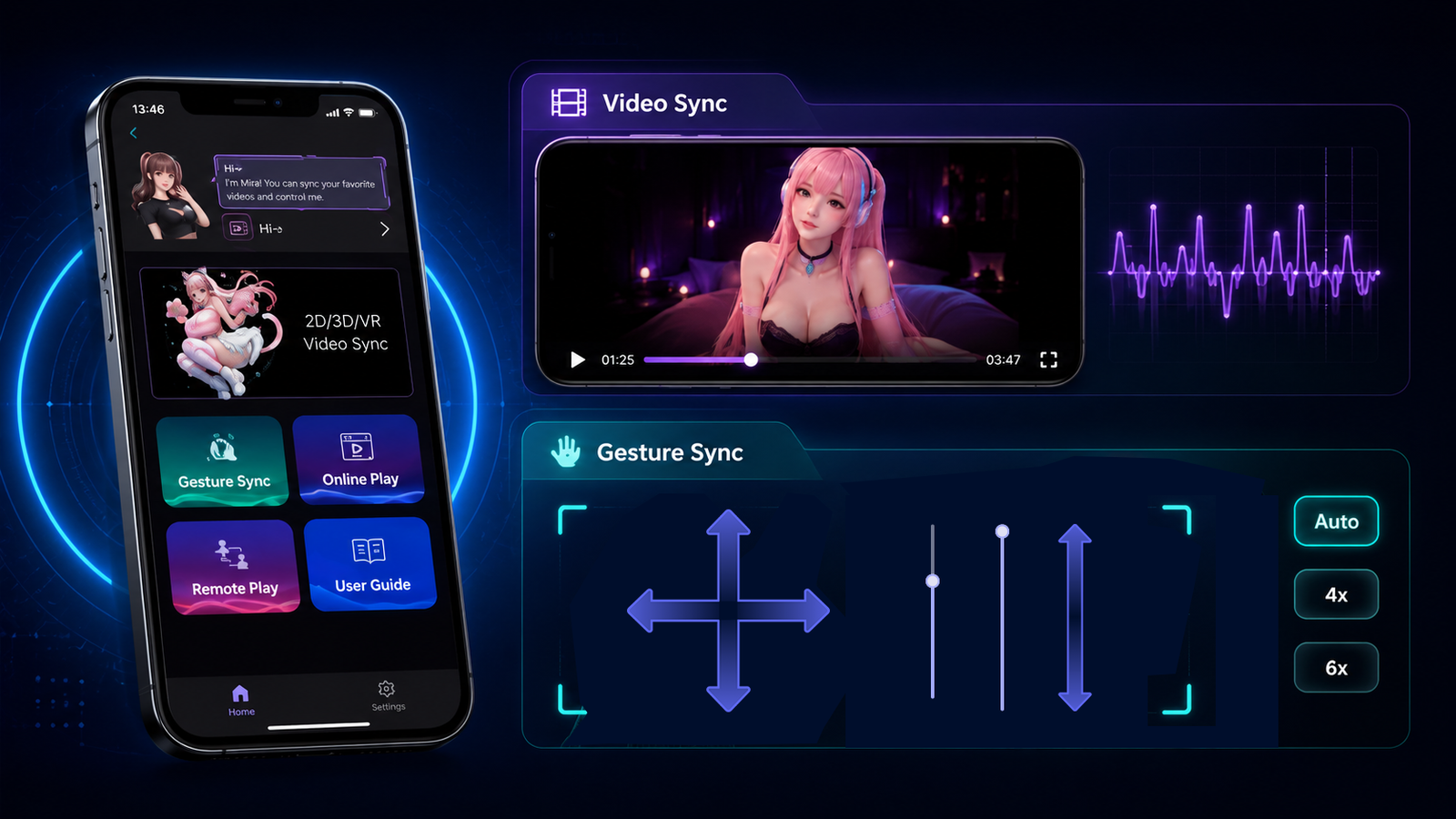
It turns your smartphone into a complete control hub for MiraBot. You can play videos and scripts, control motion with your phone, record your own multi-axis movements, browse online content, and even explore remote interaction — without needing a PC for many everyday workflows.
Video Sync — Play Videos and Funscripts Directly on Your Phone
If you already have a video and its matching Funscript, Video Sync provides one of the simplest MiraBot experiences.
Import the video and script into MiraPlay AiO, connect your MiraBot, and play.
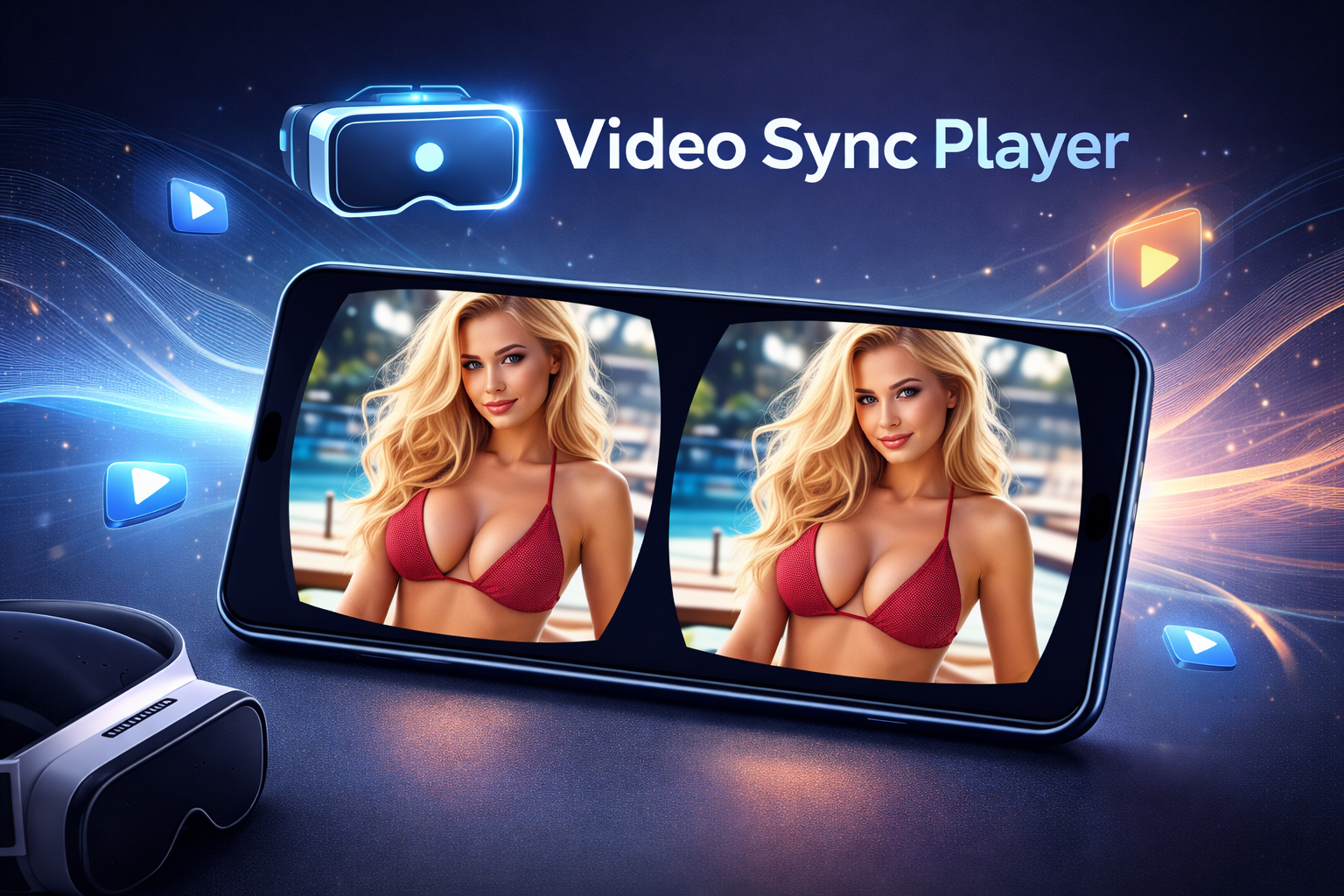
Video Sync supports regular 2D video as well as 3D SBS and VR video formats. Multi-axis script sets can also be loaded, allowing compatible MiraBot configurations to reproduce multiple motion axes rather than Stroke alone.
This is a good starting point if you want:
Phone + Video + Funscript + MiraBot
with as little additional software as possible.
Gesture Sync — Turn Your Phone into a Motion Controller
Funscripts are not the only way to control MiraBot.
With Gesture Sync, your smartphone itself becomes a real-time motion controller.
The app uses the phone’s gyroscope together with touchscreen input to translate your movements into MiraBot motion. Tilt, rotate, or move the controls on the screen, and MiraBot responds in real time.
Different Gesture Sync modes provide different levels of control.
Auto Mode is designed for easy one-hand operation.
4x Mode gives you more direct control over a four-axis motion set.
6x Mode expands the concept further for fuller multi-axis control on compatible configurations.
Instead of choosing a pre-made motion and simply watching it play, you become part of the control loop.
This makes Gesture Sync useful not only for manual play, but also for motion creation, Multi-Axis Assist, game integration, and other workflows described later in this guide.
Motion Recording — Create Your Own Multi-Axis Motion
Gesture Sync can also be recorded.
Move your phone while Motion Recording is active and MiraPlay AiO captures the motion data in real time. When you finish, the recording can be saved as a reusable set of Funscript files.
This provides a very different way to create scripts.
Instead of manually editing several motion curves on a timeline, you can effectively perform the motion yourself, similar to a lightweight motion-capture workflow.
Record it once, save it, and replay it whenever you want.
For users who want personalized multi-axis motion but do not want to build every axis manually, this can be one of the most approachable ways to get started.
Online Play — Browse, Find Scripts and Play on One Device
MiraPlay AiO also includes Online Play, designed for a lighter workflow around online content and Funscripts.
The built-in browser can be used alongside an independent Funscript player. Compatible script files can be downloaded directly, and matching multi-axis files can be automatically grouped together.
Scripts created through Motion Recording can also be used in Online Play.
This means a typical workflow can be as simple as:
Browse → Download Script → Select → Play
without moving back and forth between several apps or a PC.
Remote Play — Real-Time Interaction from Another Location
MiraPlay AiO also includes Remote Play, currently in Beta.
A private room can be created and shared with another user, allowing Gesture-based motion to be transmitted remotely in real time.
Because this feature depends on an online connection and server infrastructure, network conditions can affect latency and stability. It is therefore best viewed as an expanding part of the MiraPlay ecosystem rather than a replacement for local playback.
3. Play Regular Videos and Funscripts on a PC
Prefer a larger screen, local video library, or traditional desktop workflow?
MiraBot also works well with PC-based playback.
MiraPlay Web — The Easy PC Starting Point
For users who want a straightforward desktop experience, MiraPlay Web is the natural place to start.
A typical setup is:
Video + Funscript → MiraPlay Web → MiraBot
This keeps the workflow relatively simple and avoids requiring a collection of separate OSR tools for basic playback.
MiraPlay Web also provides access to device-related functions and settings, making it useful as both a playback environment and a setup tool.
If your goal is simply to play your own videos and scripts from a computer, we recommend starting here before exploring more advanced third-party software.
MultiFunPlayer — Advanced Funscript and OSR Workflows
Users who already know the OSR ecosystem will probably be familiar with MultiFunPlayer, or MFP.
MultiFunPlayer is a powerful community-developed application frequently used for synchronized Funscript playback and multi-axis OSR devices.
Instead of being tied to one media player, MFP can work with supported players and time-sync sources while handling motion output separately.
A common workflow looks like this:
Video Player → MultiFunPlayer → MiraBot
For advanced users, MFP provides extensive control over axis mapping, ranges, motion processing, synchronization, and output.
It is particularly useful when you already have an established OSR setup or want deeper control than a simple plug-and-play player provides.
For third-party PC software, USB remains a good starting point when maximum compatibility is the priority, while wireless options can be used when supported by the specific software and plugin.
4. Only Have a Single-Axis Script? Add More Motion with Multi-Axis Assist
One of the realities of today’s Funscript ecosystem is that a large amount of existing content is still Stroke-only.
That means even if your device can reproduce multiple axes, many online scripts will only tell it to move back and forth.
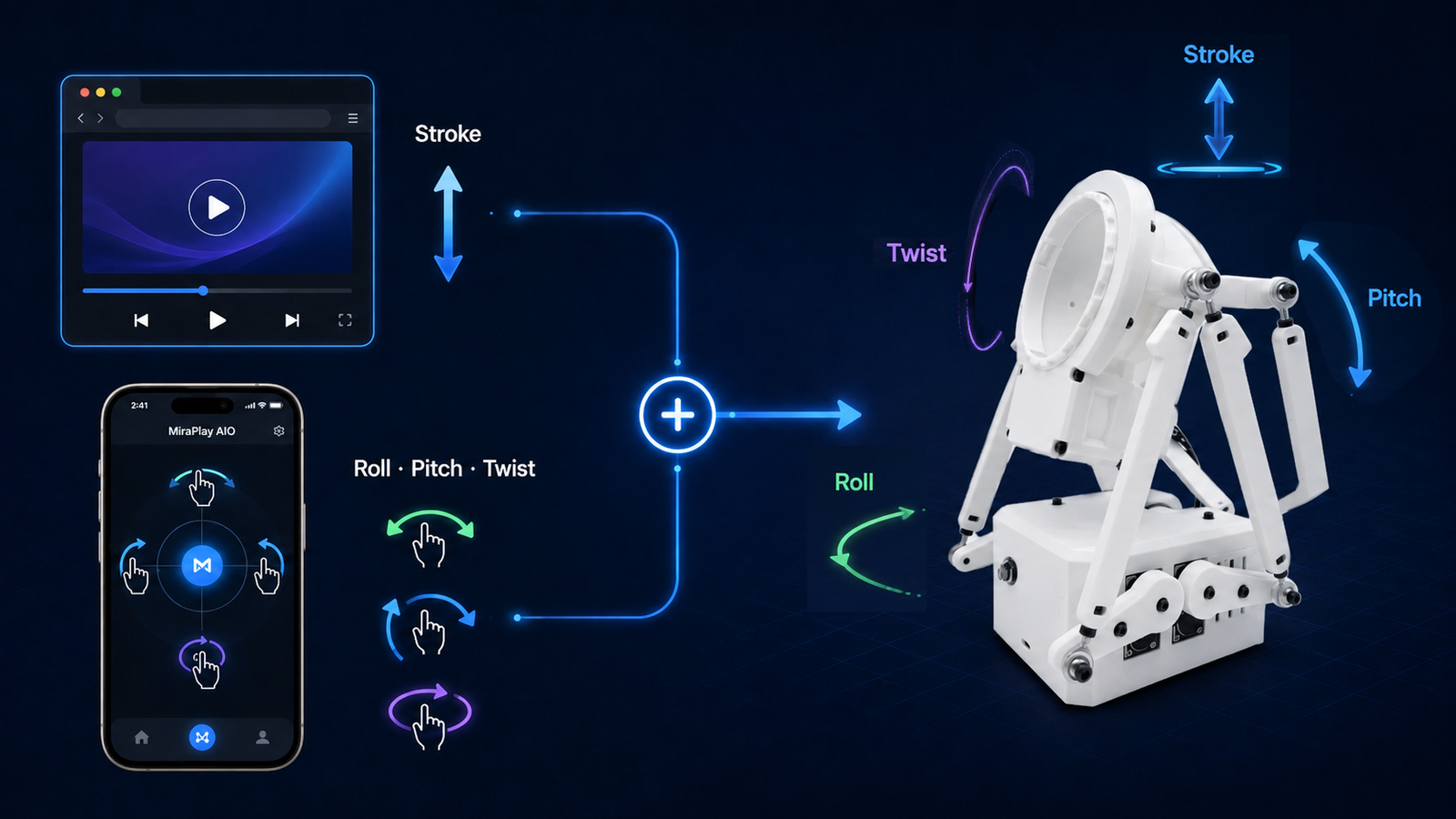
MiraPlay AiO’s Multi-Axis Assist provides another option.
Instead of replacing the original script, it works alongside it.
The original player or website continues controlling Stroke, while your phone adds additional motion such as Roll, Pitch, and Twist through Gesture Sync.
For example:
Website / Player → Stroke
plus
MiraPlay AiO → Roll / Pitch / Twist
together become:
Multi-Axis MiraBot Motion
This can be used with compatible single-axis playback sources such as FapTap and other OSR workflows.
The important difference is that the additional axes are not random. You control them yourself with your phone.
Move gently for subtle variations or use larger gestures for more expressive movement. The same single-axis script can therefore feel different every time you play it.
5. VR Interactive Videos — From Local VR to SexLikeReal
VR is where synchronized physical motion can become especially immersive.
Instead of watching a flat video while the device moves independently, a VR headset places the visual experience around you while MiraBot reproduces the matching physical motion.
There are several ways to build this setup, ranging from very simple to highly customizable.
Local VR Videos
You do not need an online subscription service to use VR content with MiraBot.
If you already have a compatible VR video and Funscript, you can use MiraPlay-supported playback workflows to synchronize them just like a normal video.
This makes local VR a good option for users who maintain their own media and script library.
SexLikeReal and DeoVR — A Simpler Direct Connection
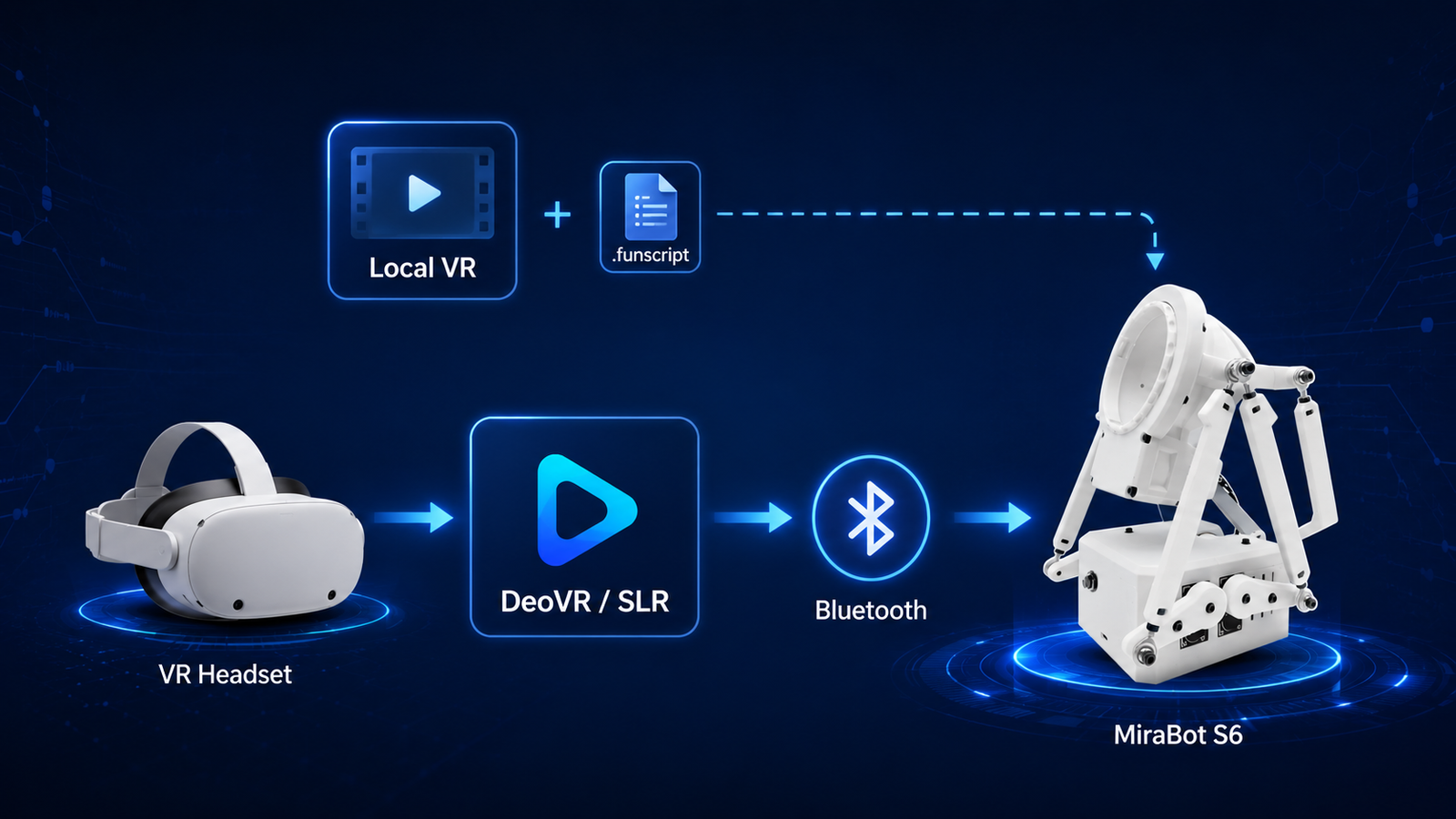
For supported SexLikeReal playback environments, newer MiraBot firmware provides a much simpler option.
Starting with MiraBot Firmware v1.3.0, an SLR-Compatible Bluetooth Mode is available.
With this mode enabled, supported SLR / DeoVR environments can connect to MiraBot over Bluetooth without requiring MultiFunPlayer to act as a PC bridge.
A typical setup can therefore be:
VR Headset → SLR / DeoVR → Bluetooth → MiraBot
For compatible standalone VR setups, this significantly reduces the amount of software required.
It is especially attractive for users who want to put on a headset and start playing without first building a larger PC-based OSR environment.
Availability still depends on the playback environment, subscription/content requirements, firmware version, and device configuration, so we recommend following the current SLR connection guide when setting it up.
6. Games — Real-Time Motion Instead of Pre-Recorded Motion
Video playback and game integration work in fundamentally different ways.
With a video, the motion is normally known in advance:
Video timeline → Pre-recorded Script → MiraBot
A supported game can instead generate motion based on what is happening right now:
Game Event / Animation → Real-Time Motion → MiraBot
That opens an entirely different type of experience.
Virt-a-Mate — One of the Most Flexible MiraBot Game Workflows
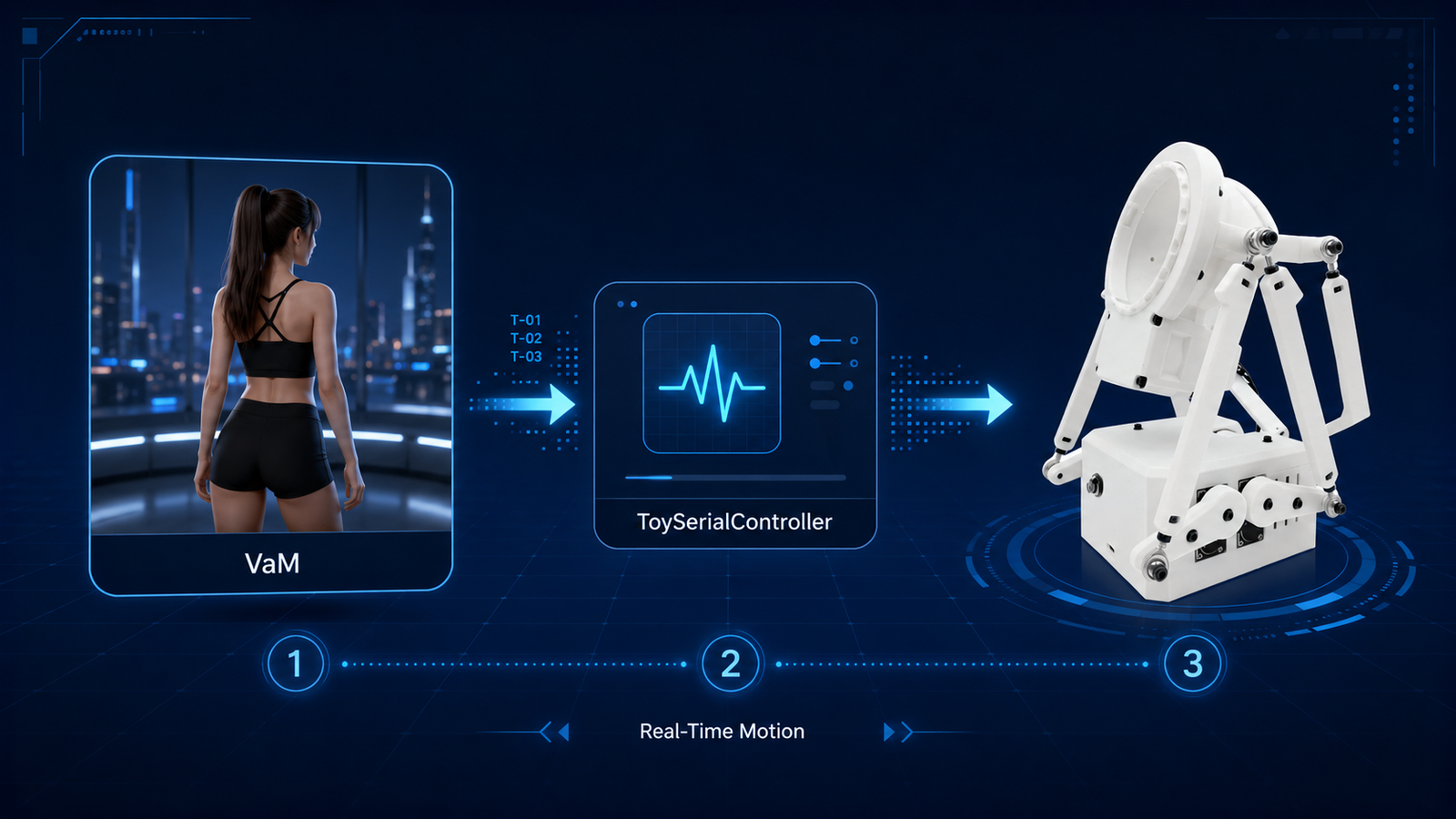
Virt-a-Mate (VaM) is one of the most established environments for advanced OSR-style game interaction.
With a compatible plugin such as ToySerialController, motion from a VaM scene can be converted into T-Code and sent to MiraBot.
For example:
VaM Character Motion → ToySerialController → MiraBot
As the animation changes, the physical motion changes with it.
Users can also adjust motion parameters and mappings to better match different scenes or personal preferences.
This makes VaM particularly interesting for MiraBot S6 users who want to make greater use of multi-axis movement rather than treating the device as a simple Stroke-only machine.
Reverse the Direction: Control VaM with Your Phone
MiraPlay AiO adds another variation to the VaM workflow.
Using Gesture Sync + UDP Streaming together with a compatible VaM plugin such as BusDriver, your smartphone can act as a motion-capture controller for a selected character body part.
Move the phone and the virtual character responds.
At the same time, MiraBot can follow the same real-time input.
Conceptually, the workflow becomes:
Phone → VaM Character
and
Phone → MiraBot
at the same time.
Instead of simply letting a pre-made animation control the device, you are controlling both the virtual motion and physical motion yourself.
It is not full-body motion capture, but it provides a surprisingly intuitive bridge between physical input, a virtual character, and a real multi-axis device.
Other Games, Plugins and Mods
MiraBot is not limited to VaM.
Because it supports many OSR / T-Code-style workflows, the community ecosystem includes other game plugins and integration methods as well.
Examples include Koikatu / Koikatsu OSR plugins, 2D game integrations, Funscript-based game tools, and custom game Mods.
Compatibility varies between games and plugins, so advanced users should always check the requirements of the specific integration before setting up a new game.
7. Motion Studio — Connecting Motion to Game Events
Some games were never designed with an OSR device in mind.
This is where tools such as Motion Studio, game Mods, plugins, and local integrations can open additional possibilities.
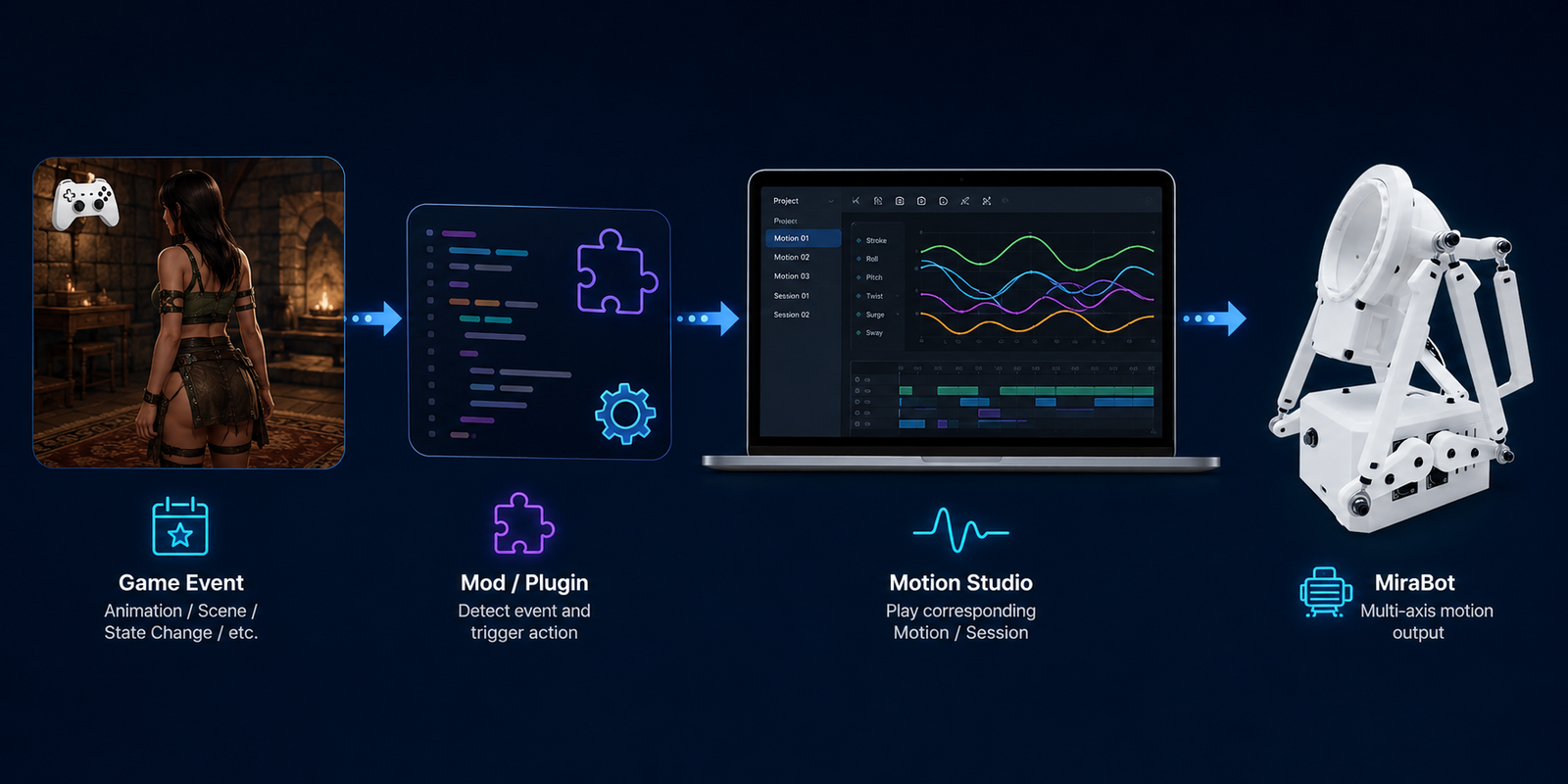
Instead of requiring a game to output standard motion data continuously, an integration can associate specific game events with pre-built Motion or Session data.
Conceptually:
Game Event → Mod / Integration → Motion Studio → MiraBot
For example, an animation, scene, state change, or other in-game event can trigger the corresponding motion.
This makes Motion Studio especially useful for custom projects and game integrations where a ready-made OSR plugin does not already exist.
8. Explore the Wider OSR Ecosystem
MiraBot is designed to provide an easier, more finished entry into multi-axis interaction, but it is not locked into MiraPlay.
Advanced users can continue exploring compatible tools from the wider OSR community.
Depending on what you want to do, this may include Funscript players such as MultiFunPlayer and XTPlayer, web controllers such as Ayva and Mosa, game plugins for Virt-a-Mate and Koikatu, and script creation tools such as OpenFunScripter.
This openness is particularly useful if you already own an OSR-style device, have an existing script library, or enjoy experimenting with custom setups.
MiraPlay provides the easy starting point.
The OSR ecosystem provides room to go much further.
9. No Video? No Funscript? You Can Still Use MiraBot
A common misunderstanding is that an interactive device always requires a scripted video.
MiraBot does not.
A Funscript is one way to generate motion, but it is not the only one.
With MiraPlay, motion can also come from your phone through Gesture Sync, from recorded custom motions, from compatible games, from real-time UDP data, from Remote Play, or from other supported OSR software.
This makes MiraBot useful not only as a media synchronization device, but also as a general multi-axis motion platform.
10. Expand the Experience with Hardware Modules
Software determines how MiraBot moves.
Hardware accessories can add entirely new dimensions to that motion.
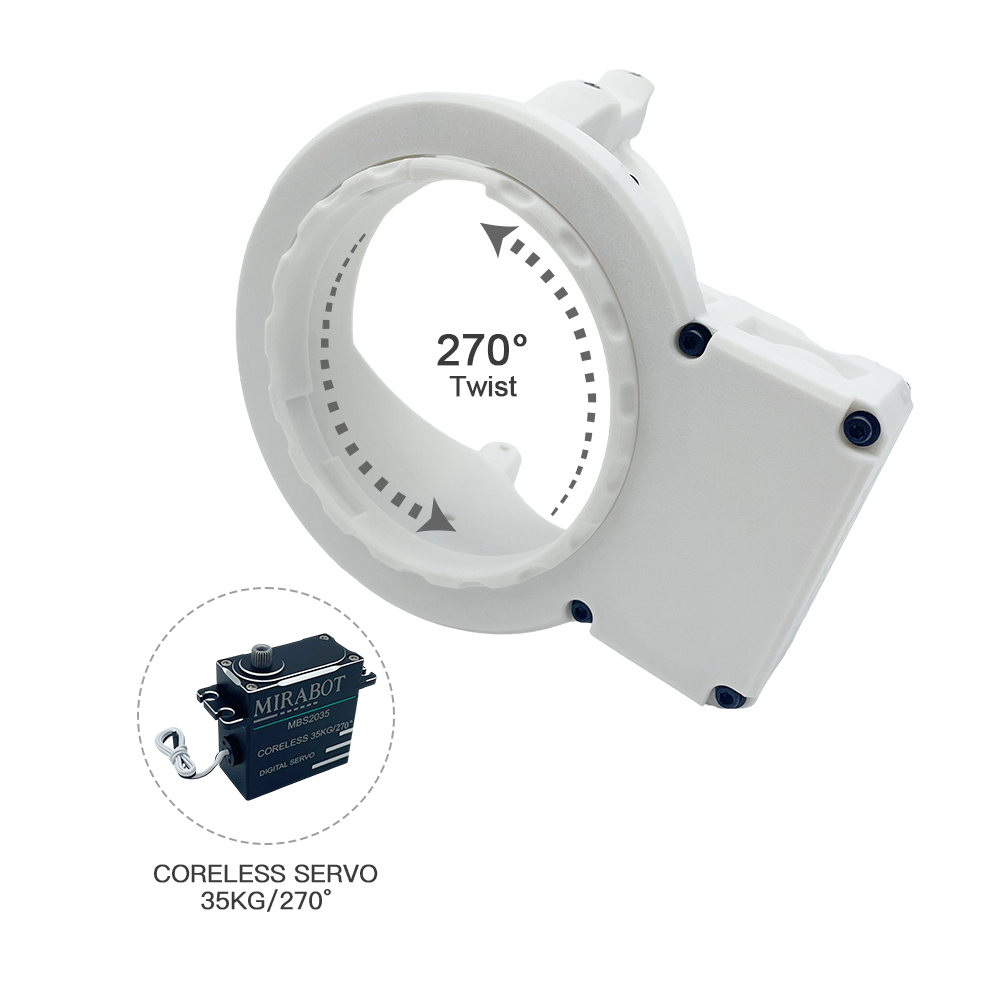
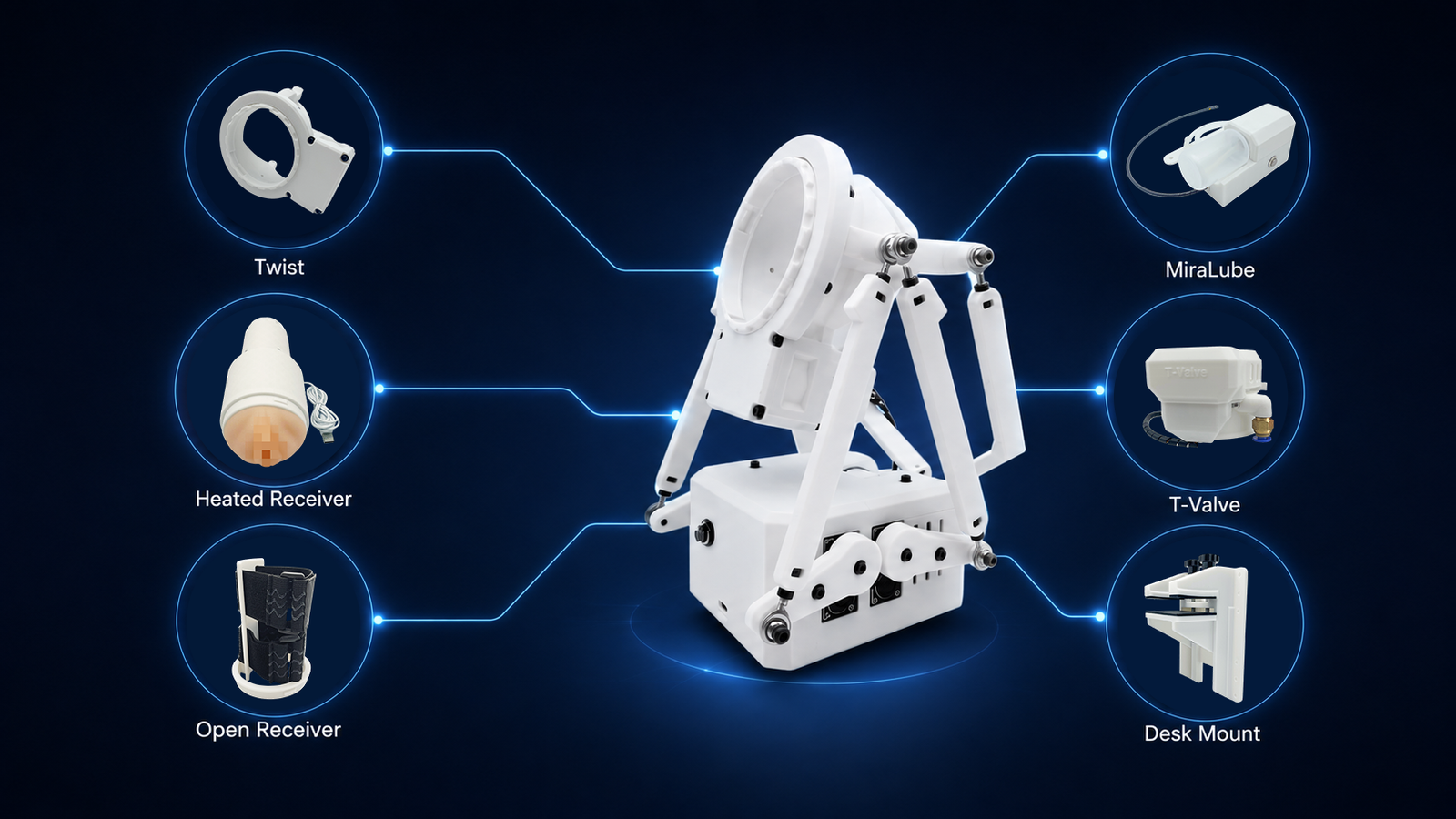
Twist
Twist adds rotational movement to the experience.
When a compatible .twist.funscript, multi-axis application, or Gesture Sync input is available, rotation can work together with the main Stroke movement rather than acting as a separate fixed effect.
This makes Twist particularly useful for multi-axis Funscripts, VR, Gesture Sync, and games.
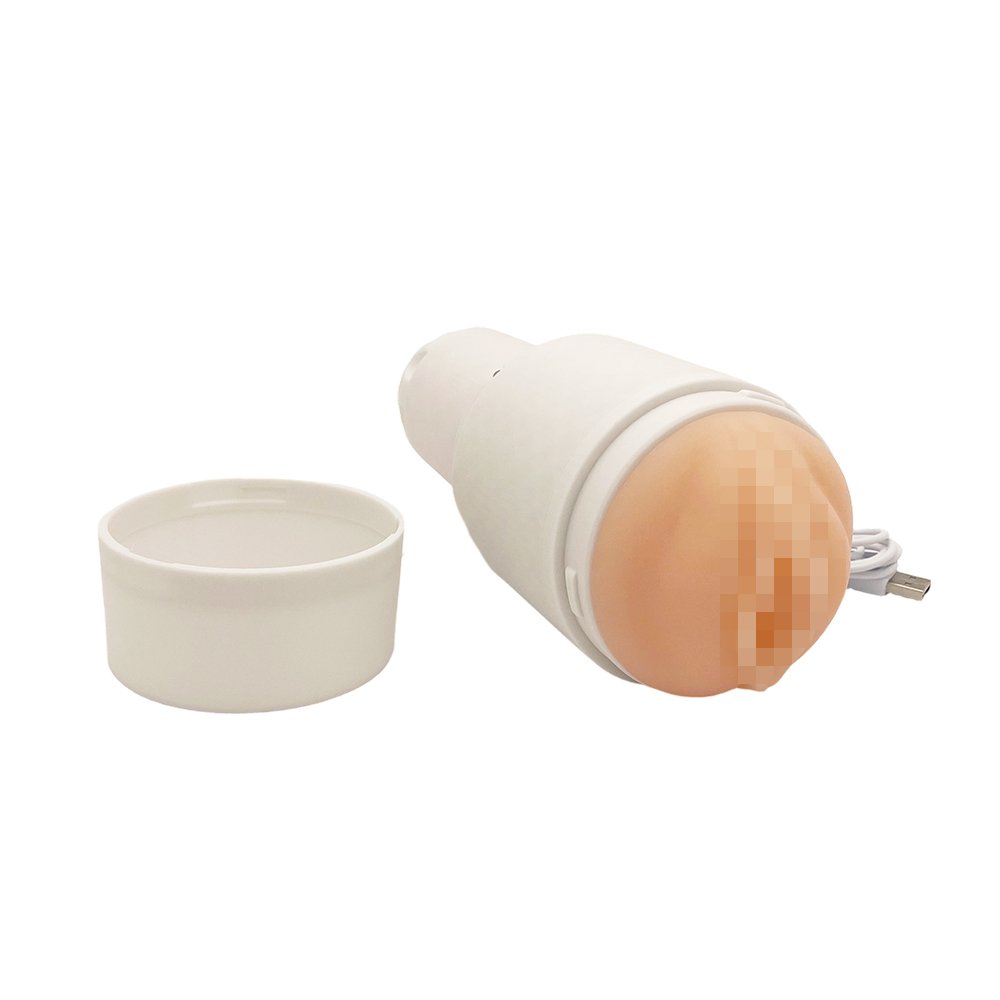
Twist Heated Receiver
The Heated Receiver adds temperature to the experience.
Rather than changing the motion itself, it introduces another layer of physical immersion while remaining compatible with the Twist system.
For users looking to build a more complete setup, this is a natural upgrade beyond motion alone.
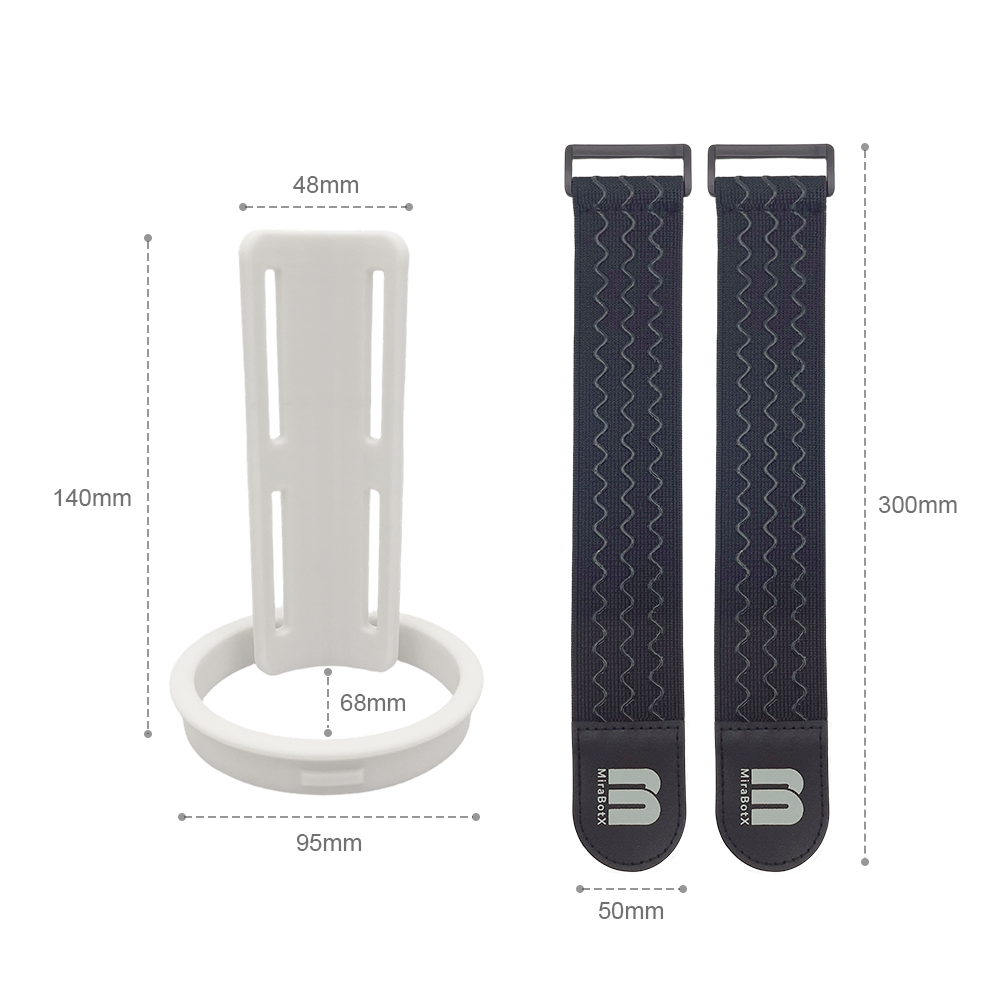
Open Receiver
The Open Receiver provides a more flexible mounting option for users who want to use different compatible sleeves instead of being limited to a single receiver configuration.
It is particularly useful for users who already have preferred sleeves or want to experiment with different setups.
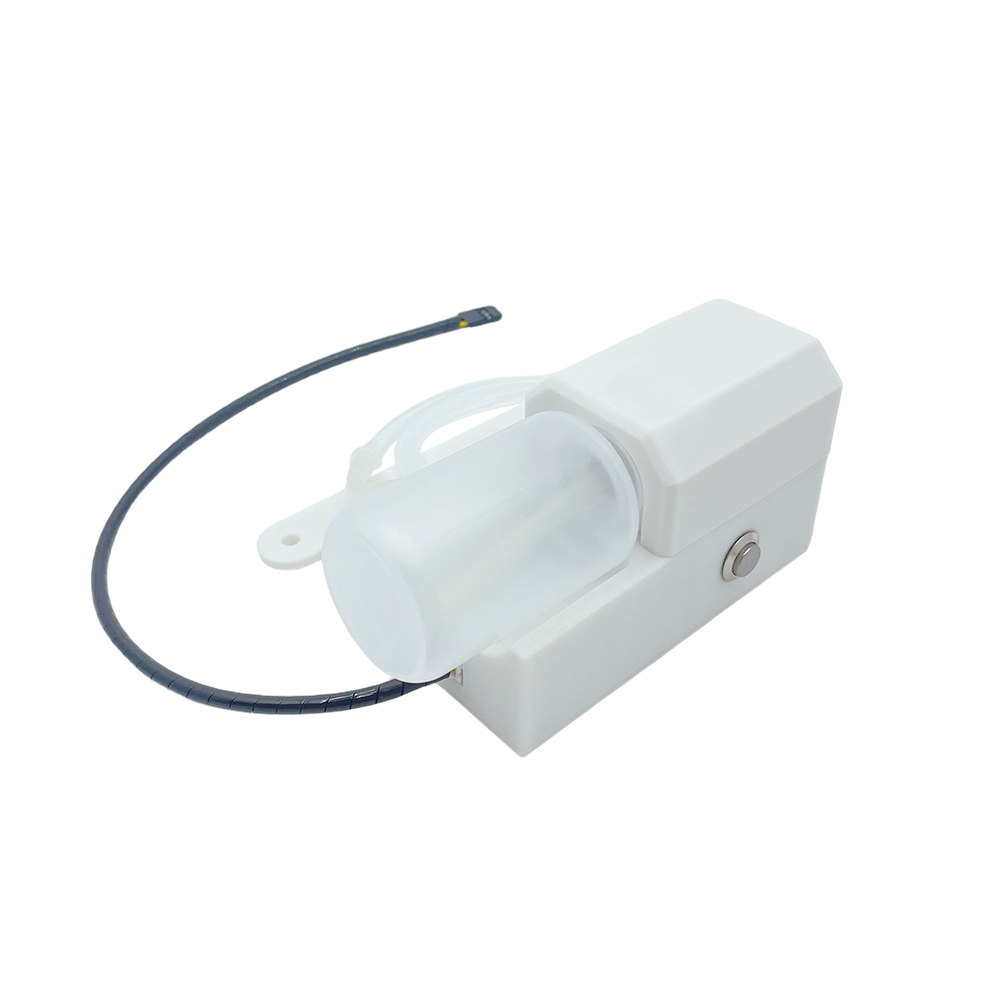
MiraLube
MiraLube brings lubrication into the same interactive workflow.
It supports live control and hands-free Auto Mode, but it can also go further: lubrication actions can be recorded and played back as .lube.funscript data.
That means an interactive setup can contain more than motion axes.
For example:
Video
→ Stroke Script
→ Twist Script
→ Lube Script
The timing of lubrication can therefore become part of the experience rather than a completely separate manual action.
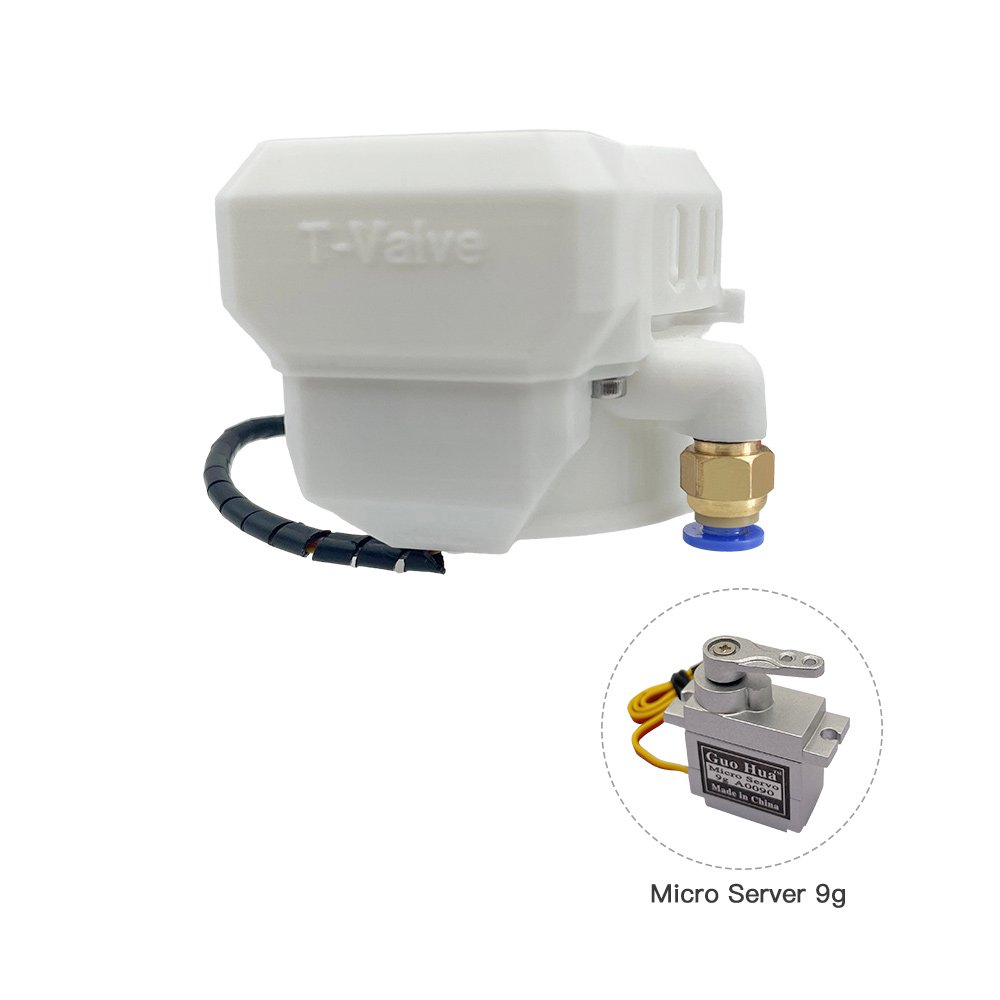
T-Valve
T-Valve adds controllable pressure behavior to compatible MiraBot S6 configurations.
It can be used with automatic or manual control, and current MiraPlay workflows can also record valve actions for later playback.
Together with MiraLube and Twist, it demonstrates an important idea behind the MiraBot ecosystem:
interactive data does not have to control only movement.
It can also control other physical effects synchronized with the experience.
Desk Mount and Positioning Accessories
Mounting can have a major effect on how a motion setup feels.
A Desk Mount provides a stable installation while allowing the device position and angle to be adjusted for different environments and positions.
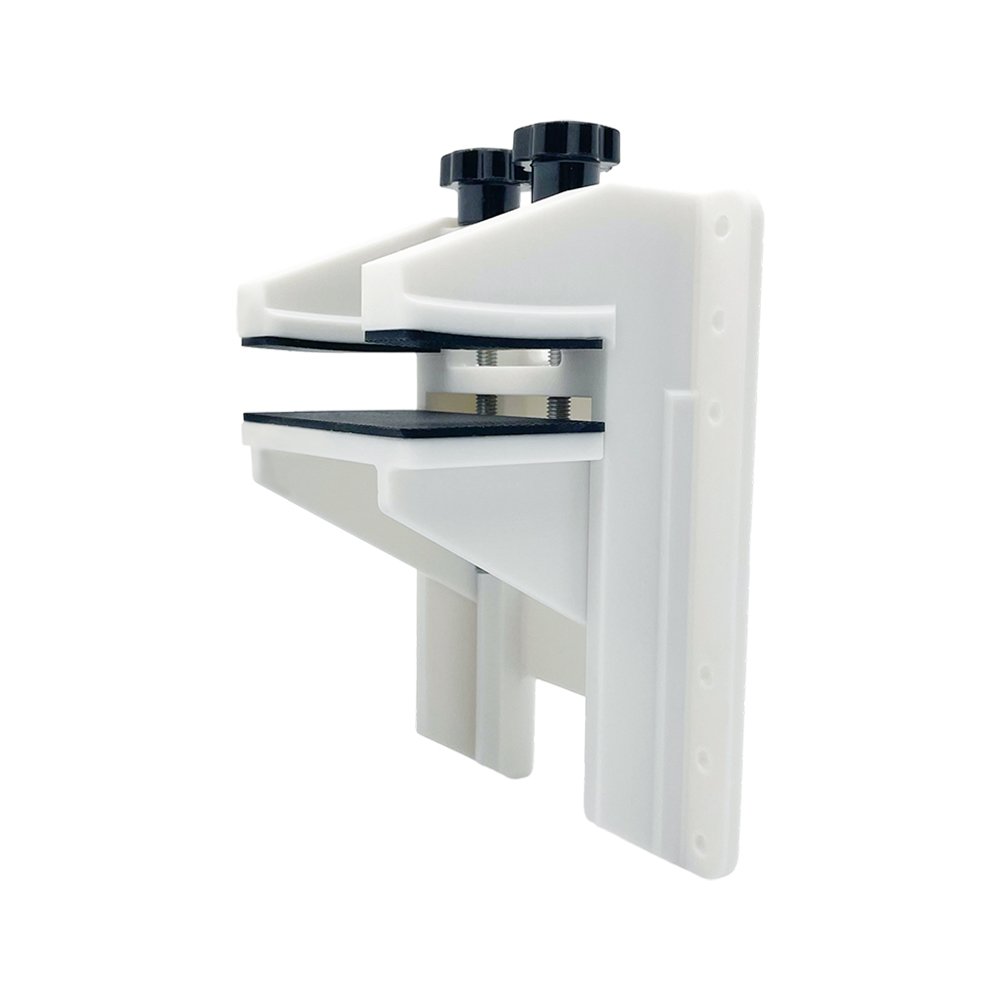
For a multi-axis device, secure mounting is especially important because the system generates movement in more directions than a simple single-axis machine.
11. USB, Bluetooth or Wi-Fi — Which Connection Should You Use?
MiraBot supports several connection methods because different applications have different requirements.
There is no single connection type that is always best.
| Use Case | Good Starting Point |
|---|---|
| MiraPlay AiO | Bluetooth LE or Wi-Fi |
| MiraPlay Web | USB or supported wireless connection |
| Third-party PC OSR software | USB for broad compatibility |
| SLR / DeoVR Direct Connection | SLR-Compatible Bluetooth |
| VaM / UDP workflows | USB or Wi-Fi UDP |
| Advanced OSR tools | Follow the software/plugin requirements |
USB: Maximum Compatibility
If you are using a third-party PC application and are unsure which connection method to choose, USB is usually the safest starting point.
It is simple, direct, and widely supported by existing OSR software.
Bluetooth LE: Easy Wireless Connection
Bluetooth is especially convenient for smartphone use and supported standalone VR workflows.
For many everyday MiraPlay AiO functions, it provides an easy cable-free experience.
Wi-Fi: Flexible Network Integration
Wi-Fi is particularly useful for UDP streaming, game integrations, and other network-based workflows.
Starting from Firmware v1.3.0, MiraBot includes Wi-Fi and Bluetooth LE support in the same firmware, so users no longer need to maintain separate Wi-Fi and Bluetooth firmware versions just to switch between the two wireless modes.
12. Which MiraBot Workflow Should You Start With?
With so many possibilities, you may still be wondering where to begin.
The easiest answer is to choose the workflow that matches what you already enjoy.
If you want the simplest setup
Start with:
MiraBot + MiraPlay AiO
Use Gesture Sync first, then try Video Sync when you have a video and Funscript.
If you already have videos and Funscripts
Start with:
MiraPlay Web or MiraPlay AiO
If you later want deeper axis control and more player options, explore MultiFunPlayer.
If VR is your main priority
For supported SLR content, start with:
VR Headset + SLR / DeoVR + SLR-Compatible Bluetooth
For advanced custom VR workflows, explore MultiFunPlayer with DeoVR or HereSphere.
If you want games and real-time interaction
Start with:
Virt-a-Mate + ToySerialController
Then explore MiraPlay AiO UDP Streaming, BusDriver, Motion Studio, and other game integrations.
If you want the widest possible multi-axis experience
Choose a configuration that supports the axes and expansion modules you want to explore, then combine it with multi-axis Funscripts, Gesture Sync, games, or Motion Studio.
MiraBot Lite or MiraBot S6?
Both devices share the same broader MiraPlay and OSR-compatible ecosystem, but they are designed for different types of users.
MiraBot Lite is the more compact, beginner-friendly option. It is a good fit for users who want an easier entry into MiraPlay, video synchronization, Gesture Sync, VR, and multi-axis motion without building a large setup.
MiraBot S6 is designed for users who want to go further — with fuller multi-axis motion, more advanced game workflows, and greater expansion through modules such as Twist, MiraLube and T-Valve.
If this is your first step into multi-axis devices, Lite can make the ecosystem easier to approach.
If your goal is to explore as much of that ecosystem as possible, S6 provides more room to expand.
Start Simple. Explore When You Are Ready.
There is no single “correct” way to use MiraBot.
One user may simply load a video and Funscript on a phone.
Another may spend most of their time in VR.
Someone else may use VaM, create multi-axis motions, build game Mods, or combine Twist, pressure control and scripted lubrication into a custom setup.
All of these workflows ultimately connect to the same idea:
Videos. VR. Games. Apps. Funscripts. Gestures. Real-time data.
↓
MiraBot
That is what makes MiraBot different from a device designed around only one type of content or one software platform.
You can start with something simple today and discover new ways to use the same hardware later.
Ready to Start?
New to MiraBot?
Explore MiraPlay AiO and see how easy it is to get started.
Already familiar with OSR?
Explore our Related Software page for compatible players, plugins, game integrations, and script tools.
Choosing your first MiraBot?
Compare MiraBot Lite and MiraBot S6 to find the setup that best matches the way you want to play.