
Starting from MiraBot Firmware v1.3.0, MiraBot supports both Wi-Fi and Bluetooth LE wireless connection modes in one firmware.
This means you no longer need to flash different firmware versions just to switch between Wi-Fi and Bluetooth LE.
When you need to change the wireless connection mode, simply connect MiraBot to MiraPlay Web by USB and switch the mode in Wireless Settings.
Before You Start
Please make sure your MiraBot is running Firmware v1.3.0 or later.
If your device is still using Firmware v1.2 or earlier, please update the firmware first before switching wireless connection modes.
How to Switch the Wireless Mode
Step 1: Open MiraPlay Web
Open MiraPlay Web in your browser and log in to your account.
Step 2: Connect MiraBot by USB
Connect MiraBot to your computer using a USB cable.
Then connect to the device through the Serial Port connection in MiraPlay Web.
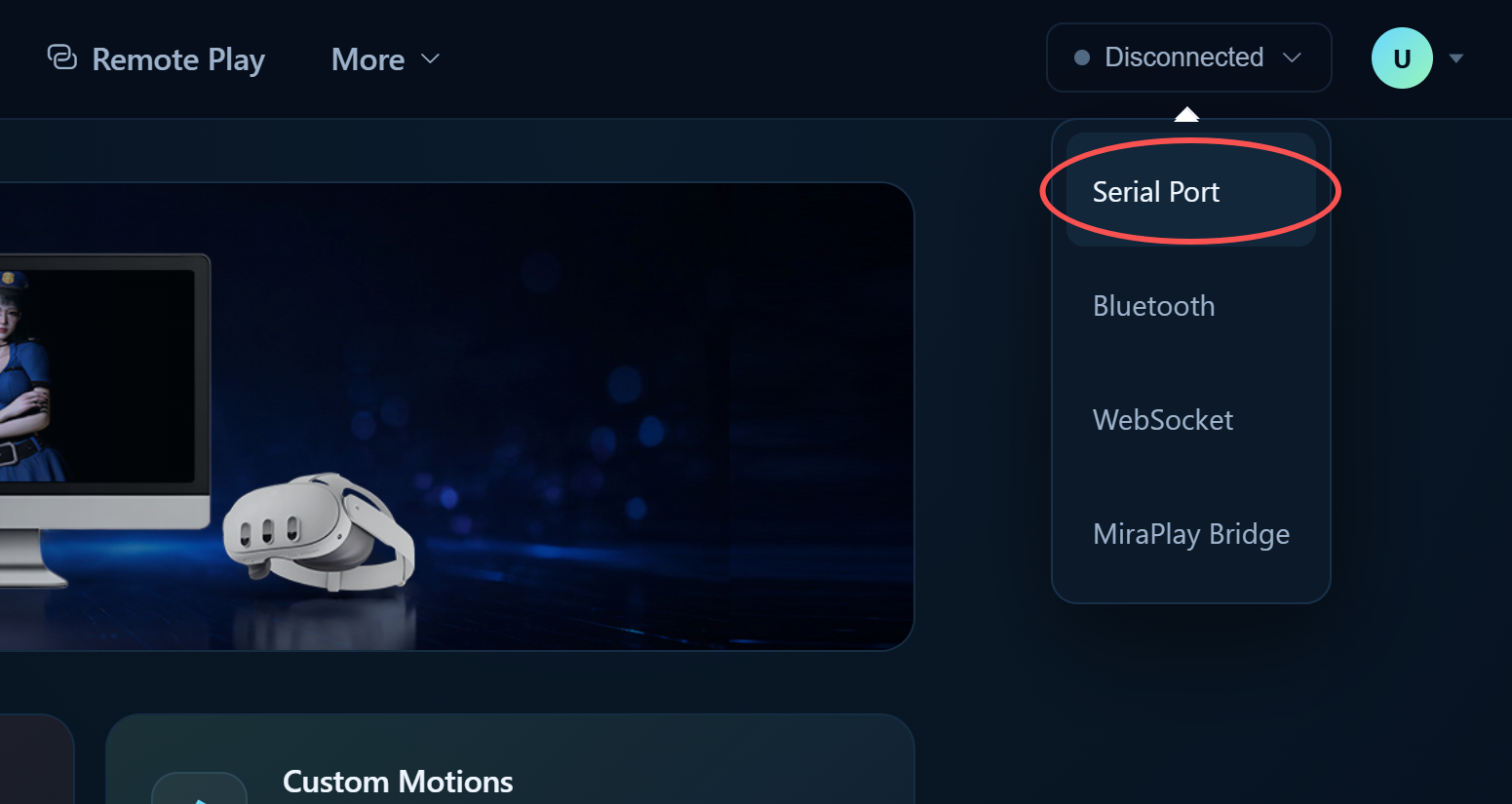
Step 3: Open Wireless Settings
Click the upper-right menu:
More ➜ Wireless Settings
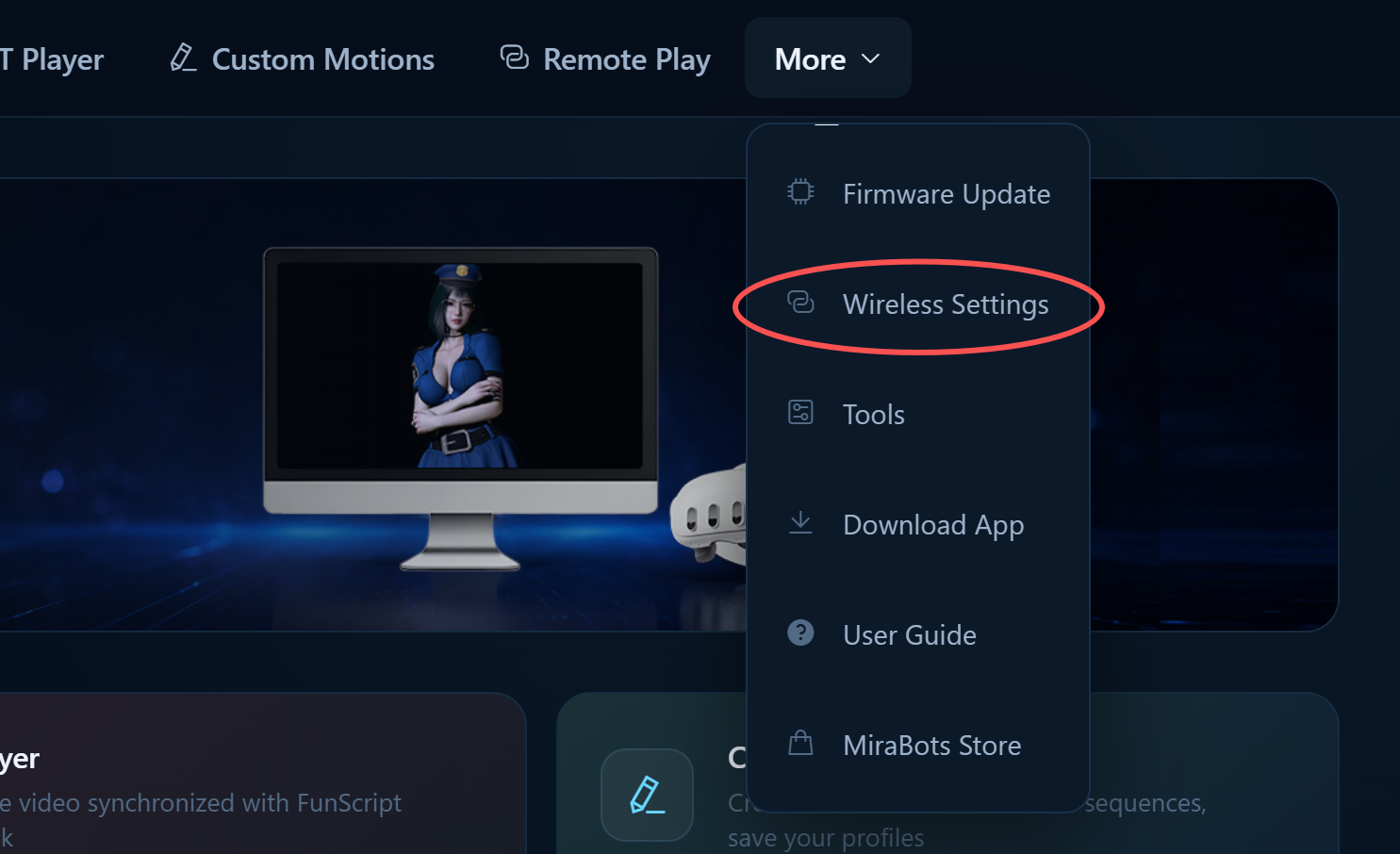
Step 4: Choose the Connection Mode
Select the wireless mode you want to use:
- Wi-Fi
- Bluetooth LE
After changing the mode, follow the on-screen instructions if a restart or reconnect is required.
Wi-Fi Mode
Use Wi-Fi mode when you want to connect MiraBot through your local 2.4GHz Wi-Fi network.
Wi-Fi mode supports:
- UDP
- WebSocket
- Supported MiraPlay AiO / MiraPlay Web workflows
- Third-party OSR-compatible software that uses Wi-Fi communication
Bluetooth LE Mode
Use Bluetooth LE mode when you want a simple direct wireless connection without using a Wi-Fi network.
Bluetooth LE mode is useful for:
- Direct device-to-app connection
- No-Wi-Fi setup environments
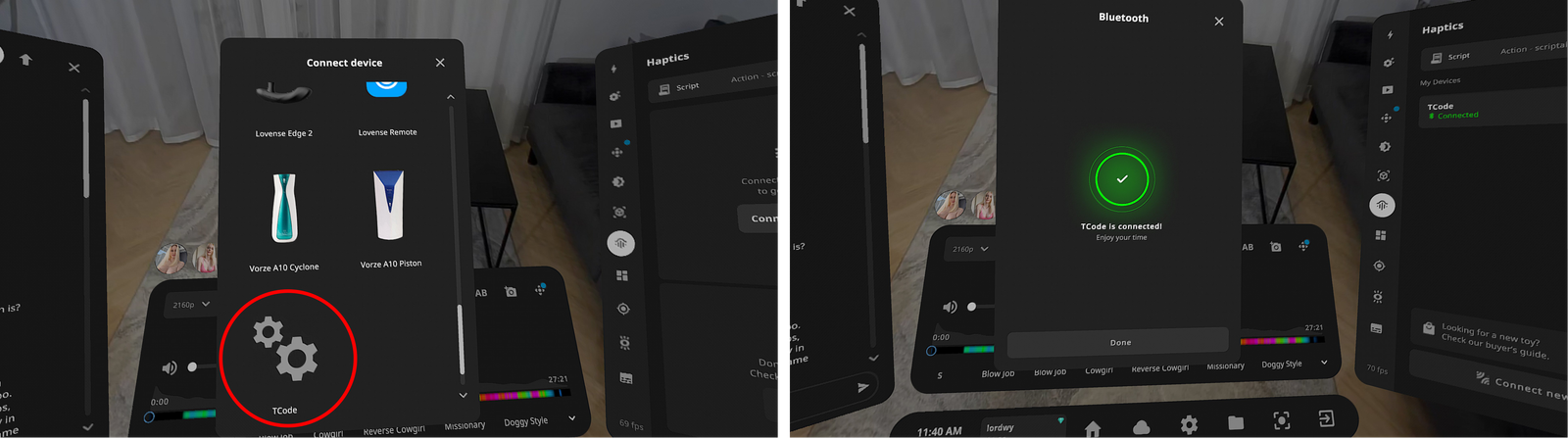
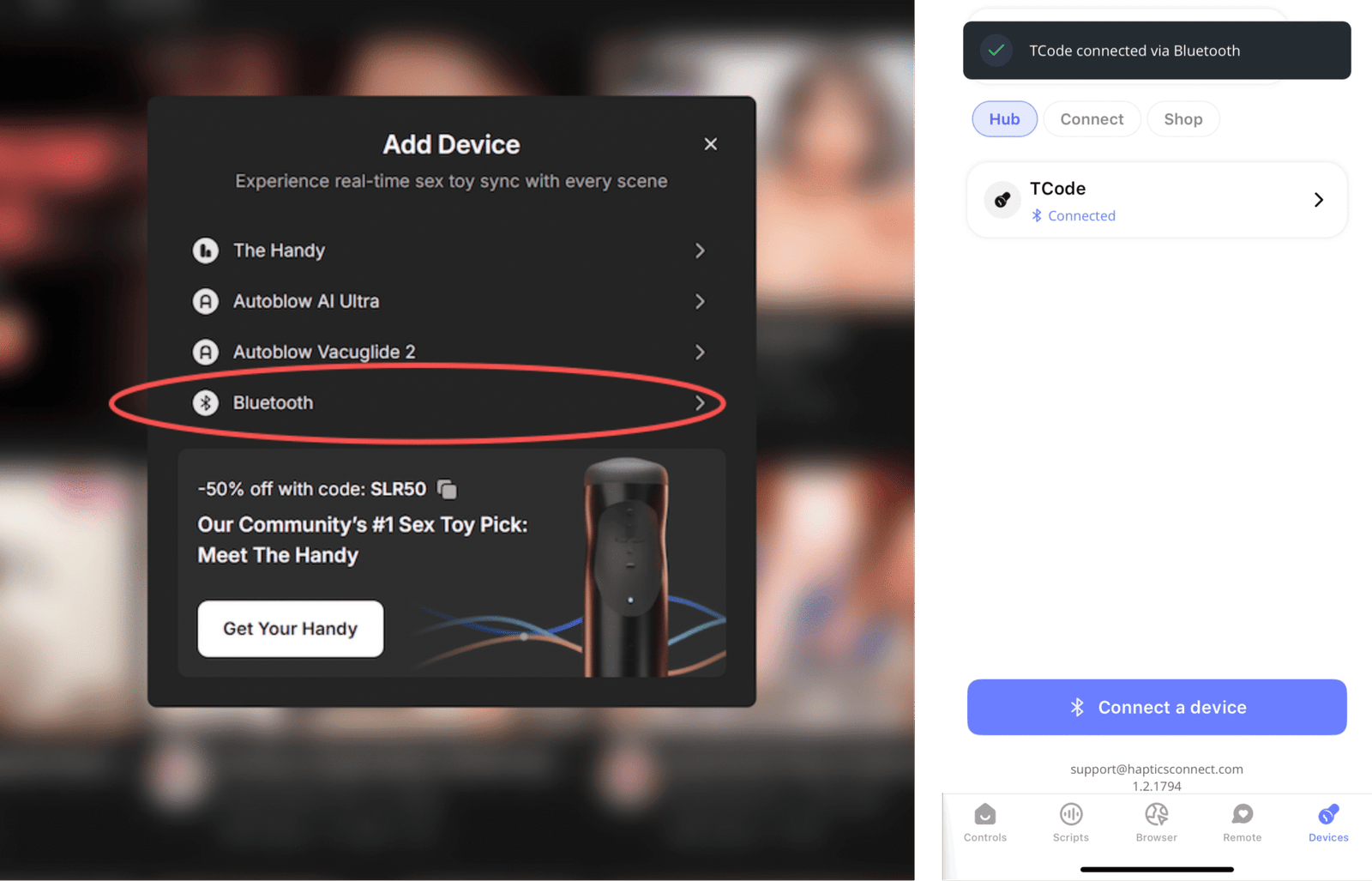
- SLR-compatible Bluetooth workflows
- Supported mobile or VR playback scenarios
SLR-Compatible Bluetooth Mode
If you enable SLR-Compatible Mode, the Bluetooth device name will change to:
OSR-ESP32
This mode is used for SLR-compatible Bluetooth connection workflows, such as supported SexLikeReal / DeoVR environments.
Please note that MiraPlay AiO v1.7.6 or later is required to support the new SLR-compatible mode.
Important Notes
- Wi-Fi and Bluetooth LE cannot be active at the same time.
- Only one wireless mode can be used at once.
- You can switch the mode again later through MiraPlay Web.
- If the device does not appear in Bluetooth after switching modes, please confirm that Bluetooth LE mode is selected and that your MiraPlay AiO app is updated to the latest version.