
No MultiFunPlayer. No Bridge. Direct Bluetooth Playback.
For a long time, many MiraBot users asked us the same question:
Can MiraBot connect to SexLikeReal directly, without using MultiFunPlayer or a PC bridge?
Previously, the answer was usually the same as with many OSR/TCode devices: you needed to use a PC-based bridge workflow, such as MultiFunPlayer, to relay script data to the device.
That worked, but it was not always the smoothest experience — especially for users who wanted a simpler VR playback setup.
Starting from MiraBot Firmware v1.3.0, this process is now much easier.
With the new SLR-compatible Bluetooth mode, MiraBot can connect directly to supported SexLikeReal playback environments, including DeoVR, the SexLikeReal website on a PC browser, and the Haptics Connect app.
This guide explains how to set it up.
Before You Start
Before connecting MiraBot to SexLikeReal, please check the following:
1. MiraBot Firmware Version
Please make sure your MiraBot has been updated to Firmware v1.3.0 or later.
Then turn on the device.
2. Wireless Mode
Your MiraBot must be set to SLR-compatible mode under Bluetooth mode.
If you are not sure how to switch to SLR-compatible mode, please refer to this guide:
How to Switch Between Wi-Fi and Bluetooth LE Connection Modes
3. SexLikeReal Subscription
Please make sure your SexLikeReal account includes access to scripts, such as Bundle with Scripts or another plan that supports scripted playback.
A video-only subscription will not send motion script data to the device, even if the device is connected successfully.
Option 1: Connect MiraBot in DeoVR
This method is recommended for users watching SexLikeReal content in DeoVR on Quest or other supported VR headsets.
Step 1: Open DeoVR
Download and open DeoVR on your Quest or other VR headset.
Then visit SexLikeReal inside DeoVR and log in to your account.
Step 2: Open the Haptics Menu
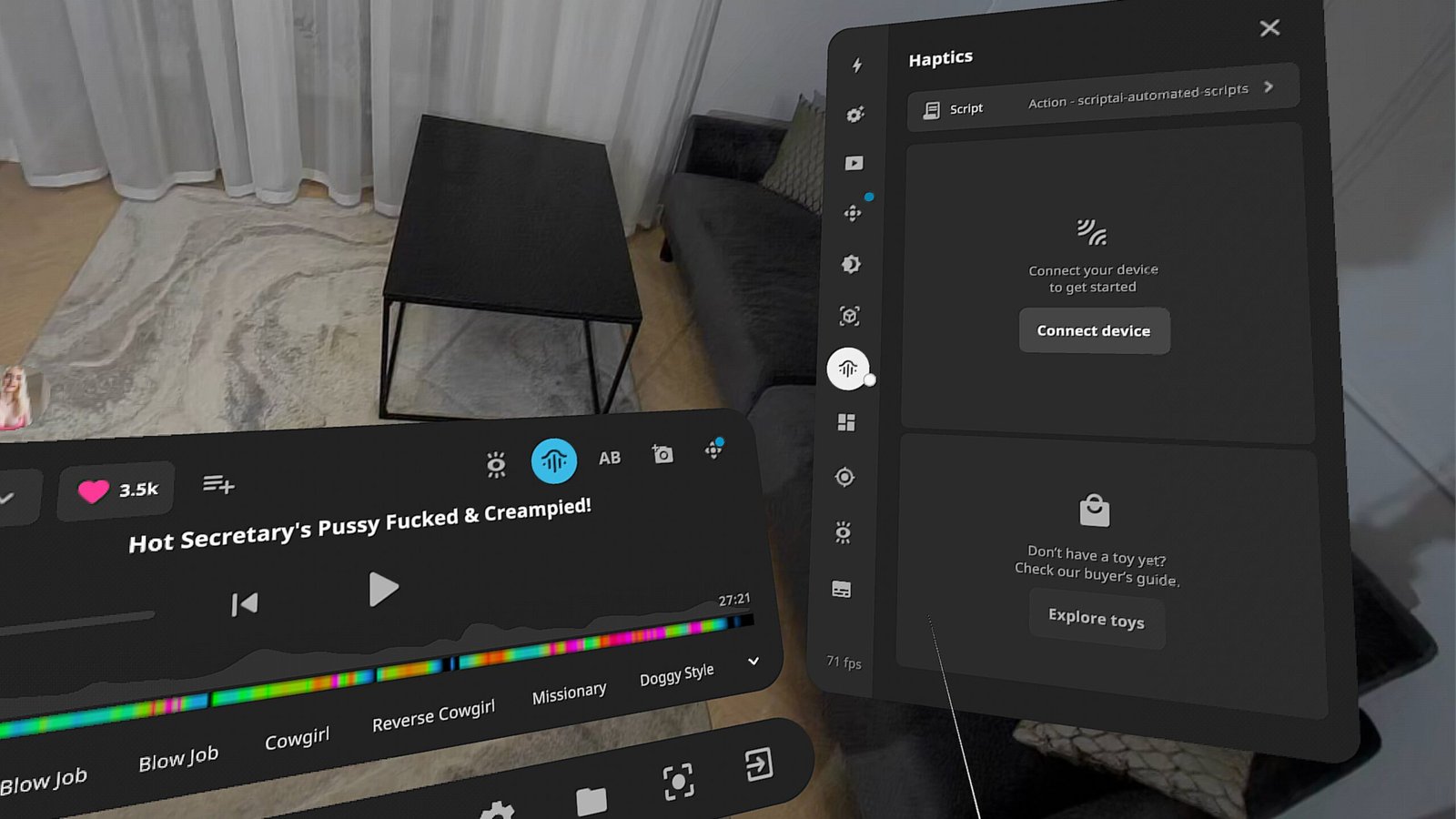
When adding the device for the first time, open any video and find Haptics in the right-side menu.
Click Connect device.
Step 3: Select TCode
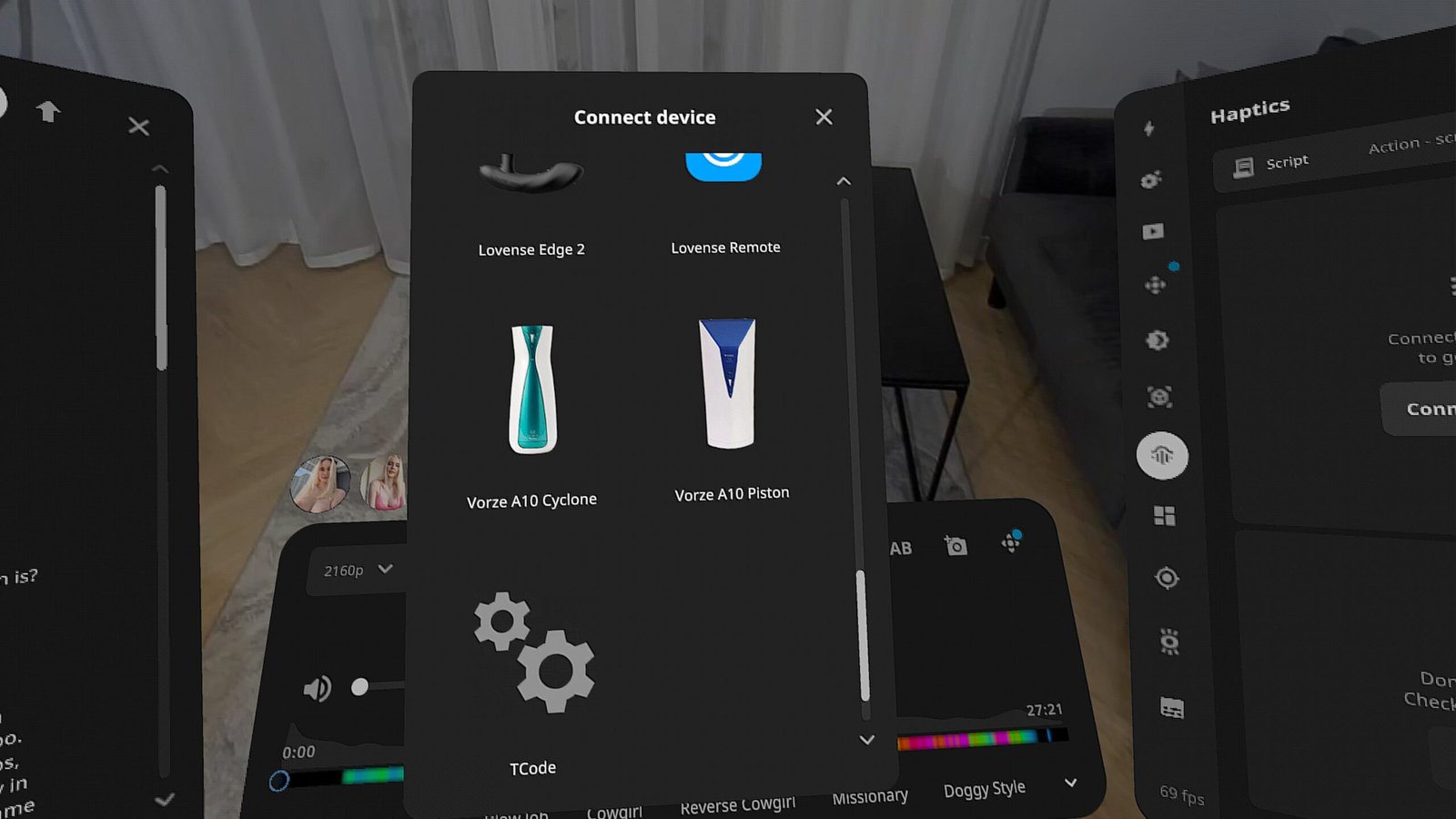
In the list of supported interactive device types, select:
TCode
Then select:
Bluetooth
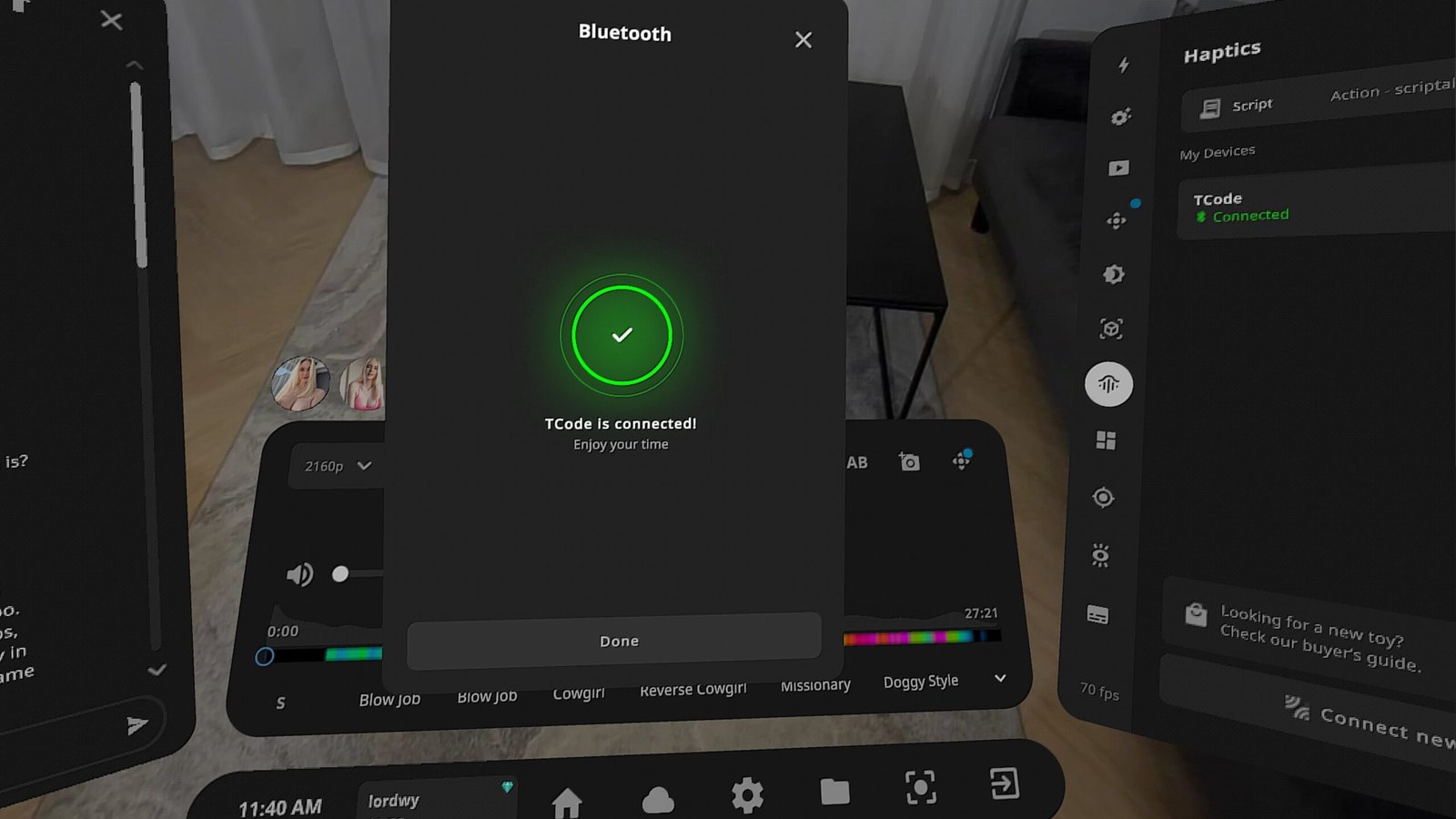
When MiraBot is in SLR-compatible mode, it should be detected automatically.
Step 4: Play a Scripted Video
After the device is connected, play a video that includes a script.
MiraBot should move in sync with the video.
Important Note: Manual Mode in DeoVR
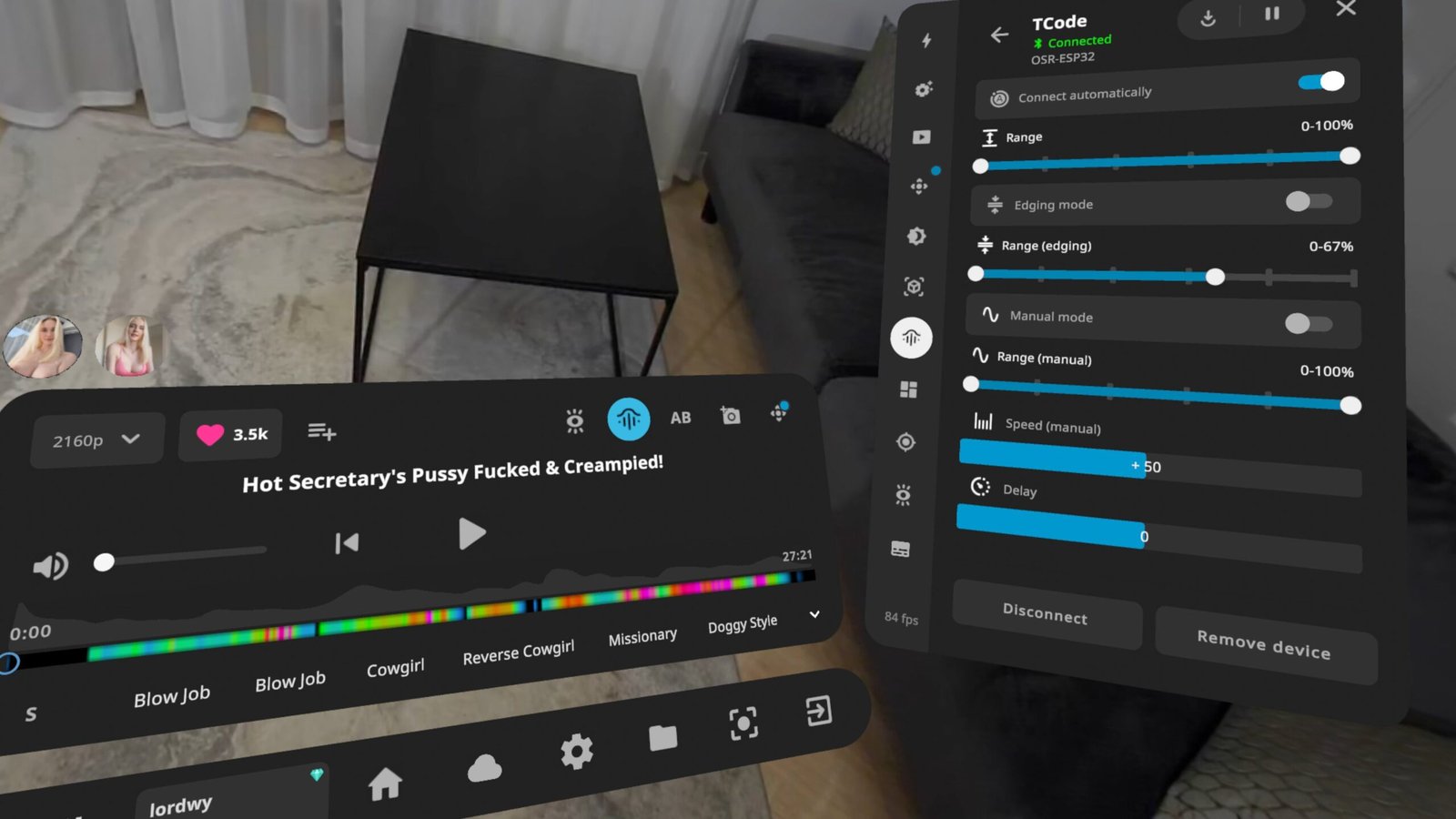
In the Haptics menu, clicking your device opens the device parameter settings.
If Manual mode is enabled, the device will move automatically based on the Manual mode settings.
If you want MiraBot to follow the video script, please make sure Manual mode is turned off.
Option 2: Connect MiraBot on the SexLikeReal Website
PC Browser Method
This method is suitable for users on Windows 10 or later.
We recommend using Google Chrome or another browser that supports Bluetooth device pairing.
Step 1: Open SexLikeReal
Open the SexLikeReal website in your browser and log in to your account.
Step 2: Add a Device
Click Add sex toy in the upper-right area of the website.
Then select Bluetooth as the connection method.
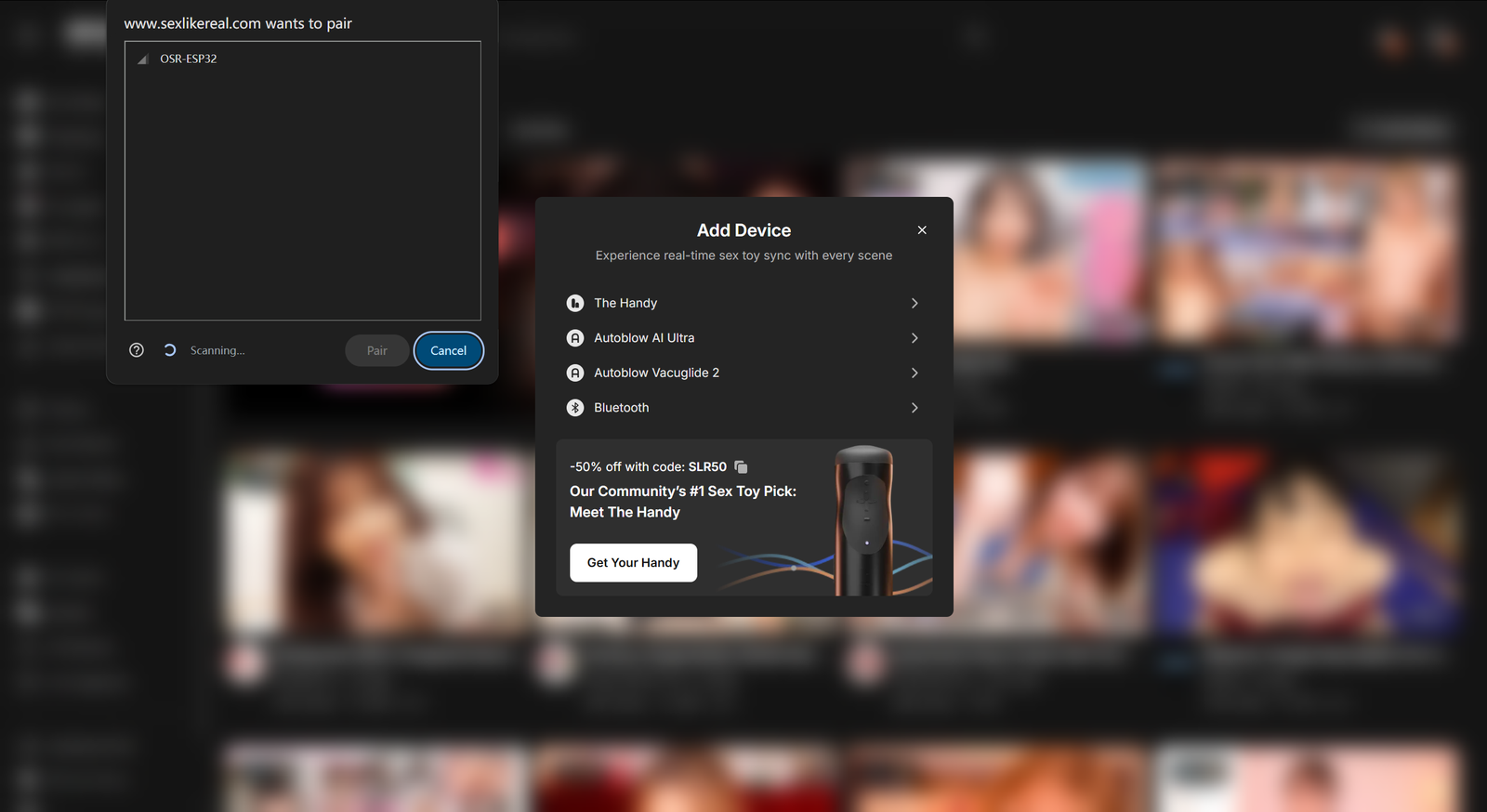
Step 3: Pair MiraBot
In the Bluetooth pairing window, select:
OSR-ESP32
Then click Pair.
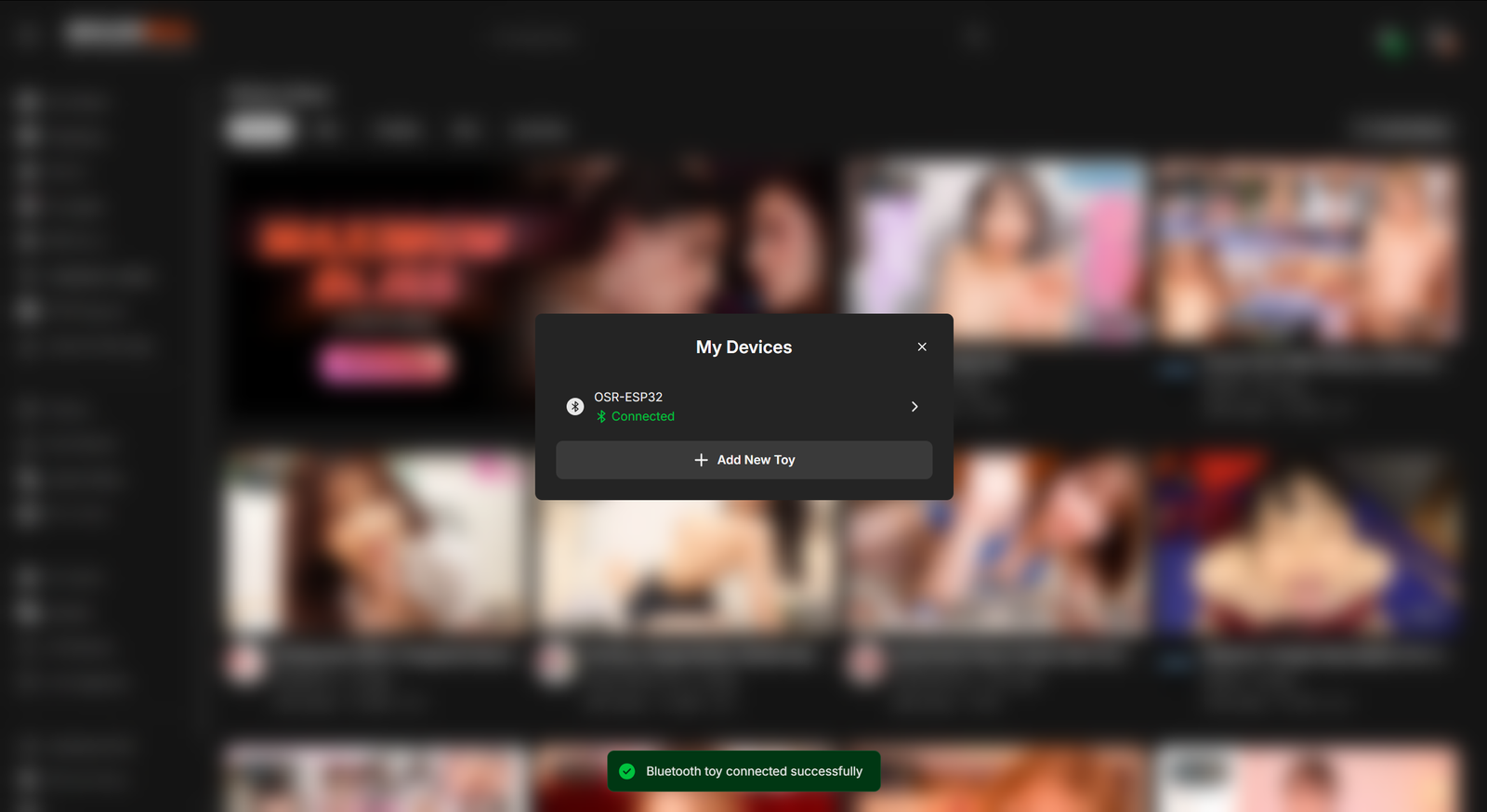
Step 4: Play a Scripted Video
After the connection is successful, open a video that includes a script.
MiraBot should start moving in sync with the video.
Option 3: Connect MiraBot with Haptics Connect
You can also use the Haptics Connect app as another way to play SexLikeReal content with MiraBot.
Step 1: Install Haptics Connect
Download and install Haptics Connect from the Google Play Store or Apple App Store.
Step 2: Open the App
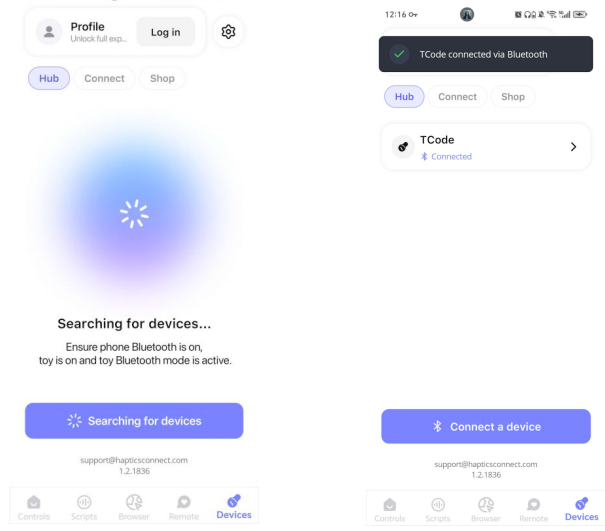
Turn on your MiraBot and make sure it is in SLR-compatible Bluetooth mode.
Open Haptics Connect.
The app should automatically detect and connect to your device. In most cases, you do not need to manually select a device type.
Step 3: Open SexLikeReal in the Browser
Use the built-in browser in Haptics Connect to open SexLikeReal.
Log in to your account and play a video that includes a script.
MiraBot should move in sync with the scripted video.
Important Note: Manual Mode and Auto Mode in Haptics Connect
Devices that have already been added can be managed under Devices.
If Manual mode or Auto mode is enabled, MiraBot may move based on those settings instead of following the video script.
If you want the device to follow the script from the video, please turn off Manual mode and Auto mode.
Troubleshooting
If MiraBot connects but does not move, please check the following:
- Your MiraBot is running Firmware v1.3.0 or later
- The device is set to SLR-compatible Bluetooth mode
- The device appears as OSR-ESP32
- Your SexLikeReal account includes access to scripts
- The video you are playing actually includes a script
- Manual mode or Auto mode is turned off
- No other app or browser is already connected to the device
- Bluetooth permission is allowed on your headset, phone, or browser
If the device still does not move as expected, please contact us through Contact Us. Our support team will help you check the setup.
Why This Matters
MiraBot is designed to provide a more complete, ready-to-use multi-axis motion experience.
With Firmware v1.3.0 and SLR-compatible Bluetooth mode, users can now enjoy a simpler workflow for supported SexLikeReal playback environments — without needing any bridge tool, or a complicated PC relay setup.
This makes MiraBot easier to use for VR playback, browser playback, and app-based playback, while still keeping the flexibility that advanced users expect from a multi-axis interactive motion system.
If you already own a MiraBot, we recommend updating to the latest firmware and trying the new direct connection workflow.
If you are considering MiraBot, this is one of the key advantages of the MiraBot ecosystem: continuous firmware updates, official software support, and a smoother playback experience after purchase.