
If your MiraBot does not move after powering on, the first step is to confirm what kind of issue you are experiencing.
1. The arms return to the initial position, but do not move with the software or app
If the robotic arms move back to the initial position after power-on, this usually means the main power and basic controller startup are working.
In this case, the issue is more likely related to the connection or software settings. Please check the following:
- Make sure the device is properly connected by USB, Wi-Fi, or Bluetooth LE.
- Confirm that the correct device is selected in the software or app.
- Check whether the software, app, or playback tool is using the correct connection method.
- Restart the device and reconnect it to the software or app.
- If you are using MiraPlay AiO or MiraPlay Web, make sure the app or browser page has successfully detected the device.
If the device can return to its initial position but does not respond to motion commands, please focus on connection settings, wireless mode, firmware version, and software configuration first.
2. The device has no movement at all
If the device does not move at all after power-on, please check the items below.
Check the power adapter
Please make sure you are using the original power adapter included with your MiraBot.
Using a power adapter with a different specification may cause abnormal behavior or even permanent damage to the Controller Kit.
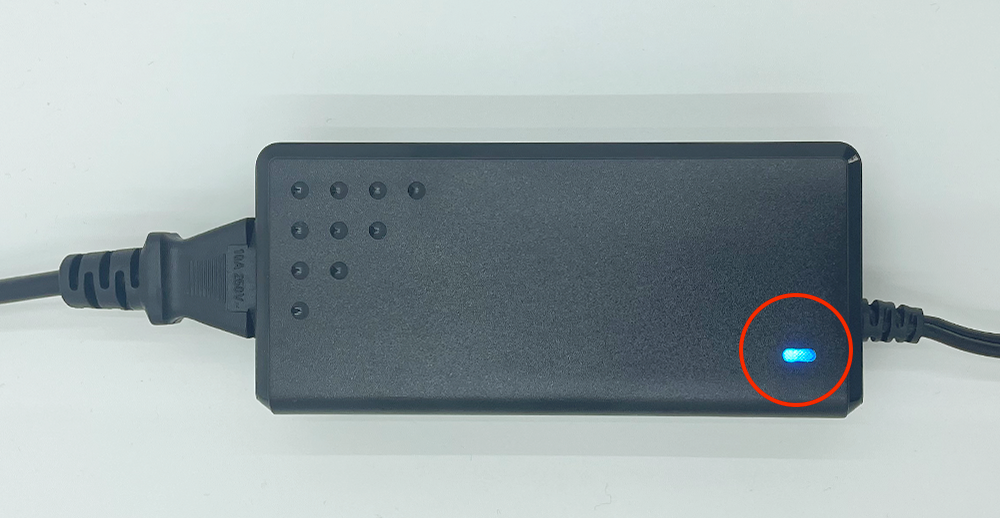
Please also check whether the LED indicator on the power adapter turns on normally. If the power adapter does not appear to be working, stop using it and contact support.
Check the LED status of the Controller Kit
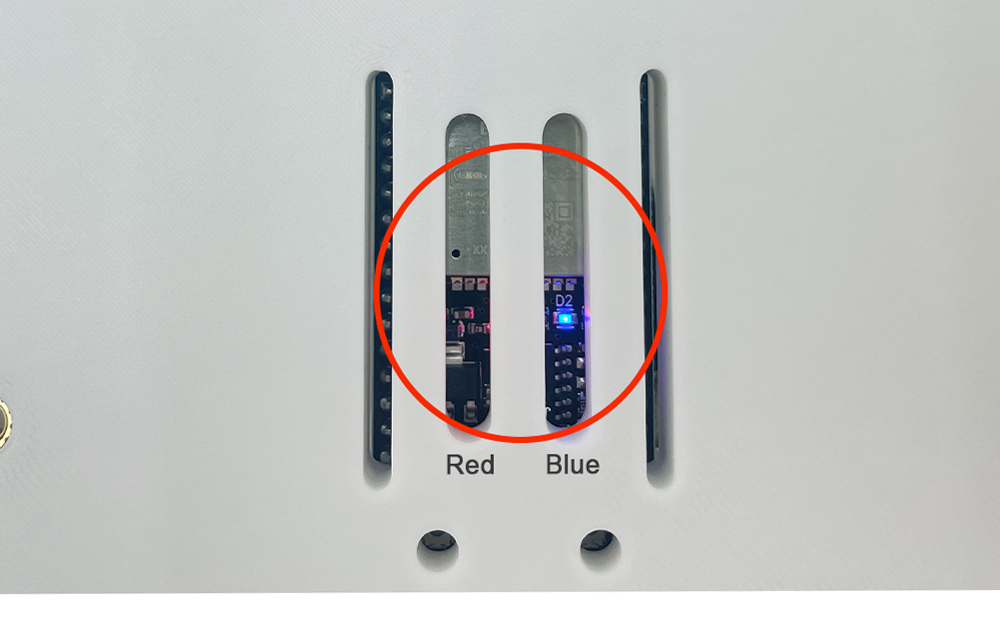
After powering on the device, you can usually observe the Controller Kit LED status through the rear ventilation holes of the machine.
Under normal conditions, the red LED lights up first, followed by the blue LED.
Please check the following:
- If the red LED turns on but the blue LED never turns on, the firmware may not be starting correctly. Please try updating the firmware using the Firmware Update tool.
- If neither the red LED nor the blue LED turns on, and the power adapter is working normally, the internal power wiring may be loose or disconnected.
Check the internal wiring
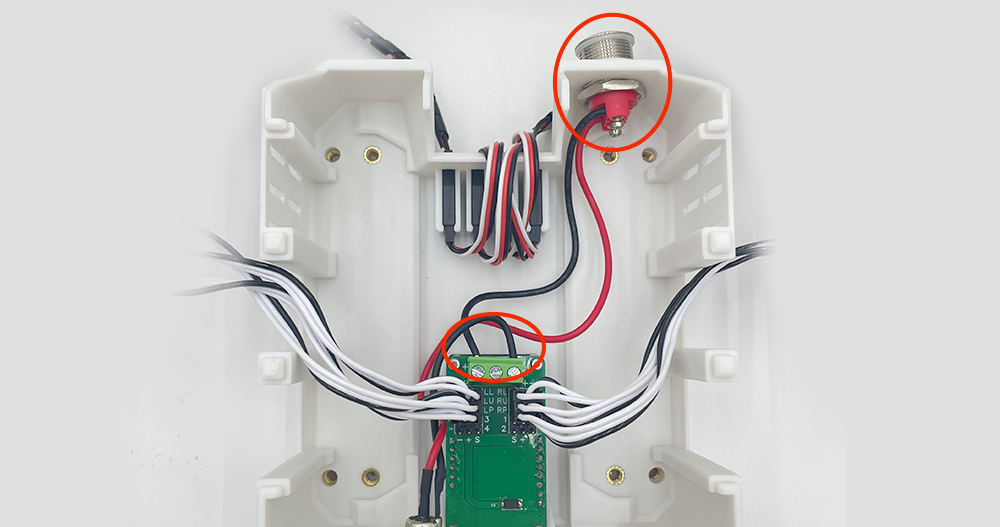
If you have recently replaced a servo or opened the device, please check the internal wiring carefully.
Before opening the device, always turn off the power and disconnect the power adapter.
After opening the cover, please check the following:
- Make sure the power wires are firmly connected.
- Check that there is no loose wire or short circuit around the power connector.
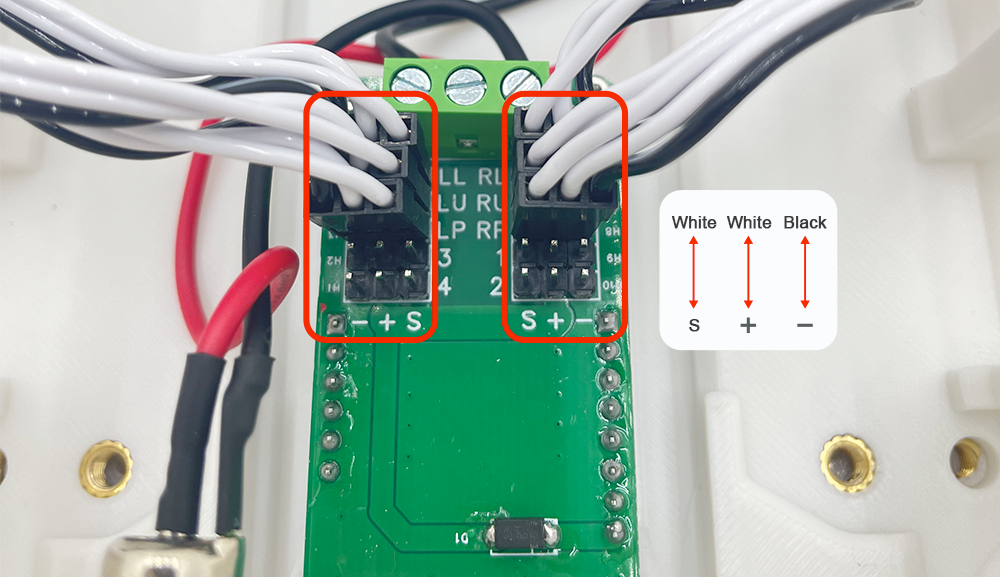
- Confirm that each servo cable is connected to the correct port on the Controller Kit.
- Make sure the servo cable pins are connected in the correct direction.
Please pay special attention to the + / – / S pins. If these pins are connected incorrectly, the servo may not move.
Connecting a servo to the wrong port may usually cause abnormal motion, but it normally does not cause all servos to stop moving. However, reversed or incorrect + / – / S wiring can prevent the servo from working properly
Still not sure what the problem is?
If you have checked the power adapter, Controller Kit LED status, firmware, and internal wiring, but the device still does not move, please submit a Support Request.
When contacting us, please include the following information if possible:
- Your order number
- Device model
- Firmware version, if available
- App or software used
- A short video showing what happens after power-on
- A clear photo or video of the Controller Kit LED status
- A photo of the internal wiring, especially if the device was opened or a servo was replaced
This information will help us identify the issue more quickly and provide the correct solution.